WordPress
Multi Currency for WooCommerce
Free + Pro
990 UAH/year
v1.1.2
 All Access4 990 ₴ / year
 Website auditA PDF report by email in 3 minutesCheck a website
Everyday tasks
Image compressorSize, quality and WebP in bulkQR generatorLink, Wi-Fi, payment to IBANVAT calculator20, 14, 7% and amount in wordsTransliterationOfficial Ukrainian standardWebsite checks
PHP and pluginsPHP version, WordPress, pluginsGoogle Merchant feedFields, prices, GTIN, imagesDomain emailSPF, DKIM, DMARC, blacklistsAI search readinessllms.txt, bots, markupAll 9 toolsEnter at least 2 characters
A multi-currency plugin for WooCommerce: prices in the buyer's currency at the NBU rate, with the order and the payment always in one currency. 1 extra currency free, Pro is unlimited. 990 UAH/year.
Clear even without sound: Ukrainian subtitles
The free version works with no time limit. Pro adds the rest of the features in the table.


The most common way multi-currency plugins break: the page shows a price in one currency while the payment gateway charges the amount in another, or the payment signature is computed from the wrong currency.

The [catcode_currency_switcher] shortcode goes into a menu, the header or the footer and renders as a list or a dropdown.

Orders in a foreign currency are converted to the shop’s base currency for WooCommerce Analytics and reports at the rate that applied at the time of the order itself — not at today’s rate, which may well have moved since.

A fresh install is the free version, nothing switches on by itself. The “Try Pro for 7 days” button → e-mail → the key right in the window and by e-mail.

Moving the store? Unbind the licence on the old domain and activate it on the new one yourself. For studios — keys for 5 or 25 sites, or unlimited.
 WordPress 5.6 or newer, WooCommerce 6.0 or newer, PHP 7.4 or newer. Compatible with HPOS, the classic checkout and the block checkout. Refreshing the rate needs outgoing HTTPS to api.bank.gov.ua and a working WP-Cron (or a system cron).
23 September 2026.
23 September 2026.
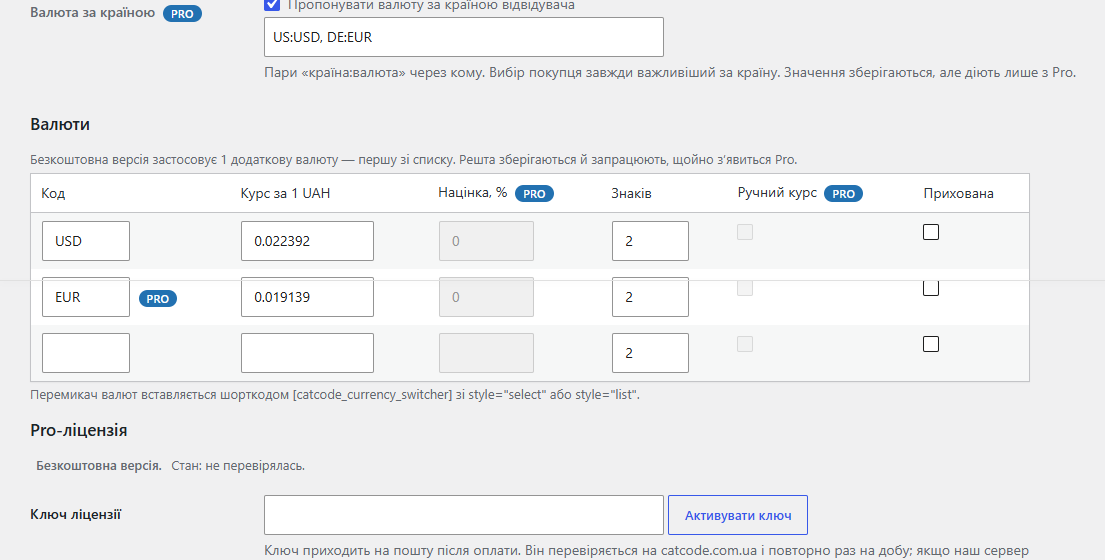
Free / Pro split: the free tier keeps the base currency plus one additional currency at the live NBU rate; Pro adds unlimited currencies, a per-currency markup, a manual rate override and…
4 modules in one order — 40% cheaper than separately


Multi Currency for WooCommerce shows your shop’s prices in the buyer’s own currency at the National Bank of Ukraine rate, while the order and the payment always run in a single currency: swapping the amount or the currency at the payment step is structurally impossible.
The most common way multi-currency plugins break: the page shows a price in one currency while the payment gateway charges the amount in another, or the payment signature is computed from the wrong currency. This module pins the currency at the exact moment the order is placed — the rate at that moment is stored on the order, and the WooCommerce order and the payment gateway then take the amount and the currency from the order itself. A mismatch between what the buyer saw and what went to the gateway cannot happen here.
The [catcode_currency_switcher] shortcode goes into a menu, the header or the footer and renders as a list or a dropdown. The buyer’s currency is remembered for a month. The Pro version can also suggest a currency based on the visitor’s country — the buyer’s own choice always wins over auto-detection.
Orders in a foreign currency are converted to the shop’s base currency for WooCommerce Analytics and reports at the rate that applied at the time of the order itself — not at today’s rate, which may well have moved since.
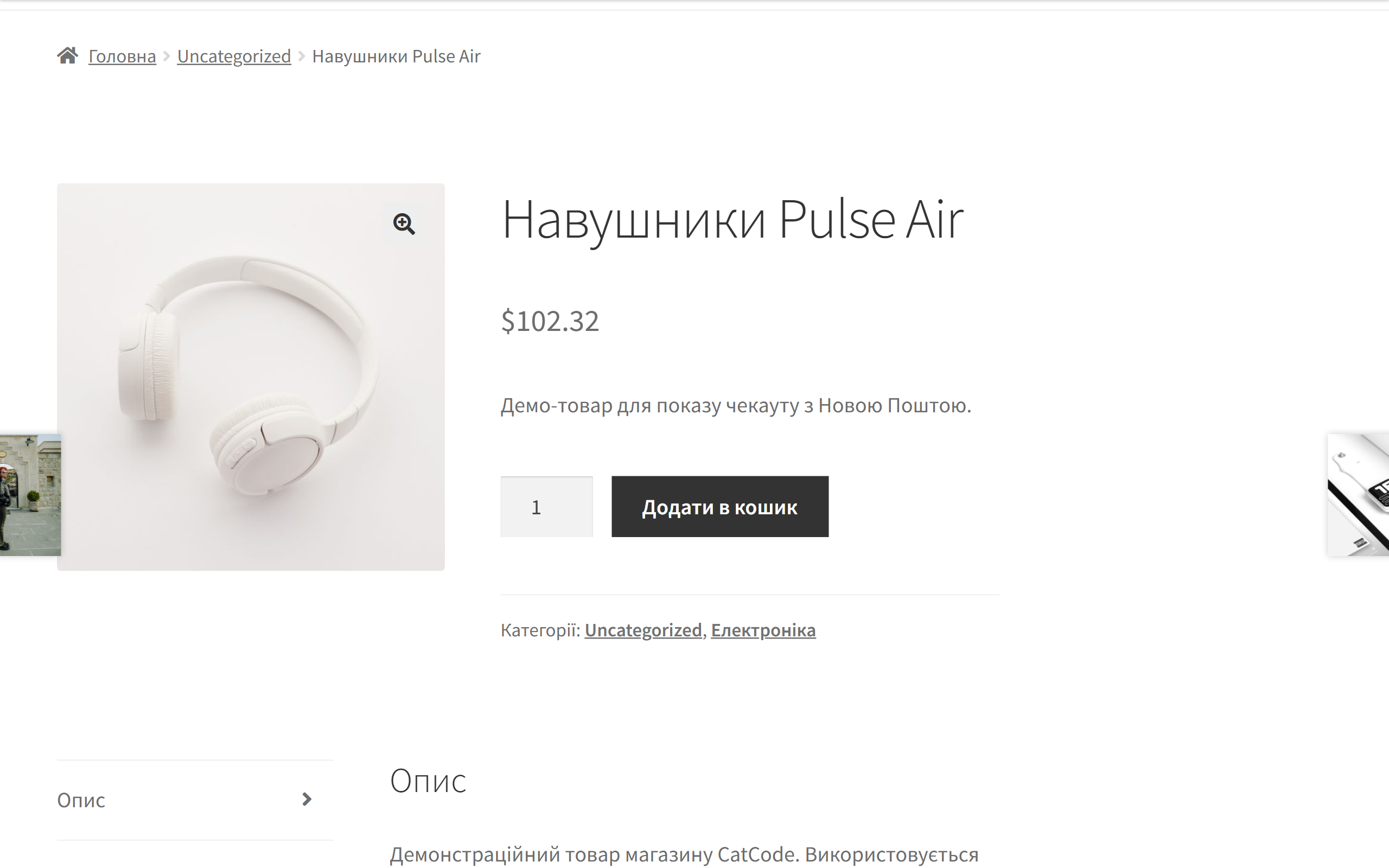
A Ukrainian shop selling abroad runs into something simple: a buyer in Poland or Germany sees a price in hryvnia and has no idea whether that is expensive or not. They will not go and work out the exchange rate — they will leave. Showing the price in a currency they know removes that step.
The second half of the job is harder than the switcher: the order and the payment must be in the same currency. If the storefront showed euro and the gateway charged hryvnia at a different rate, the shop ends up with a reconciliation gap and a complaint from the buyer.
The rate is pulled from the National Bank of Ukraine and refreshes automatically twice a day. It is the official rate, not an exchange one — the same rate accounting uses, so the reports add up.
In Pro the rate can be set manually, or a markup can be added on top of the NBU rate — which is what shops usually do, to cover the acquiring fee and a day’s fluctuation.
The shop’s base currency does not change — it stays hryvnia. Additional currencies are only layered on top as a storefront, so there is nothing to migrate and rolling back is painless.
Rounding is configurable: how many decimal places (0 to 4) to show for each currency.
The second classic failure of currency modules is caching. A page generated for a buyer in euro gets served to the next visitor, who sees somebody else’s currency.
The module adds the currency to the cache vary key, so each currency is cached separately. Caching stays switched on — you do not have to disable it for the sake of multi-currency.
A Pro licence is 990 UAH for two sites (your store and a staging copy). The licence is annual: once it ends the module keeps working, only updates and support stop. We do not promise “forever” — the NBU changes its API format, and a module without updates will one day stop pulling the rate.
The order’s currency and rate are stored in the order’s own meta fields. That is exactly why the payment and the reporting agree: any module that later reads the order sees the same “amount + currency” pair the buyer saw at checkout.
The rate is cached, so the NBU is queried twice a day rather than on every page load. If the API does not answer, the module runs on the last known rate instead of showing the buyer an empty price.
1. Upload the archive in “Plugins → Add New → Upload Plugin” and activate it.
2. In the settings, switch on the currencies you need and hit the rate refresh.
3. Place the switcher with the shortcode wherever you need it — usually in the header.
4. Place a test order in a non-base currency and check that the gateway received the same amount and currency.
5. If you run a cache, warm the pages in both currencies and make sure they have not got mixed up.
Didn't find the answer? Message us on Telegram and we'll reply within a business day.
 @catcode_support
Setup, compatibility, activation
@catcode_support
Setup, compatibility, activation
No. The currency is pinned on the order at checkout and the payment gateway takes the amount and currency from the order itself — there is simply no separate conversion step where they could diverge.
The public exchange rate service of the National Bank of Ukraine, refreshed automatically twice a day. A manual (fixed) rate for an individual currency is available in Pro.
No. Orders in a foreign currency are converted to the shop's base currency for Analytics and reports at the rate that applied at the time of the order itself.
The shop's base currency plus one additional one. Any others you have already configured are kept and switch on the moment you go Pro.
One. The licence is annual: once the term ends the module keeps working, only updates and support stop.
No reviews yet. Be the first.
No questions yet. Ask one — we answer within 24 hours.
We build custom modules for WordPress, WooCommerce, OpenCart and Shopify. Tell us about the task and we'll prepare an estimate.
Order a custom module
—

CatCode assistant
Just now


CatCode assistant
Online

I’ll help with your website task
Describe your website task — I’ll find a ready-made module or pass it to a developer for an estimate. Modules, custom features, layout, integrations, speed, migration, technical SEO.