WordPress
Catalog Sort Rules for WooCommerce — its own product sorting for every category, brand and tag
Free + Pro
990 UAH/year
v1.0.0
 All Access4 990 ₴ / year
 Website auditA PDF report by email in 3 minutesCheck a website
Everyday tasks
Image compressorSize, quality and WebP in bulkQR generatorLink, Wi-Fi, payment to IBANVAT calculator20, 14, 7% and amount in wordsTransliterationOfficial Ukrainian standardWebsite checks
PHP and pluginsPHP version, WordPress, pluginsGoogle Merchant feedFields, prices, GTIN, imagesDomain emailSPF, DKIM, DMARC, blacklistsAI search readinessllms.txt, bots, markupAll 9 toolsEnter at least 2 characters
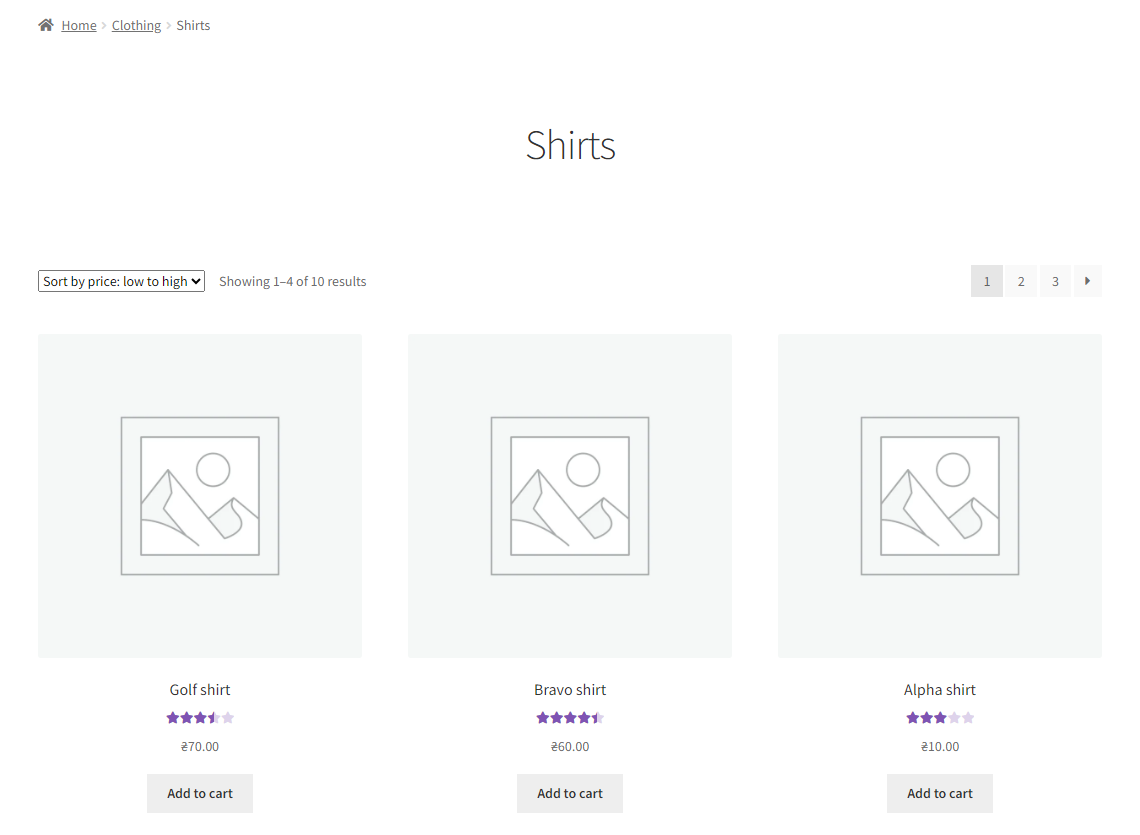

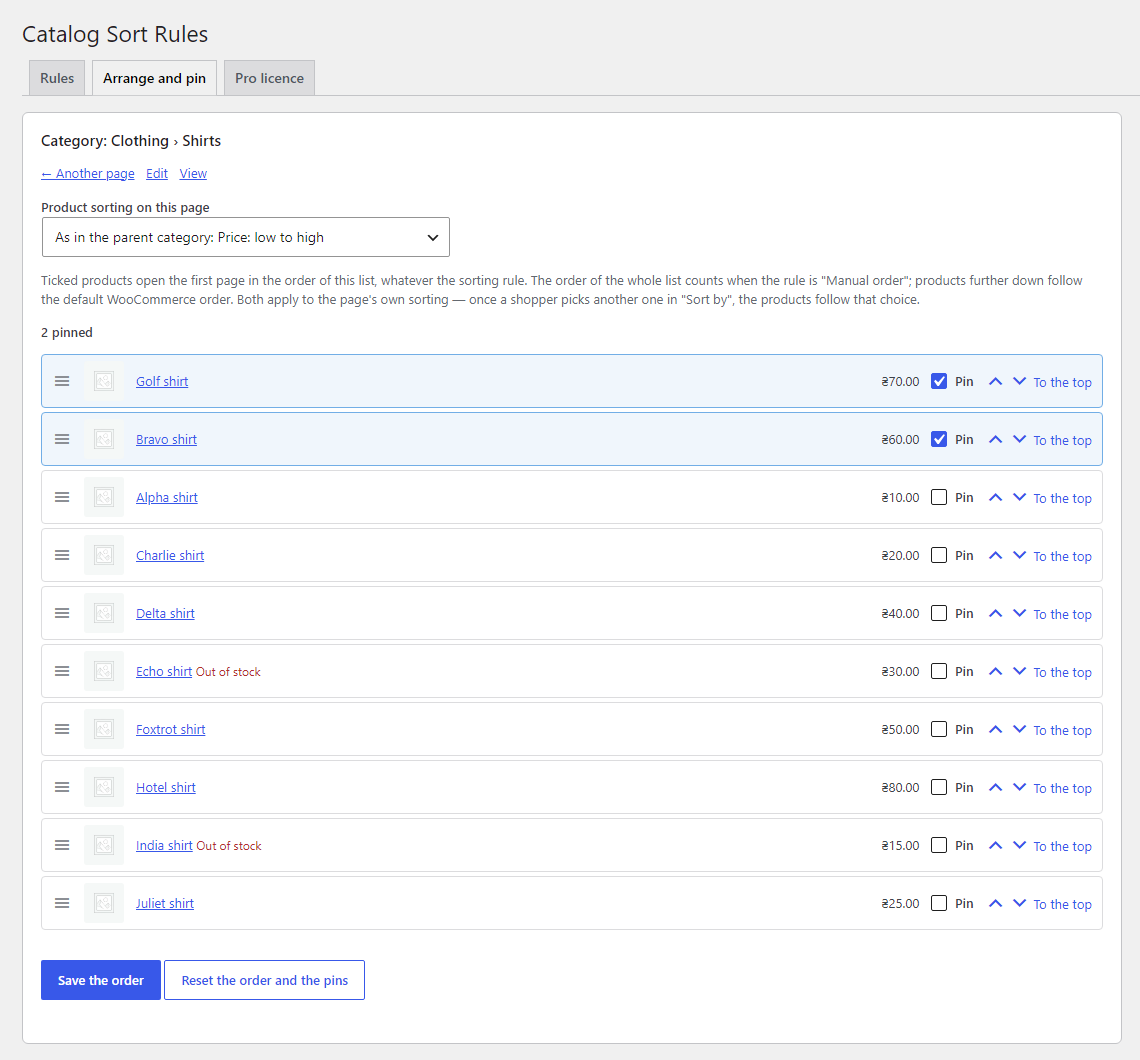
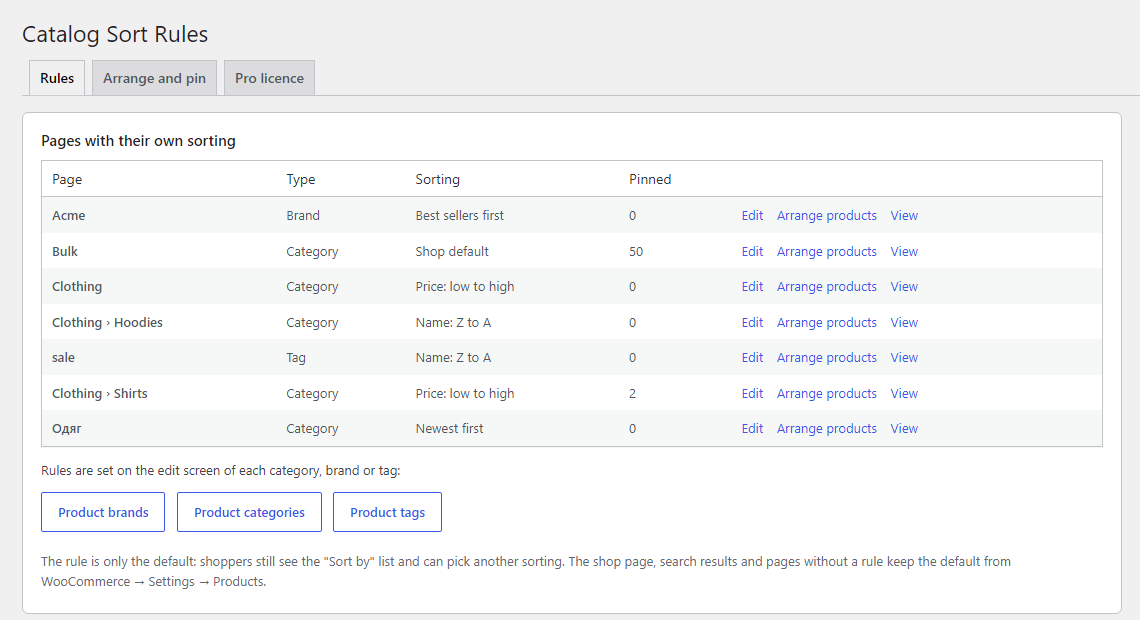
Its own sorting for every category, brand and tag: newest, best sellers, price, rating, name; subcategories inherit the rule. Pro: manual order, pinned products, out-of-stock products at the end.
The free version works with no time limit. Pro adds the rest of the features in the table.



A fresh install is the free version, nothing switches on by itself. The “Try Pro for 7 days” button → e-mail → the key right in the window and by e-mail.

Moving the store? Unbind the licence on the old domain and activate it on the new one yourself. For studios — keys for 5 or 25 sites, or unlimited.
 WordPress 6.2+ · WooCommerce 7.0+ · PHP 7.4+; compatibility with HPOS and the block checkout is declared (the plugin does not touch orders).Themes: classic (tested on Storefront) and block themes (Twenty Twenty-Five — the catalogue template with the Product Collection block in “inherit query” mode and the Catalog Sorting block).Filters: tested together with Smart Filter for WooCommerce — with and without a filter, with AJAX filtering, on category and brand pages.Multilingual: tested with Polylang and Polylang Multilingual Shop — every translation of a category has its own rule.Interface languages: English, Ukrainian, Russian.
A sorting rule for every category, brand and tag, inheritance by subcategories, the “Sorting” column, the list of rules, page cache clearing after changes; English, Ukrainian, Russian.
4 modules in one order — 40% cheaper than separately



Catalog Sort Rules for WooCommerce gives every product category, brand and tag its own default sorting. WooCommerce has one for the whole catalogue: if the settings say “by popularity”, then “New arrivals”, “Sale” and every brand page all open by popularity. A shop usually wants something else — new arrivals starting with the newest products, a sale with the cheapest, a brand with its best sellers.
The plugin handles this at the level of the category itself: the edit screen of a category, brand or tag gets a “Product sorting on this page” field. A subcategory without a rule of its own takes the rule of the nearest parent, so one rule on “Clothing” covers all of its subcategories. Shoppers lose nothing: the “Sort by” list stays, shows the page rule as selected, and a shopper can pick another sorting.
There is a separate version for OpenCart — Catalog Sort Rules for OpenCart.
A shopper opens a category and sees the products in the order you chose for it: “New arrivals” starting with the newest, “Sale” with the cheapest, a brand page with its best sellers. The matching entry is already selected in the “Sort by” list, so nothing looks odd: if the rule is “by name”, the plugin adds a “Sort by name: A to Z” or “Z to A” entry, which WooCommerce does not have.
A shopper can pick another sorting in the list and gets exactly that. Pagination, the result count, filters and layered navigation work as before: only the order changes, not the set of products. The shop page, search and categories without a rule keep the sorting from the WooCommerce settings.
woocommerce_default_catalog_orderby filter only on pages that have a rule, so the query, the “Sort by” list, themes and filters work the same as on the shop page.ORDER BY of the main archive query; WHERE is not changed — pagination, the result count and filters see the same set of products, with no duplicates across pages.wc_product_meta_lookup table, with no query per product.Didn't find the answer? Message us on Telegram and we'll reply within a business day.
 @catcode_support
Setup, compatibility, activation
@catcode_support
Setup, compatibility, activation
No. The shop page, search and categories without a rule keep the sorting from the WooCommerce settings.
Yes. The "Sort by" list stays; the rule only decides what is selected in it when the page opens.
No, on purpose: the shopper gets the order they picked. Pins and the manual order apply to the page's own sorting.
No, the plugin clears the page cache of popular caching plugins after a rule, an order or pins are saved.
The manual order and the pins stay saved, and the pages are sorted by their rules until a licence is active.
No reviews yet. Be the first.
No questions yet. Ask one — we answer within 24 hours.
We build custom modules for WordPress, WooCommerce, OpenCart and Shopify. Tell us about the task and we'll prepare an estimate.
Order a custom module
—

CatCode assistant
Just now


CatCode assistant
Online

I’ll help with your website task
Describe your website task — I’ll find a ready-made module or pass it to a developer for an estimate. Modules, custom features, layout, integrations, speed, migration, technical SEO.