
OpenCart
Catalog Sort Rules for OpenCart — your own product order for every category, brand and tag
Free + Pro
990 UAH
v1.0.0
 All Access4 990 ₴ / year
 Website auditA PDF report by email in 3 minutesCheck a website
Everyday tasks
Image compressorSize, quality and WebP in bulkQR generatorLink, Wi-Fi, payment to IBANVAT calculator20, 14, 7% and amount in wordsTransliterationOfficial Ukrainian standardWebsite checks
PHP and pluginsPHP version, WordPress, pluginsGoogle Merchant feedFields, prices, GTIN, imagesDomain emailSPF, DKIM, DMARC, blacklistsAI search readinessllms.txt, bots, markupAll 9 toolsEnter at least 2 characters




A module for OpenCart 4, 3 and 2.3 that sets the default product order separately for every category, brand page and tag page: newest first in one category, cheapest first in another, bestsellers on a brand page, or a hand-made drag-and-drop order with pinned "top" products at the start. The rule applies until the shopper picks a sorting himself — his choice always wins. No core edits, no OCMOD.
The free version works with no time limit. Pro adds the rest of the features in the table.



A fresh install is the free version, nothing switches on by itself. The “Try Pro for 7 days” button → e-mail → the key right in the window and by e-mail.

Moving the store? Unbind the licence on the old domain and activate it on the new one yourself. For studios — keys for 5 or 25 sites, or unlimited.
 OpenCart 4.0.2 – 4.1.x (tested on 4.1.0.3 and 4.0.2.3, with the mysqli and pdo database drivers), 3.0.x (tested on 3.0.5.0) or 2.3.0.2.PHP — whatever your OpenCart version needs: the 2.3 build was tested on PHP 7.0, the others on PHP 8.1–8.3. The cURL extension is needed for the Pro licence.Database: tested on MariaDB 10.11.Theme: any theme that shows categories, brands and tags with the standard OpenCart pages (product/category, product/manufacturer, product/search with a tag).
For OpenCart 4.x, 3.x and 2.3: product order rules for categories (with subcategories) and for all categories, standard orders, “in stock first”.
4 modules in one order — 40% cheaper than separately



Catalog Sort Rules for OpenCart is a module for stores where one product order for the whole catalogue is not enough. In standard OpenCart the “Default” order is the same for every page: the “Sort Order” field on the product form. But you want it to differ: newest first in “Smartphones”, cheapest first in “Accessories”, bestsellers on a brand page, and a hand-made order with “top” products at the start in a category with a seasonal offer.
The module sets the default order separately for each category, brand page and tag page. The rule applies until the shopper picks a sorting himself: as soon as he picks “Price” or “Name”, the list is sorted exactly as he asked. The module does not touch the OpenCart core, templates or OCMOD patches.
It works together with our Smart Filter and Smart Search for OpenCart — tested on one store with all three modules.
Running WooCommerce? There is a separate Catalog Sort Rules for WooCommerce plugin with the same approach: its own sorting for every category, brand and tag, pinned products and a manual order.
The shopper opens a category and sees the products in the order you set for it: pinned first, then by the rule, out-of-stock products at the end. Nothing new appears on the page: no scripts, no extra requests, and “Sort By” still shows “Default”. As soon as the shopper picks another sorting, he gets exactly that — the module does not force its order on someone who has already decided how to browse.
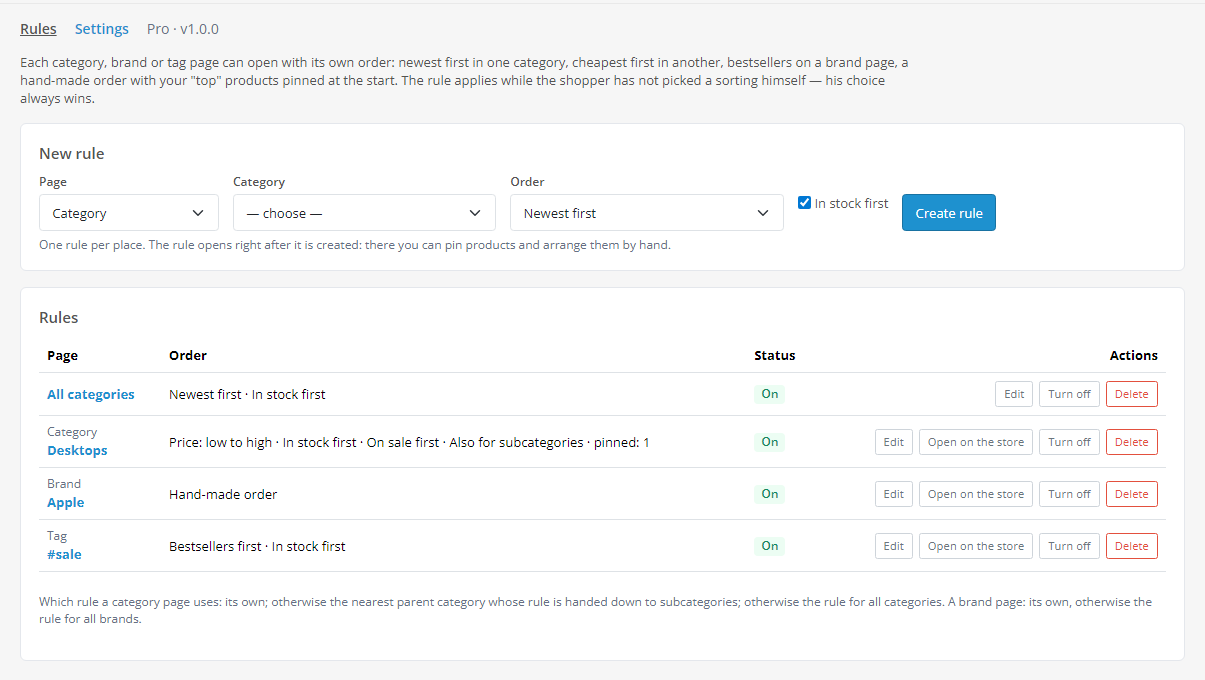
The menu item Catalog → “Sort rules” with the list of rules, and a “Settings” page.
For the “Hand-made order” the module lists all products of the page (up to 2000): drag them with the mouse or use the arrows to put them in the order you need, then save. Products added to the category later go after this list in the store default order.
getProducts() of the OpenCart product model. One class library is identical in all three builds, and the code is PHP 7.0 compatible.ORDER BY for one query only.oc_cc_catsort_rule, oc_cc_catsort_item (pinned products and the hand-made order), oc_cc_catsort_stat (sales for bestsellers). Core tables are not changed.cc_catsort.ocmod.zip (do not rename the archive) and press “Install”. OpenCart 3: Extensions → Installer → cc_catsort-oc3.ocmod.zip. OpenCart 2.3: upload the contents of the upload/ folder from cc_catsort-oc2.ocmod.zip to the store root (FTP or the hosting file manager) — the 2.3 Installer does not copy files without a configured FTP.Didn't find the answer? Message us on Telegram and we'll reply within a business day.
 @catcode_support
Setup, compatibility, activation
@catcode_support
Setup, compatibility, activation
Exactly what he picked: OpenCart sorts the list as usual, and the module rule does not apply at that moment. The rule works while "Sort By" shows "Default". Only pinned products can be kept on top while the shopper sorts — with a separate Pro option.
A category page takes its own rule. If there is none, it takes the rule of the nearest parent category that has "Also for subcategories" on. If there is none either, it takes the "All categories" rule. A brand page takes its own rule or "All brands".
Tested with our Smart Filter: when the shopper picks a filter value, only the matching products stay, in the rule order, and a pinned product shows up only if it passes the filter itself. Filters by other developers that build the product list with their own query, bypassing the OpenCart model, will not pick up the rule.
The module does not touch text search: there the order comes from relevance (for example, our Smart Search). A tag rule works on the tag page — the link from a tag on the product page.
No. No core edits and no OCMOD: the module only changes the order of the product list on the page through OpenCart events. Prices, specials and customer groups are calculated by the core as before, and the "Featured" or "Latest" blocks on the same page do not change.
No. For OpenCart it is a single payment and a lifetime licence, one for all three builds: 4.x, 3.x and 2.3. The Pro trial starts only when you press the button. Without Pro, brand and tag rules are paused (kept), and a hand-made order or bestsellers in a category rule fall back to the store default order.
Uninstalling removes the events, and the storefront goes back to the standard order at once. The rule tables stay so that a reinstall or an update can see them. To remove everything, drop the tables oc_cc_catsort_rule, oc_cc_catsort_item and oc_cc_catsort_stat.
No reviews yet. Be the first.
No questions yet. Ask one — we answer within 24 hours.
We build custom modules for WordPress, WooCommerce, OpenCart and Shopify. Tell us about the task and we'll prepare an estimate.
Order a custom module
—

CatCode assistant
Just now


CatCode assistant
Online

I’ll help with your website task
Describe your website task — I’ll find a ready-made module or pass it to a developer for an estimate. Modules, custom features, layout, integrations, speed, migration, technical SEO.