
WordPress
Merchant Image Audit for WooCommerce — product image audit for the Google Merchant Center 500×500 minimum
Free + Pro
990 UAH/year
v1.0.1
 All Access4 990 ₴ / year
 Website auditA PDF report by email in 3 minutesCheck a website
Everyday tasks
Image compressorSize, quality and WebP in bulkQR generatorLink, Wi-Fi, payment to IBANVAT calculator20, 14, 7% and amount in wordsTransliterationOfficial Ukrainian standardWebsite checks
PHP and pluginsPHP version, WordPress, pluginsGoogle Merchant feedFields, prices, GTIN, imagesDomain emailSPF, DKIM, DMARC, blacklistsAI search readinessllms.txt, bots, markupAll 9 toolsEnter at least 2 characters

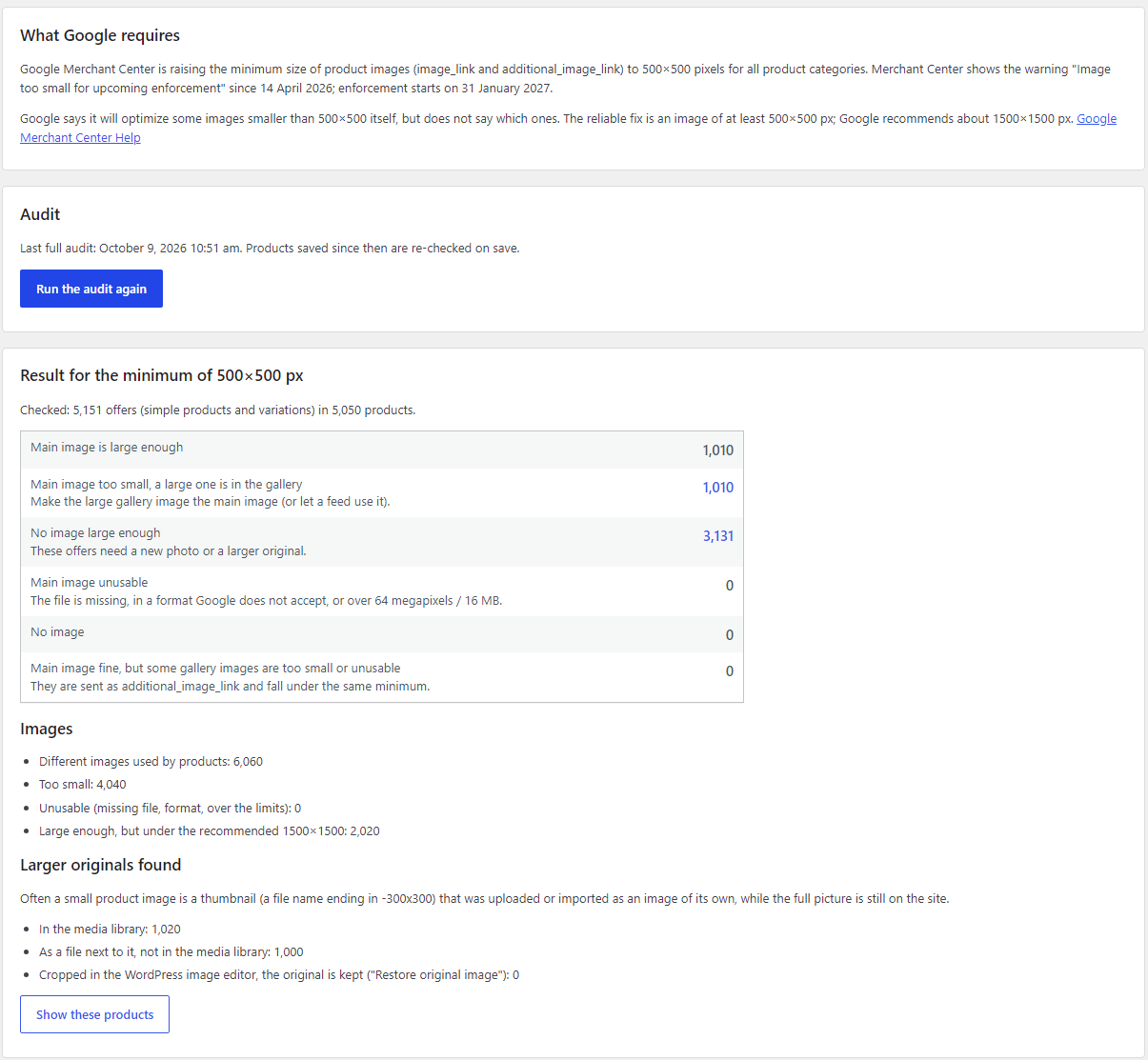
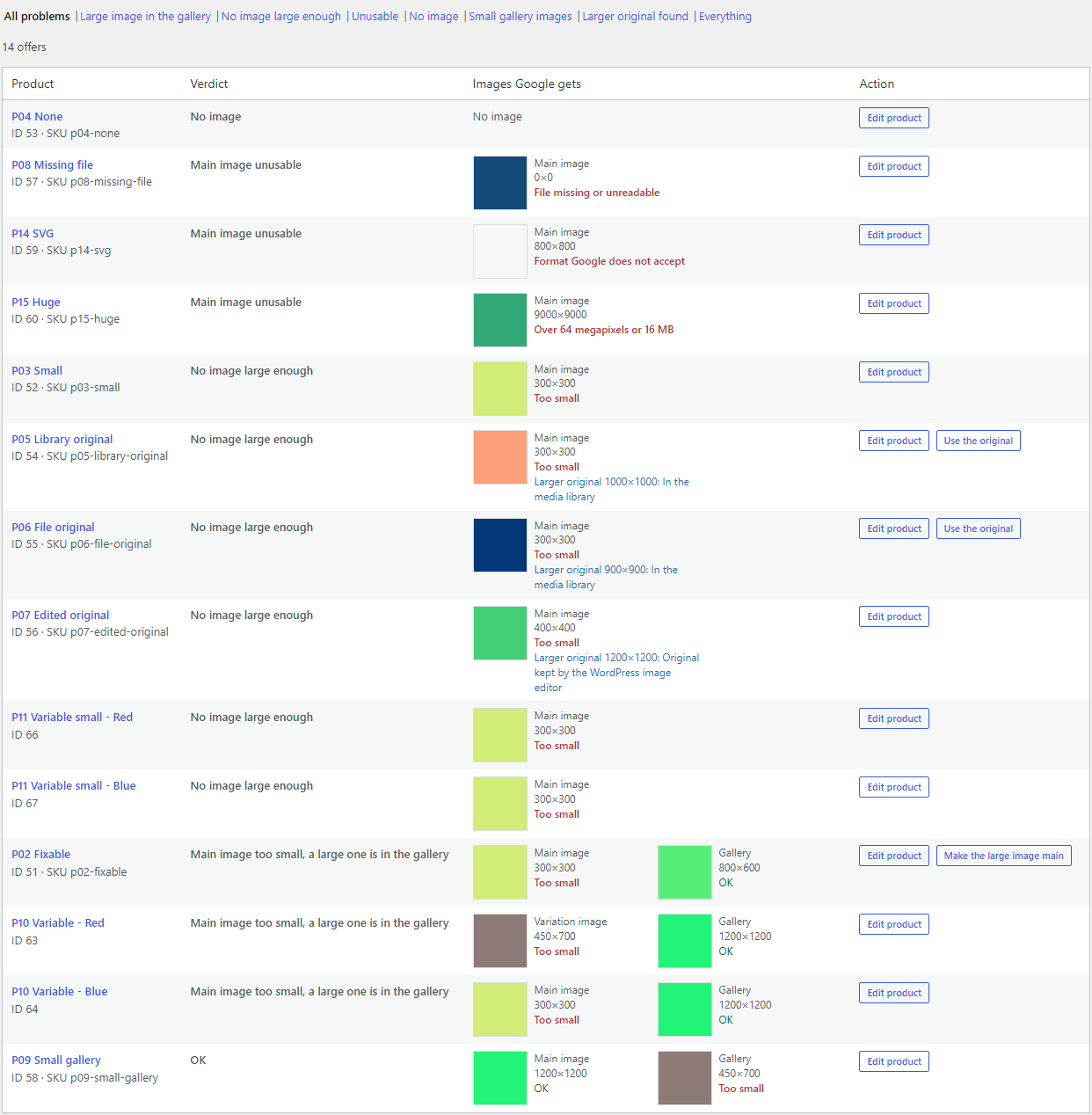
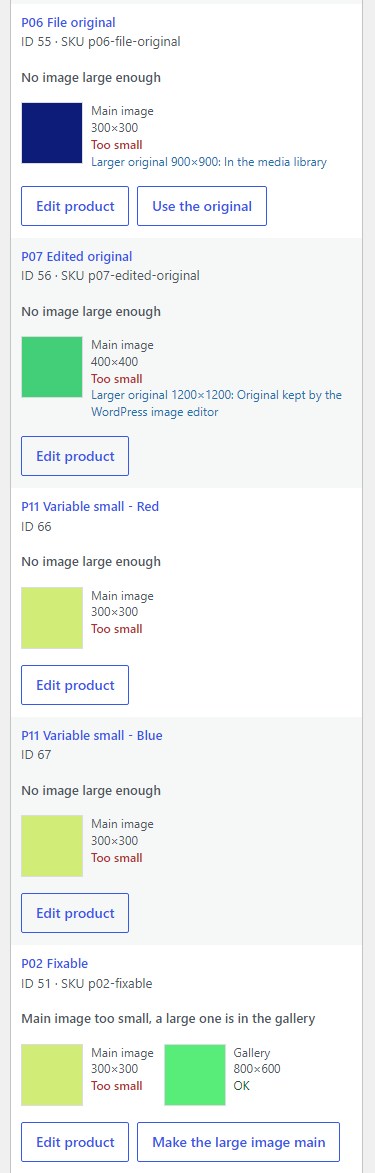
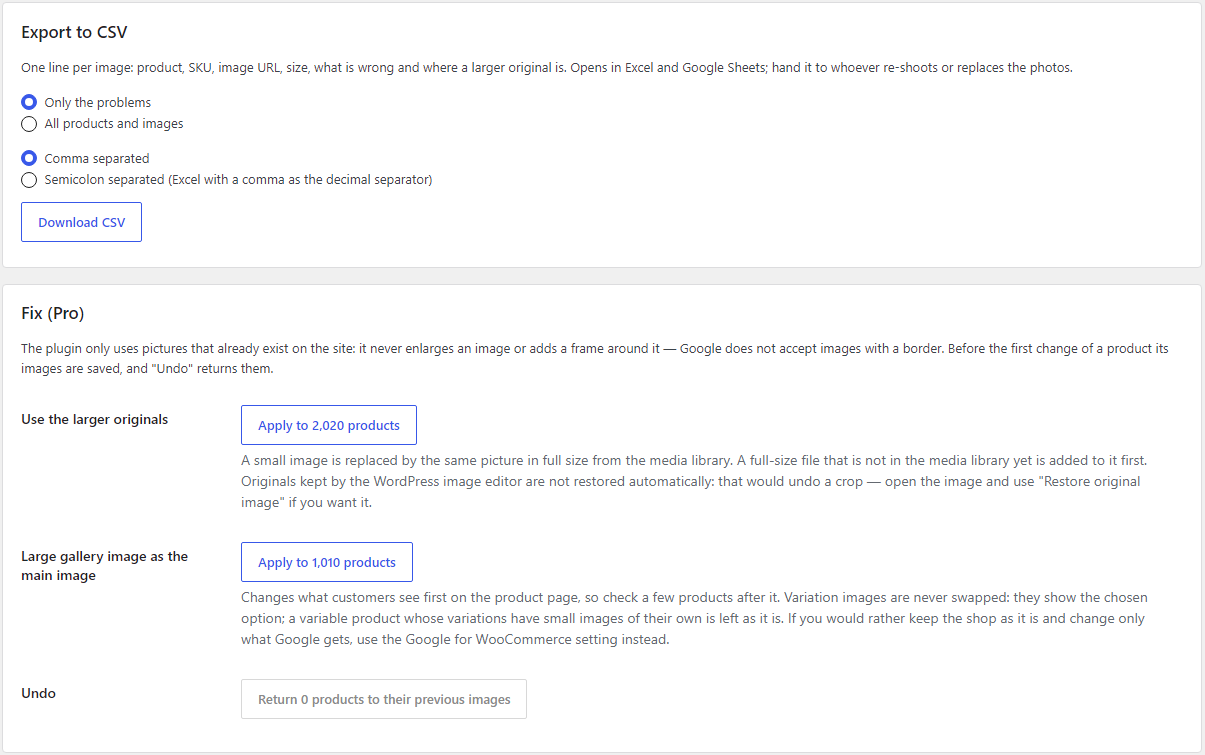
Finds product images smaller than 500×500 px — the Google Merchant Center minimum from 31 January 2027 — and the larger originals already on your site. A verdict for every product and variation, a filtered list, a Products column, CSV, WP-CLI. Pro puts the larger originals in place, makes a large gallery image the main one (with undo) and changes what Google for WooCommerce sends.
The free version works with no time limit. Pro adds the rest of the features in the table.



A fresh install is the free version, nothing switches on by itself. The “Try Pro for 7 days” button → e-mail → the key right in the window and by e-mail.

Moving the store? Unbind the licence on the old domain and activate it on the new one yourself. For studios — keys for 5 or 25 sites, or unlimited.
 WordPress 6.2+ · WooCommerce 7.0+ · PHP 7.4+; HPOS compatibility declared.Google for WooCommerce — optional. The audit, CSV and image fixes in the shop work without it; the Pro Google for WooCommerce settings apply when it is installed (tested with version 3.9.5).Other feed plugins — through the catcode_gmc_image field (Pro), if the feed can filter by a custom field.Images in S3 or other cloud storage — switch off the file check; the file-next-to-it lookup then finds nothing, because the files are not on the server.Interface languages: English, українська, русский.
Updates from catcode.com.ua: new Pro versions show up in Dashboard → Updates and install in one click while the licence covers updates.
Audit of main images, galleries and variation images against the Google Merchant Center minimum, a verdict for every offer, larger original lookup (media library, file next to it, WordPress…
4 modules in one order — 40% cheaper than separately


Merchant Image Audit for WooCommerce finds product images smaller than 500×500 pixels and shows where a larger original already sits on your site. Google Merchant Center is raising the minimum product image size — image_link and additional_image_link — to 500×500 px for all product categories. Merchant Center has shown the warning “Image too small for upcoming enforcement” since 14 April 2026, and enforcement starts on 31 January 2027. Google says it will optimize some smaller images itself, but it does not say which ones.
A shop that has been importing products for years can have thousands of such images and no way to see them: WordPress shows every picture as a neat thumbnail. The plugin checks every image of every product and tells you which products need attention and what to do about them.
For OpenCart there is a separate version — Merchant Image Audit for OpenCart.
What the plugin does not do. It never enlarges an image and never adds a frame around it: Google’s help does not say enlarged images are accepted, and it asks not to use images with a border. An enlarged small picture is still a small picture. The plugin works only with images that are already on the site.
The audit runs in the admin and shows nothing to buyers. Buyers only notice the result of the Pro fixes: the product page shows a large main image instead of a blurry thumbnail, and the small one moves to the gallery. Google gets images that pass the minimum — so the product does not get limited because of its image size.
The plugin checks exactly the images Google for WooCommerce sends to Google: the main image (or the first gallery image when there is none) as image_link, the gallery as additional_image_link; a variation without its own image uses the parent’s. It takes the full-size image WordPress serves.
wp catcode-mia scan, wp catcode-mia summary, wp catcode-mia export file.csv.additional_image_link; set “Don’t Sync and show” for products with no large image at all — the previous value is kept, and the product is synced again as soon as the audit finds a large image for it. “Sync them again” returns all such products by hand.catcode_gmc_image (ok, fixable, small, bad, none) on every product and variation — for other feed plugins that can filter by a custom field.On a test catalogue of 5,050 products the audit took 33–37 seconds on PHP 7.4 and 8.3, with the longest request at 0.4 s. “Use the larger originals” for 2,000 products (importing 1,000 files into the media library) took 5.5 minutes without a single error; undo for 3,000 products took a minute.
max_execution_time, and an interrupted audit continues.woocommerce_gla_product_attribute_values (imageLink and additionalImageLinks) and its visibility meta; tested on both adapters — Content API and Merchant API.catcode-merchant-image-audit-for-woocommerce-free-1.0.1.zip and activate.Didn't find the answer? Message us on Telegram and we'll reply within a business day.
 @catcode_support
Setup, compatibility, activation
@catcode_support
Setup, compatibility, activation
The audit does not. It only reads the image sizes and stores the result in its own tables. Only the Pro fix buttons change products, and only after you confirm; the previous images of every product are saved and "Undo" brings them back.
500×500 px by default — the Google Merchant Center minimum for image_link and additional_image_link from 31 January 2027. You can raise it in the settings, for example to the 1500×1500 Google recommends.
The plugin does not do it and does not promise it. Google's help page for image_link sets the minimum and does not say that enlarged images are accepted, and an enlarged small picture does not get any sharper. We do not add a frame either: Google asks not to use images with a border. Use a larger original or a new photo.
Some feed plugins do have a minimum-size option (Product Feed PRO, for example, swaps in a larger gallery image or drops the product from the feed). The audit shows exactly which products are affected and why, where the larger original is, gives you a CSV for whoever re-shoots the photos, and Pro fixes the images in the shop itself — so the storefront and any feed get the large image.
The audit checks the full-size image. Some feed plugins let you choose which image size goes into the feed; if yours sends a smaller size, Google gets that smaller image. Set the feed to the full size.
Switch off "Check that files exist" in the settings: the audit then relies on the sizes WordPress stored and does not look for the files on the server. We have not tested offload plugins separately.
The next time it sends the product to Merchant Center — that is how Google for WooCommerce itself works. The shop stays as it is: only what goes to Google changes.
Its tables and settings are removed. Products the plugin had set to "Don't Sync and show" get their previous visibility back.
The audit, verdicts, original lookup, list, column, CSV and WP-CLI stay free with no time limit and no product limit.
No reviews yet. Be the first.
No questions yet. Ask one — we answer within 24 hours.
We build custom modules for WordPress, WooCommerce, OpenCart and Shopify. Tell us about the task and we'll prepare an estimate.
Order a custom module
—

CatCode assistant
Just now


CatCode assistant
Online

I’ll help with your website task
Describe your website task — I’ll find a ready-made module or pass it to a developer for an estimate. Modules, custom features, layout, integrations, speed, migration, technical SEO.