
OpenCart
Order Archive for OpenCart — archive old orders without losing their history
Free + Pro
1 290 UAH
v1.0.0
 All Access4 990 ₴ / year
 Website auditA PDF report by email in 3 minutesCheck a website
Everyday tasks
Image compressorSize, quality and WebP in bulkQR generatorLink, Wi-Fi, payment to IBANVAT calculator20, 14, 7% and amount in wordsTransliterationOfficial Ukrainian standardWebsite checks
PHP and pluginsPHP version, WordPress, pluginsGoogle Merchant feedFields, prices, GTIN, imagesDomain emailSPF, DKIM, DMARC, blacklistsAI search readinessllms.txt, bots, markupAll 9 toolsEnter at least 2 characters

A module for OpenCart 4, 3 and 2.3 that moves old completed orders out of the working tables into a separate archive. The admin order list and search get lighter, while the customer still sees all his orders in the account, reports still count archived orders and the order page opens as before. Any change to an archived order first brings it back to the store. No core edits and no OCMOD.
The free version works with no time limit. Pro adds the rest of the features in the table.


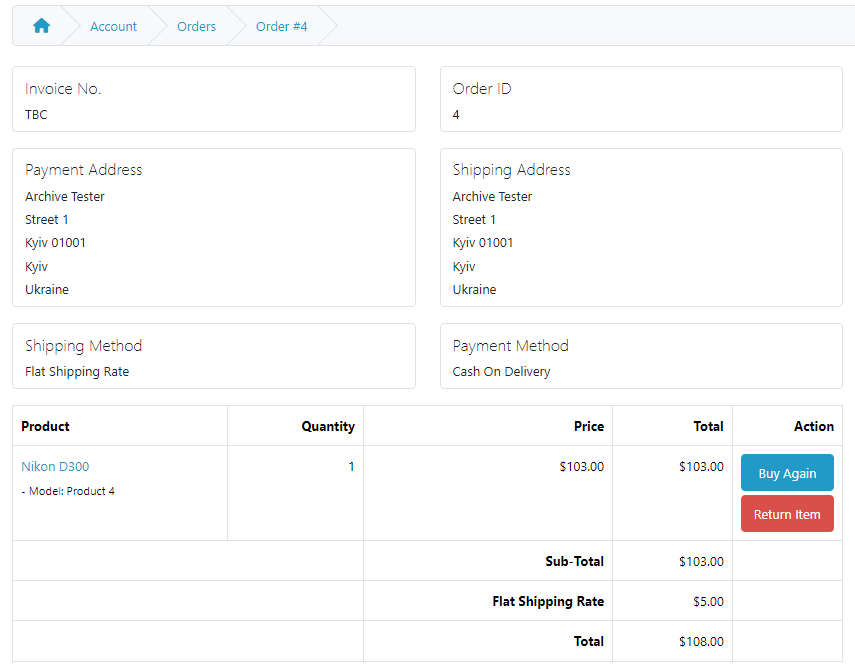
Nothing changes for the customer. He opens “Order History” and sees all his orders — new ones and three-year-old ones — in one list, in the same order and with the same pages.

An “Order archive” item in the “Sales” menu with three tabs.

A fresh install is the free version, nothing switches on by itself. The “Try Pro for 7 days” button → e-mail → the key right in the window and by e-mail.

Moving the store? Unbind the licence on the old domain and activate it on the new one yourself. For studios — keys for 5 or 25 sites, or unlimited.
 OpenCart 4.0.2 – 4.1.x (tested on 4.1.0.3 and 4.0.2.3, with the mysqli and pdo database drivers), 3.0.x (tested on 3.0.5.0) or 2.3.0.2.PHP — whatever your OpenCart version needs: the 2.3 build was tested on PHP 7.0, the others on PHP 8.1–8.3. The cURL extension is needed for the Pro licence.Database: tested on MariaDB 10.11 with InnoDB tables.Schedule (Pro): in OpenCart 4 — the standard scheduler (Extensions > Cron Jobs) or hosting cron; in 3.x and 2.3 — hosting cron on a URL with a secret key shown by the module.
An archive of old orders readable by the customer account, the order page, the invoice, reports and modules; automatic restore on any change, including from Multi PRRO and Returns &…
4 modules in one order — 40% cheaper than separately



Order Archive for OpenCart is a module for stores that have collected tens of thousands of orders over the years. Standard OpenCart keeps all orders in the same tables: every list, search, filter and counter in the admin header goes through both fresh orders and those completed three years ago. Deleting old orders is not an option: customers open them in their account, accounting needs reports, and returns and CRM need the history.
The module moves old completed orders to separate archive tables and makes sure OpenCart “does not notice”: the customer still sees all his orders in the account, the order page and invoice open in the admin, and reports still count archived orders. Any change to an archived order — a new status, a payment callback, a status from a CRM — first brings it back to the store. The module does not touch the OpenCart core, templates or OCMOD patches.
Running WooCommerce? There is a separate Order Archive for WooCommerce plugin with the same approach: old orders go into a compressed archive, reports and customer totals stay the same, search and one-click restore.
Nothing changes for the customer. He opens “Order History” and sees all his orders — new ones and three-year-old ones — in one list, in the same order and with the same pages. He opens an old order and sees the products, totals, addresses and status history. “Reorder” puts the product into the cart, “Return” opens the return form filled with the order data.
The archive does not affect new orders: the standard checkout and One Page Checkout work as usual, and new order numbers continue after the archived ones.
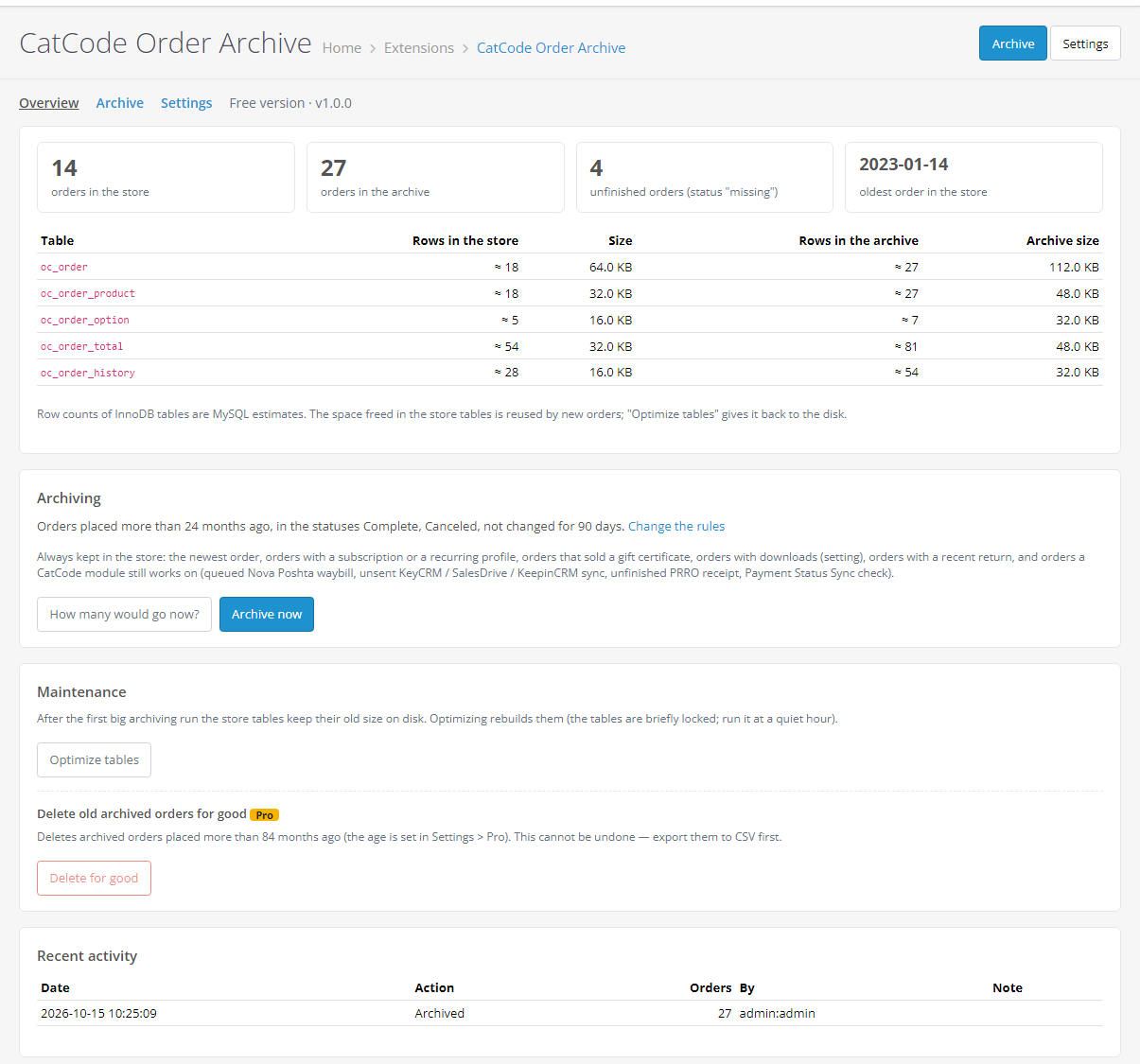
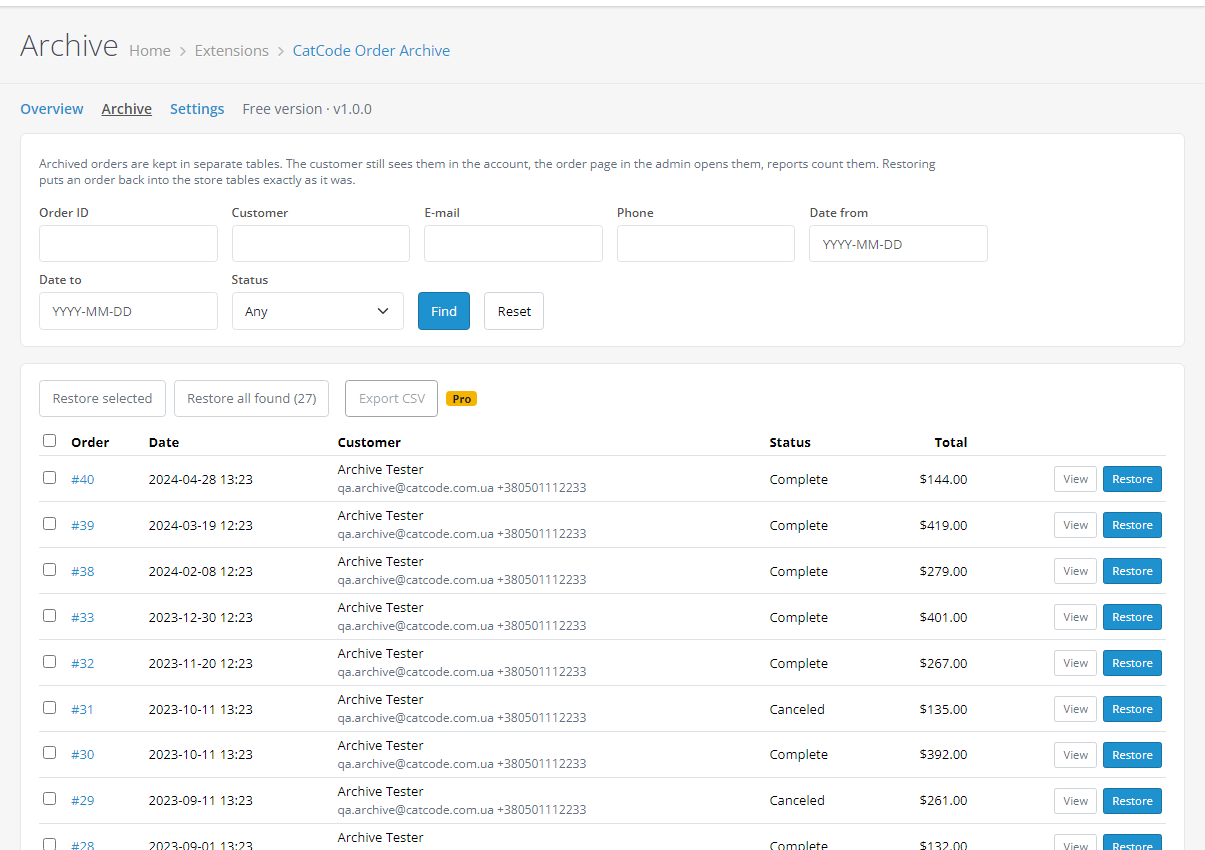
An “Order archive” item in the “Sales” menu with three tabs.
How many orders are in the store and in the archive, table sizes, the oldest order in the store. The rules are written in plain words (“Orders placed more than 24 months ago, in the statuses Complete, Canceled, not changed for 90 days”). “How many would go now?” counts the candidates, “Archive now” moves them step by step with progress — the run can be stopped at any time. Below are “Optimize tables” (gives the freed space back to the disk after the first big run) and the log: what was archived or restored, when and by whom.
Search by order ID, customer, e-mail, phone, date and status. An archived order can be viewed and printed without restoring it. “Restore” brings one order back to the store, “Restore selected” and “Restore all found” — a group. In Pro the found orders can be exported to CSV right here.
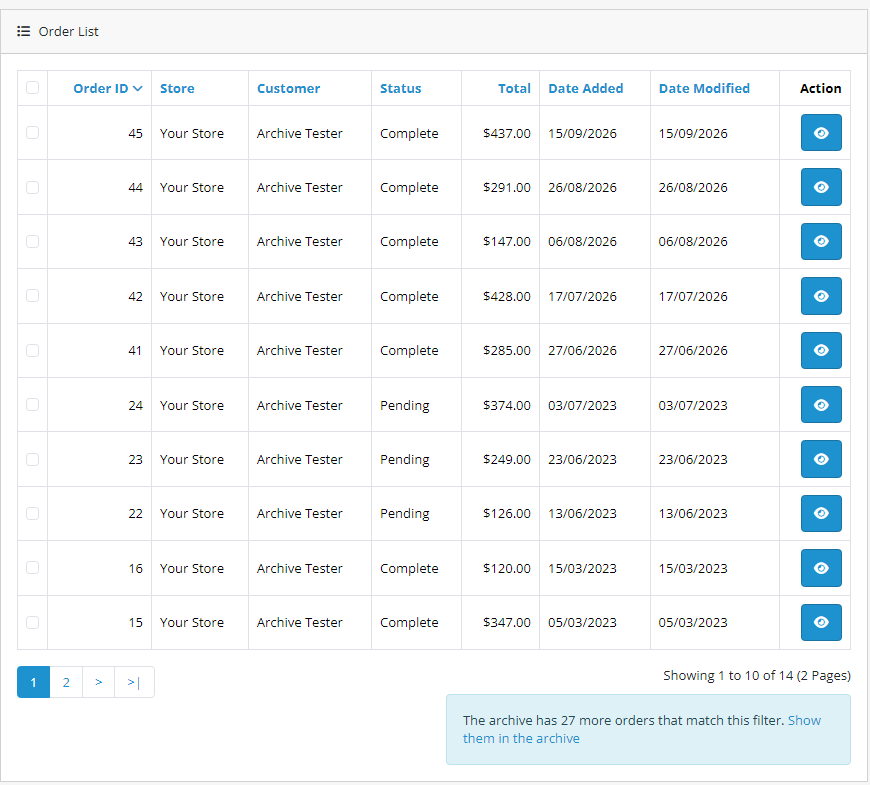
The Sales > Orders list stays as it was and shows only the orders in the store — that is why it is fast. When you filter the list (by customer, order ID, e-mail, status), a line appears under it: “The archive has N more orders that match this filter.” with a link to them.
order, order_product, order_option, order_total, order_history, order_voucher; plus order_custom_field in 2.3). Columns added by other modules are picked up by the archive before every run.cc_oarch_* tables are created with CREATE TABLE … LIKE, so a row in the archive is the same order row, and a restore is an exact copy back.cc_orderarchive.ocmod.zip (OpenCart 4.x), cc_orderarchive-oc3.ocmod.zip (3.x) or cc_orderarchive-oc2.ocmod.zip (2.3).upload/ folder from the archive to the store root.Didn't find the answer? Message us on Telegram and we'll reply within a business day.
 @catcode_support
Setup, compatibility, activation
@catcode_support
Setup, compatibility, activation
Yes. "Order History" in the account shows live and archived orders together, in the same order and with the same pages as before archiving. The archived order page, the "Return" and "Reorder" buttons work. We compared the account pages before and after archiving on 4.1, 4.0.2, 3.0 and 2.3 — they are identical.
The module first brings it back to the store tables, and only then OpenCart makes the change. This works for a new status from the admin, a payment callback, a status from a CRM, a refund receipt in Multi PRRO and a refund in Returns & Exchanges. The history is not lost: the old rows and the new one are together in the live order. A restored order stays in the store for 90 days (configurable), so the next run does not take it back right away.
Yes, at any time: one order, selected orders or all found by a filter. Restoring moves the rows back exactly as they were — we compared checksums of all order tables before archiving and after a full restore.
The Sales and Products Purchased reports read the store and the archive together — the numbers are the same as before archiving. The price is the speed of the report itself: it reads both the store and the archive every time, so on 60,000 orders the Sales report took 1.7 s instead of 0.3 s and Products Purchased 2.8 s instead of 0.25 s. If you do not need archived periods in reports, switch off "Reports count archived orders". The counters on the admin dashboard count only orders in the store by default (so the dashboard stays fast); if you need the full numbers, switch on "Dashboard counts archived orders".
Such a module sees only the orders in the store. That is why only old completed orders are archived (by default — older than 24 months, not changed for 90 days), and the admin order page by default brings an archived order back to the store as soon as you open it. We tested CatCode modules together with the archive.
Standard OpenCart returns stay where they are. An order whose return changed within the last 180 days is not archived. Open requests in CatCode Returns & Exchanges keep the order in the store too.
The archive tables stay — your orders are in them. But without the module OpenCart does not see them. So before uninstalling, press "Restore all found" on the "Archive" tab. Installing the module again finds the archive again.
It depends on the server. On a local test store (MariaDB 10.11, PHP 8.3): 60,001 generated orders: 29,150 matched the rules and went to the archive in 6.9 s, a full restore took 4.4 s, a scheduled run 6.5 s. On shared hosting it will be slower, but every step is limited in time, so the request does not die on a timeout, and the progress shows how many orders have already moved. Every step is one transaction, so an interrupted run breaks nothing: just press the button again.
Yes, in Pro, and only those already in the archive and older than the age you set (from 12 months, 84 by default). This cannot be undone, so export them to CSV first. Off by default.
The archive does not touch new orders: they are placed as usual, and new order numbers continue after the archived ones. The newest order is never archived, so the order number counter in MySQL never goes back.
No reviews yet. Be the first.
No questions yet. Ask one — we answer within 24 hours.
We build custom modules for WordPress, WooCommerce, OpenCart and Shopify. Tell us about the task and we'll prepare an estimate.
Order a custom module
—

CatCode assistant
Just now


CatCode assistant
Online

I’ll help with your website task
Describe your website task — I’ll find a ready-made module or pass it to a developer for an estimate. Modules, custom features, layout, integrations, speed, migration, technical SEO.