












WooCommerce
990 UAH644 UAH/year≈ €14
Black November: −35% on all modules until 30 November Black November: −35% until 30 November Choose a module
 Website auditA PDF report by email in 3 minutesCheck a website
Everyday tasks
Image compressorSize, quality and WebP in bulkQR generatorLink, Wi-Fi, payment to IBANVAT calculator20, 14, 7% and amount in wordsTransliterationOfficial Ukrainian standardWebsite checks
PHP and pluginsPHP version, WordPress, pluginsGoogle Merchant feedFields, prices, GTIN, imagesDomain emailSPF, DKIM, DMARC, blacklistsAI search readinessllms.txt, bots, markupAll 9 toolsEnter at least 2 characters

A Finvalda sale operation from every WooCommerce order: client, lines, VAT, no duplicates; Pro adds sending on a status, clients, stock, prices, a journal.
The free version works with no time limit. Pro adds the rest of the features in the table.


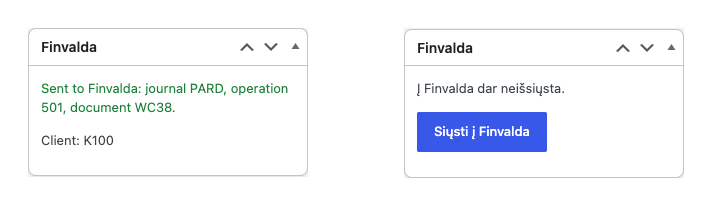
The order screen gets a “Finvalda” box with the “Send to Finvalda” button. Before sending, the plugin asks Finvalda whether it knows the product codes of the order (SKU = the Finvalda product code) and then creates the operation.

WooCommerce → Finvalda.

Sending on a status: you pick a status (off by default), the order is queued and goes in the background through Action Scheduler (or WP-Cron), never during checkout.

A fresh install is the free version, nothing switches on by itself. The “Try Pro for 7 days” button → e-mail → the key right in the window and by e-mail.

Moving the site? Unlink the licence on the old domain and activate it on the new one yourself. A staging copy (staging., dev.) works with the same key and does not take a site slot. For studios — keys for 5 or 25 sites, or unlimited.
 WordPress 6.2+, WooCommerce 7.0+ (HPOS, block checkout), PHP 7.4+.The FVS web service (FIN WEB SERVICE module) of your Finvalda, reachable from the internet, a web service user and an import parameter for the shop.Orders in euros; the Finvalda product code = the SKU of the product in the shop.Interface languages: English, lietuvių (the Lithuanian translation is part of Pro).
Connection to the FVS web service with a connection check, sending an order to Finvalda as a sale operation or reservation with a button (client, lines by SKU, shipping and fees, VAT), a…


Finvalda Sales Sync for WooCommerce sends your shop orders to the Lithuanian accounting system Finvalda as sale operations through its FVS web service: the “Send to Finvalda” button on the order creates one sale operation (PardDok) or sale reservation (PardRezDok) with the client, the goods lines, shipping and VAT, so nobody types the order in twice.
What you need from Finvalda. The FIN WEB SERVICE module running on your Finvalda server and reachable from the internet (preferably over https), a web service user and an import parameter set up for the shop. Your Finvalda administrator or partner provides them. The plugin adds no fee per document.
The order screen gets a “Finvalda” box with the “Send to Finvalda” button. Before sending, the plugin asks Finvalda whether it knows the product codes of the order (SKU = the Finvalda product code) and then creates the operation. After sending, the box shows the journal, the operation number, the document and the client, and the order notes get a line about it.
An order goes to Finvalda once: the operation number and the document are kept on the order, a double click or two overlapping requests create one operation, and when Finvalda answers that the document number is already in use (codes 1001, 1058, 1072), the order is marked as sent and does not go again. A call to the service is capped at 8 seconds, so the admin does not hang when the office server does not answer.
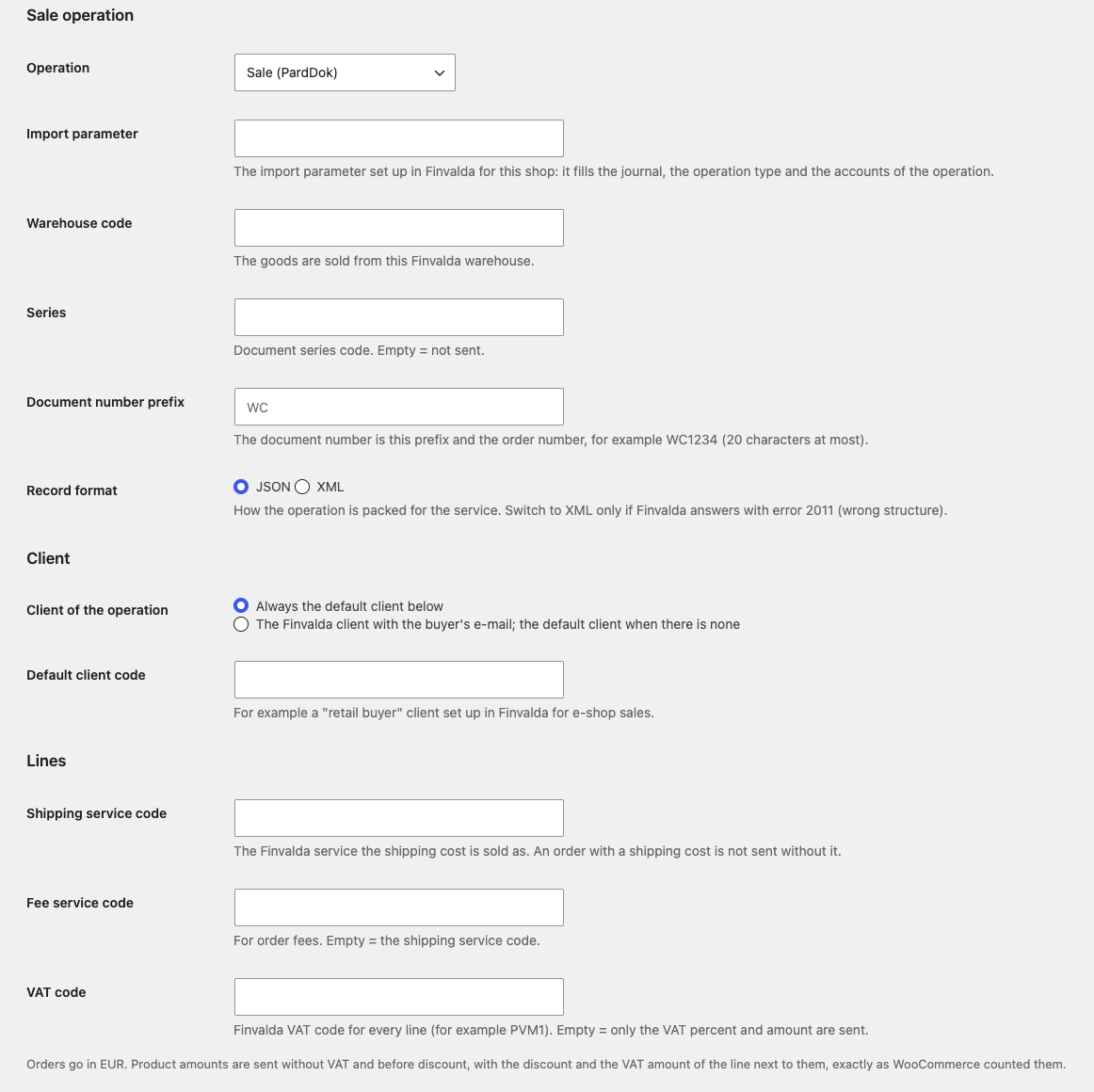
The operation lines carry the product code (SKU), the warehouse, the quantity, the amount without VAT before discount, the discount amount, and the VAT percent and amount as WooCommerce counted them; shipping and fees go as service lines with the codes you set. A refusal of Finvalda is explained in plain words with its error code and text: unknown client, warehouse, series or product code, not enough stock, a wrong import parameter.
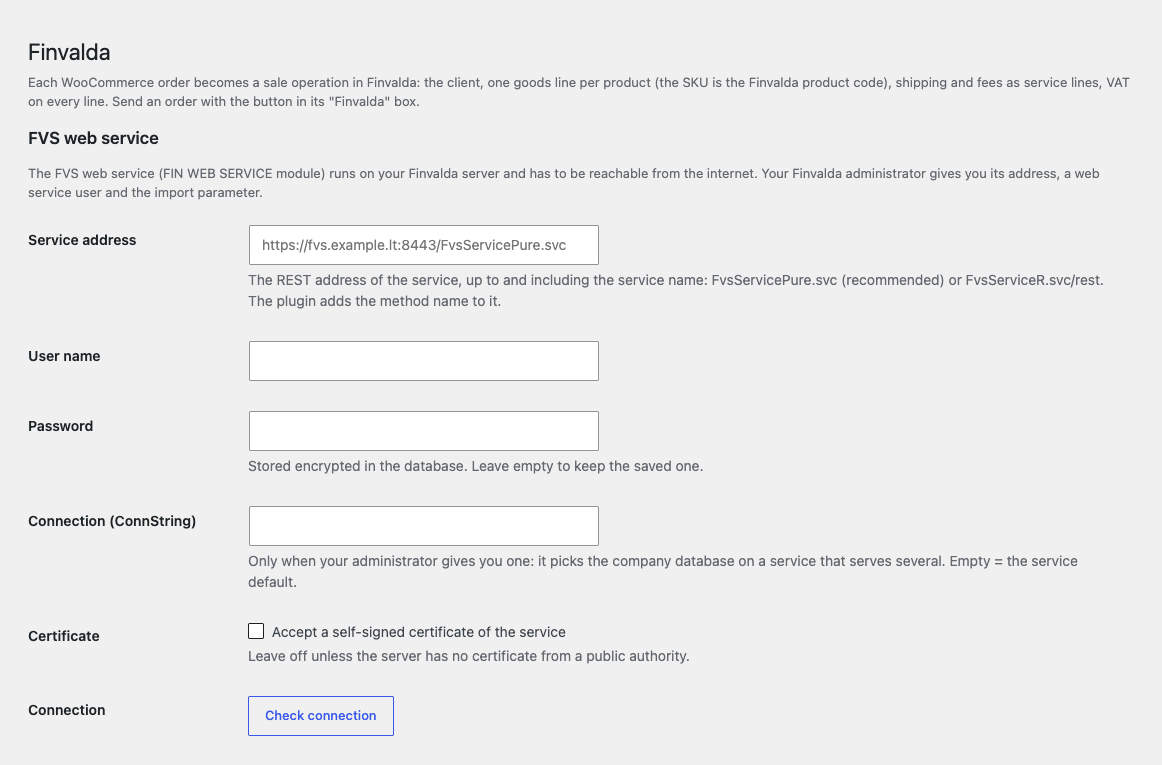
WooCommerce → Finvalda. First the address of the web service (FvsServicePure.svc or FvsServiceR.svc/rest), the user and the password: the password is stored encrypted and never shown back, and “Check connection” only reads one product code and writes nothing. An http:// address comes with a warning because the password travels unencrypted; a server with its own certificate has a separate checkbox.
Then the operation (sale or reservation), the import parameter, the warehouse, the series, the document number prefix (the prefix and the order number, 20 characters at most) and the record format: JSON, which you can switch to XML if Finvalda answers with error 2011 “wrong structure”. The client of the operation is always the default code (for example a “retail buyer”) or the Finvalda client with the buyer’s e-mail. The service codes for shipping and fees and the VAT code come separately.
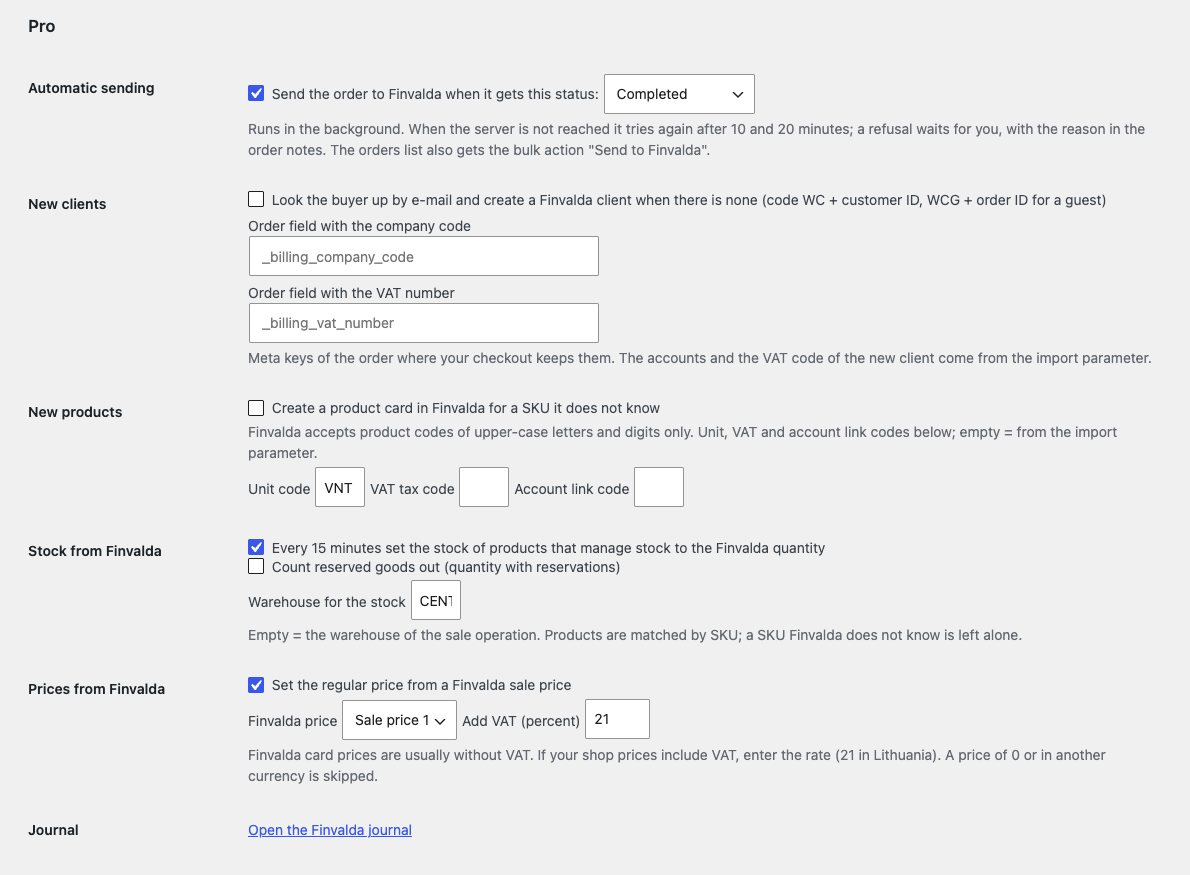
Sending on a status: you pick a status (off by default), the order is queued and goes in the background through Action Scheduler (or WP-Cron), never during checkout. After a connection failure or a 5xx answer the sending is tried again after 10 and 20 minutes (three attempts at most); a refusal of Finvalda is not repeated but waits for you, with the reason in the order notes. The orders list gets the bulk action “Send to Finvalda” for any number of orders.
Clients and products: when Finvalda has no client with the buyer’s e-mail, the plugin creates a client card (name, address, city, post code, country, phone, e-mail, company code and VAT number from the order fields you name); for an unknown SKU it creates a product card (upper-case letters and digits only, as Finvalda requires) with your unit, VAT and account link codes.
Stock and prices: every 15 minutes, in portions of 50 products, the stock of products that manage stock is set to the quantity in your warehouse (optionally with reservations counted out), and the regular price is taken from one of the six sale prices of the Finvalda card, with VAT added if needed. A SKU Finvalda does not know is left alone, and an empty answer never zeroes anything.
The journal shows every order sent or refused with the reason and every stock and price sync, and the “Sync stock and prices now” button starts a pass at once. Updates from catcode.com.ua and a Lithuanian interface translation are included.
Selling on OpenCart? There is a separate module for it: Finvalda Sales Sync for OpenCart (4.x, 3.x, 2.3).
Didn't find the answer? Message us on Telegram and we'll reply within a business day.
 @catcode_support
Setup, compatibility, activation
No, it is an independent integration by CatCode. Finvalda is a trademark of its owner; the plugin is not affiliated with or endorsed by Finvalda.
The FVS web service (FIN WEB SERVICE module) on your Finvalda server, a web service user and an import parameter for the shop. Your Finvalda administrator or partner sets these up.
By SKU: the SKU of the WooCommerce product or variation is the Finvalda product code. Unknown codes are listed before sending, not after a half-made operation.
No. Finvalda keeps the books in euros and needs the EUR amount of every line, and the plugin has no exchange rate, so such an order is not sent.
That is "wrong structure". In the settings switch the record format from JSON to XML and send the order again.
The button waits 8 seconds at most and says the service did not answer. If the operation was created after all, sending again gets the answer "document already used" and marks the order as sent, with no duplicate.
No. Sending runs from the button in the admin or in the background; Finvalda is never called at the checkout.
In Pro, when switched on: a missing client and product are created in Finvalda. In the free version the client is found by e-mail or is the default code.
Yes, with HPOS and the classic order storage, and with the block and the classic checkout.
Pro switches off, and orders queued on a status stop with a note and a journal line. The free part (sending an order with the button) keeps working.
No reviews yet. Be the first.
No questions yet. Ask one — we answer within 24 hours.
We build custom modules for WordPress, WooCommerce, OpenCart and Shopify. Tell us about the task and we'll prepare an estimate.
Order a custom module
—
Charged in UAH; your bank converts it to your currency. EUR price is approximate.

CatCode assistant
Just now


CatCode assistant
Online

I’ll help with your website task
Describe your website task — I’ll find a ready-made module or pass it to a developer for an estimate. Modules, custom features, layout, integrations, speed, migration, technical SEO.