







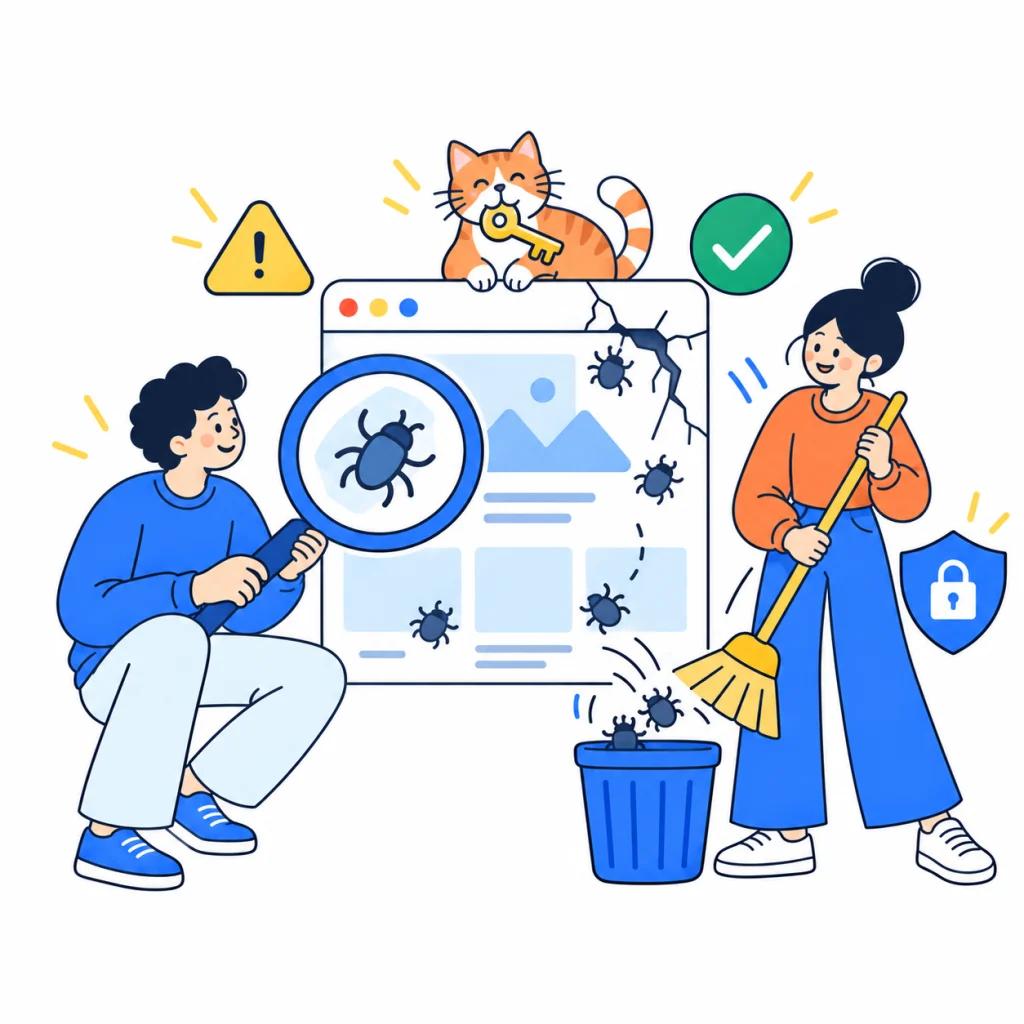
Your site suddenly opens someone else’s pages, the host has sent a letter about malicious code, Google shows a warning, or an administrator nobody created has appeared in the dashboard. At that moment you want to delete everything and restore a backup. That is how you can lose the traces and leave the attacker a way back in.
Below is the order we follow when we clean hacked WordPress sites. The examples come from our own work, with client names left out. To be straight from the start: this text does not give a 100% guarantee that the infection will not return, and nobody can honestly give one after a cleanup.
In short: what to do first
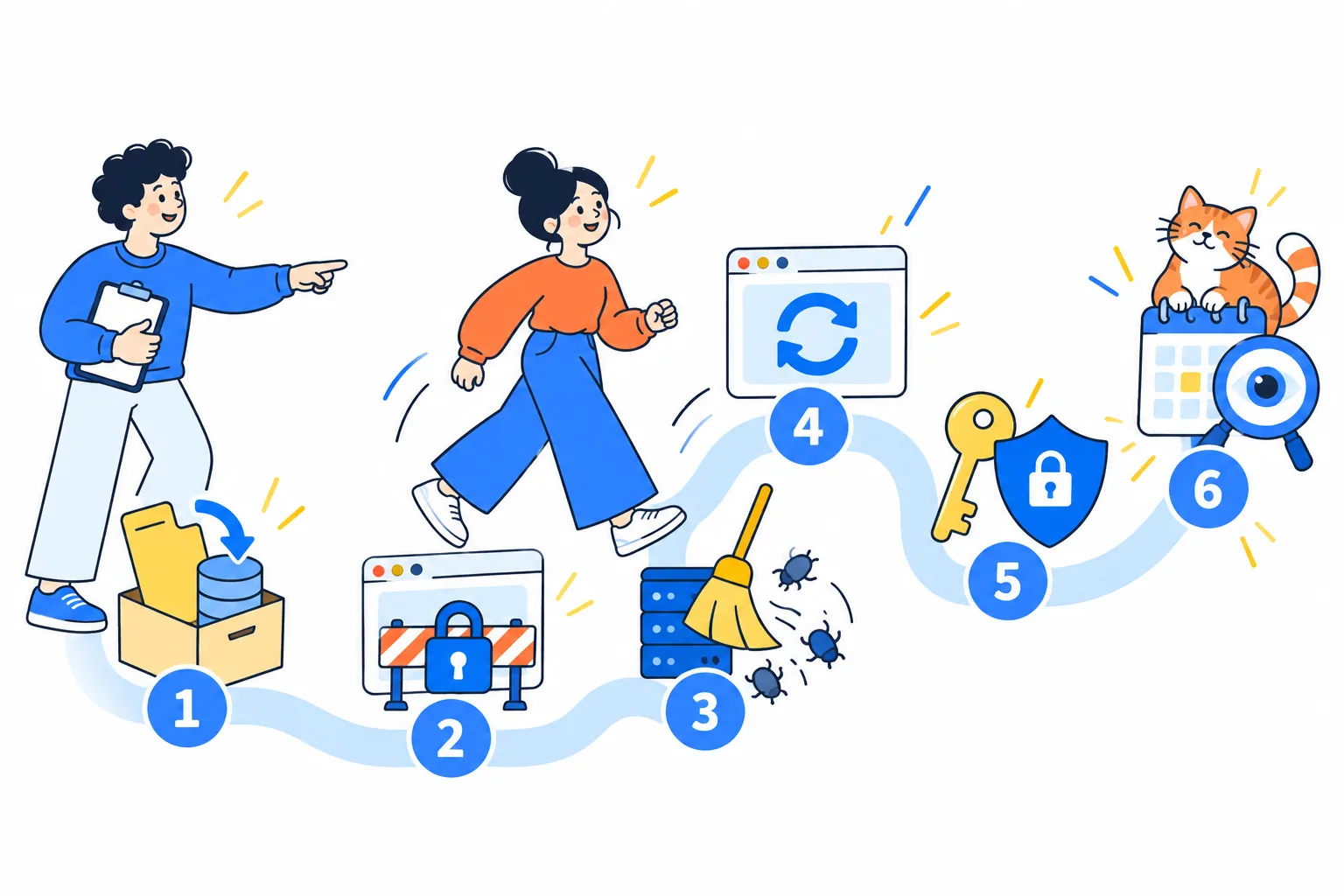
- Do not delete anything. Save a copy of the files, database and logs off the server.
- Write to your host and close the site to visitors while you clean it.
- Stop malicious processes, and only then clean files, the database, cron and users.
- Update WordPress, plugins, the theme and PHP.
- Change all access, not just the administrator password.
- Watch the site for several weeks and request a review in Google if there is a warning.
Why your site is worth checking now
wp2shell. On 17 July 2026 WordPress 7.0.2 came out, along with 6.9.5 and 6.8.6. The same day Searchlight Cyber described a chain of two core vulnerabilities, CVE-2026-63030 and CVE-2026-60137. It allowed running code on a site without logging in. According to Wiz, the full chain works on versions 6.9.0–6.9.4 and 7.0.0–7.0.1, the 6.8 branch has only the SQL injection, and WordPress treats versions before 6.8 as not affected. Wiz recorded real attacks: attackers uploaded malicious plugins, collected administrator logins and tried to read database passwords and secret keys.
WordPress.org turned on a forced update, but it only starts where background updates work. A site with automatic updates switched off could simply stay on the old version.
PHP2Shell. On 21 October 2026 the PHP project released versions 8.5.12, 8.4.27, 8.3.36 and 8.2.35. They close CVE-2026-109618 and CVE-2026-109619, both scored 9.2 out of 10 on CVSS v4: code execution without authentication. This is a problem in PHP itself, not in WordPress, so there will be no WordPress update for it. PHP on the server has to be updated. On 26 October the US agency CISA added both vulnerabilities to its catalogue of those already used in attacks. In the PHP advisories (first, second) the attack is validated on Apache with mod_php, and one scenario is confirmed for PHP-FPM too.
How to tell a site has been hacked
- Google shows a warning in search or the browser, or there is an entry in the Security Issues report in Search Console.
- The host has disabled the site, blocked mail or sent a letter about malicious code.
- The list shows administrators, plugins, themes or folders you did not add.
- Spam is going out from your domain. In one of our cases it was sent by a separate file hidden next to the core files.
- Hosting hits the CPU limit although visitor numbers have not grown. In another case the site returned a 508 error, and the cause was a malicious process that kept restarting itself.
A site that looks normal in your browser proves nothing. On one site people saw an ordinary page, while Google and social networks received an online casino page. Google warns about this trick directly and advises looking at what its crawler actually sees. The URL Inspection tool in Search Console is there for that.
What to save before cleaning
This is the first step, even if the site is down. The WordPress documentation advises taking a snapshot even of an infected site. You need it to roll back if the cleanup breaks something, and later to work out what happened.
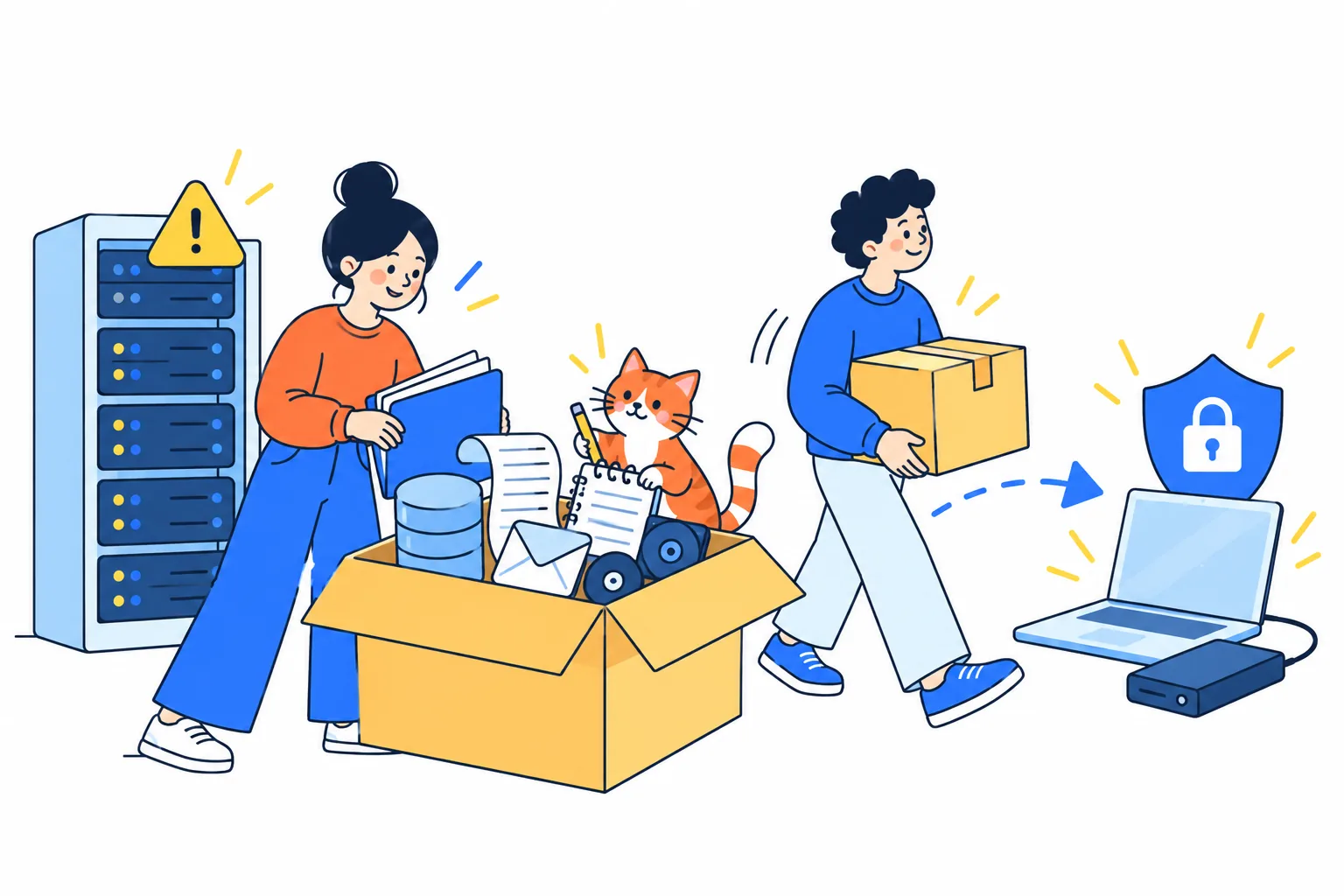
- All site files and a database dump. Keep them on your own computer or in separate storage, not on that server.
- Access and error logs. Download them right away, because hosting may overwrite them.
- Notes: what you saw, when, what was changed recently, who had access.
- Letters from the host and Google.
- Old backups. Do not delete any of them, even if they are infected.
Hosting quarantine
Write to your host straight away. Ask what they see and whether other sites on the account are affected. When several sites run under one user, malicious code moves from one to another easily. We have seen a cleaned site get infected again through its neighbour.
While cleaning, it is better to close the site to the internet at server or hosting level. A maintenance mode plugin will not do, because it runs inside the same infected WordPress.
Be ready for the host to turn on quarantine by itself. In our cases it closed outgoing connections and mail from the web server. After that the site cannot download updates from wordpress.org or send mail directly, so plugins have to be downloaded by hand to a computer and uploaded over FTP. Only the host can lift such a quarantine, so when you finish, send them a list of what was done.
What to clean and in what order
1. Processes
If a malicious process is running on the server, cleaning files achieves nothing. In one case such a process kept bringing files back under new names and killed our cleanup scripts, while bots restarted it through files left on the site. Only this order worked: close the site to the internet, stop the processes, remove the files, install a clean core, reopen access and watch whether anything returns. On a VPS you can see processes yourself. On shared hosting, ask support to look.
2. WordPress core
The wp core verify-checksums command compares files with the official ones and shows extra ones. On our test stand it found a file added to wp-includes, but did not notice files in wp-content. The wp-admin and wp-includes folders can be replaced entirely, over SFTP rather than with the reinstall button in the dashboard: according to WordPress, it often only overwrites existing files, and the extra ones stay.
3. Plugins and themes
wp plugin verify-checksums --all catches changed and added files, but only in plugins from wordpress.org. It simply skips a paid plugin, so get that plugin and your theme again from the seller’s account. Delete plugins you did not install. An attacker can also install a genuine plugin, such as a file manager, because it makes the work easier. Throw away pirated paid plugins: they get no updates, and we have found web shells in the folders of such plugins.
4. Places people rarely look
wp-content/mu-plugins. These plugins run automatically and cannot be switched off in the dashboard.- Drop-in files right in
wp-content, such asdb.phporobject-cache.php. wp-content/uploads. PHP files are rare here, but some plugins put theirs there, so check each one rather than deleting everything.- Files with an image or script extension that contain PHP code.
- Folders in
themesandpluginswith random names. .htaccessin the root and in subfolders.
5. Administrators
The Users list cannot be treated as complete. In October Patchstack described a campaign where a hidden administrator does not show in the dashboard at all and can only be found with a database query. So look at the wp_users and wp_usermeta tables directly. Only your own team should have administrator rights there.
Also check Application Passwords in every administrator’s profile, and in WooCommerce the sections Settings → Advanced → REST API keys and Webhooks. On our stand we changed the administrator password, replaced the salts and destroyed all sessions, and the old application password kept working. These entries have to be deleted separately.
6. Database and cron
After files are deleted, leftovers stay in the database. For us these were the attacker’s service options and entries of deleted plugins in the active list. Go through wp_options and the content of pages and products for foreign scripts and links.
See WordPress tasks with wp cron event list, and server tasks in crontab or the hosting panel. In September Sucuri analysed an infection where system cron regularly ran WordPress tasks, and those restored the malicious code. It also shows why order matters: parts of such an infection restore each other. If you have database access, run SHOW TRIGGERS. Our clean stand with WordPress and WooCommerce has no triggers, and attackers do use them.
Why a restored backup can already be infected
Infection happens before anyone notices it. On one site a backup a few days old was restored, and it already contained fake administrators and malicious plugins. The owner thought they had started from a clean state, but had actually brought the hacked site back.
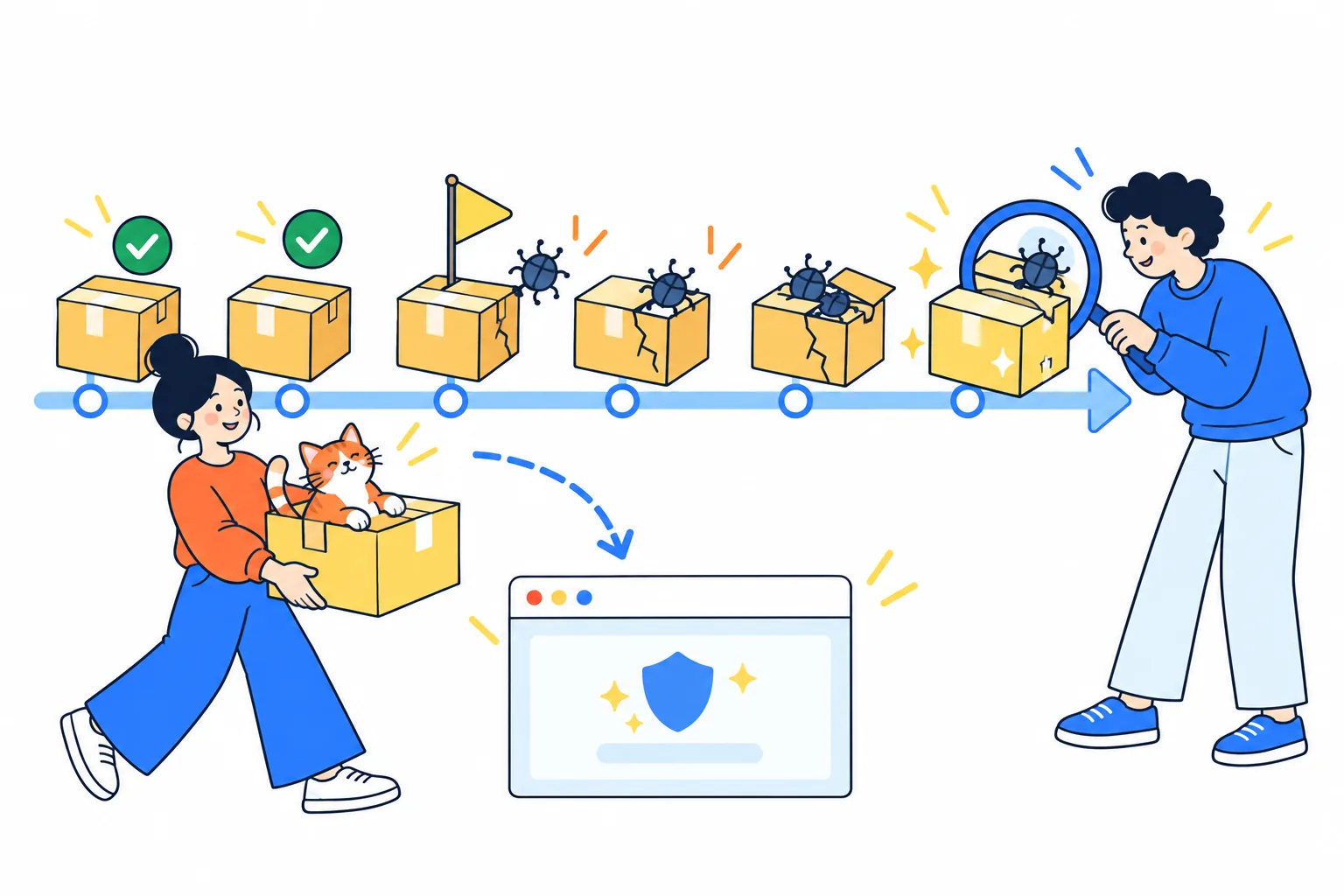
Even a clean backup does not cure the cause: the vulnerable version stays, and stolen passwords still work. So do this:
- Find the earliest sign of the hack: the first unknown administrator, the first odd requests in the logs, the first foreign file. Look at file dates too, but they can be faked.
- Take a backup older than that date and deploy it to a separate closed copy, not over the live site.
- Check it against the same list as above.
- For a store, move orders and customers from the period after the backup separately, or you will lose them.
- Before opening the site, update everything and change access.
Why a file comes back
If a deleted file appears again, the file is not the problem. Check in turn: a live process on the server, another backdoor restoring it, a cron task, a neighbouring site on the same account, an open way in through an old password.
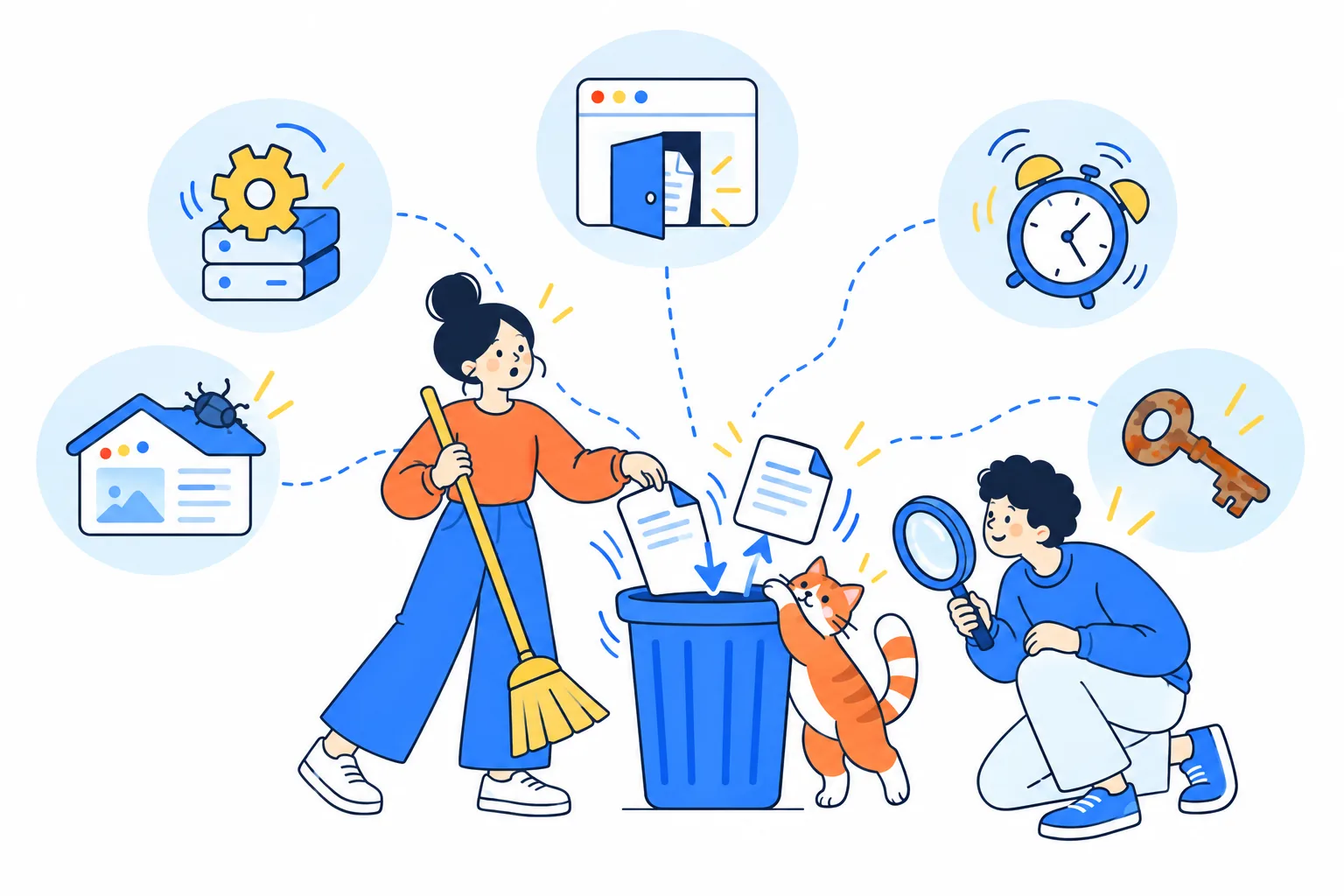
One of our sites was hacked again a few days after cleaning. A new administrator appeared, along with a new malicious plugin and a file manager, and our administrator was deleted. When we analysed the second hack, the core was already up to date, so we searched in old access credentials and leftover files. The antivirus in the hosting panel showed two more files that we had missed. After that we deleted all old FTP accounts and changed all passwords and salts. We never established the exact path of the second entry, and that happens: logs do not always give the full picture.
Which access to change
Change it twice: right away to cut the attacker off, and after cleaning, as WordPress advises. Before that, scan your own computer, because passwords could have been stolen from it.
| What | What to do |
|---|---|
| WordPress users | New passwords for everyone with access. Delete extra administrators. |
Salts in wp-config.php |
wp config shuffle-salts or new keys from the WordPress generator. This logs everyone out. |
| Hosting, SFTP, FTP, SSH | New panel password. Delete old FTP accounts rather than renaming them. Check SSH keys. |
| Database | New password, updated in wp-config.php. |
| Application Passwords, REST API keys | Delete them all, create the ones you need again. |
| Third-party services | Payment keys, SMTP, CRM, Telegram bot tokens. Treat everything stored in the database or wp-config.php as read. |
| Customer passwords | If there are signs the database was read, ask customers to change their passwords. |
If the database holds personal data of people in the EU, talk to a lawyer. Article 33 of the GDPR gives the controller 72 hours to notify the supervisory authority when a breach creates a risk for people.
How to close the way in
- WordPress. As of 31 October 2026 the newest version is 7.1.4, which is also a security release. Only the latest version is actively supported.
- PHP. You can see the version in Tools → Site Health → Info → Server. You need at least 8.5.12, 8.4.27, 8.3.36 or 8.2.35, depending on the branch. Versions before 8.2 get no security updates from the PHP project. Hosts and distributions move fixes into their own packages, and the version number does not change. We have seen this on a server with PHP 7.4, so ask your host directly.
- Your own server. PHP advises setting
session.upload_progress.enabled=0until the next regular release because of one more vulnerability, CVE-2026-115560, and restarting PHP. - Plugins and themes. Update everything and delete what you do not use.
- If you cannot update WordPress right away. Block anonymous access to
/wp-json/batch/v1and?rest_route=/batch/v1on a WAF. This is a temporary measure against wp2shell, not a replacement for updating.
Our free PHP and plugins check shows the PHP version from outside if the server does not hide it, plus the versions of WordPress, WooCommerce and visible plugins. It does not look for viruses and cannot see whether the host applied a fix without changing the number.
After cleaning
If there is a Google warning, fix everything across the whole site and send a Request Review from the Security Issues report. Describe what exactly happened and what you did. Do not resubmit until the final decision arrives, as that can lengthen the review.
If the site sent spam, check the domain and mail in the domain email check: it covers SPF, DKIM, DMARC and blacklists. It is free too, but it only shows the consequences, not the cause.
For the next several weeks watch the logs, new administrators and file changes, set up backups off the server and two-factor login for administrators. If something came back, the cleanup is not finished.
FAQ
Is a scanner plugin enough?
No. A scanner is useful, but on one site an antivirus found what we had missed, and on other sites checksum comparison found what signature searches missed. Use several methods. Scanners also make mistakes in both directions, so look at each finding yourself.
Will moving to another host help?
No, not if you move the same files and database: the infection travels with them. Moving makes sense only after cleaning.
Can I just update WordPress and forget about it?
No. An update does not delete backdoors, fake administrators or cron tasks, and it does not cancel stolen passwords.
How do I find out whether customer data leaked?
You cannot always know for sure. At publication Wiz had not seen data theft in its observations of wp2shell, but that does not mean it did not happen on your site. Look at the logs, and if there is nothing to confirm or rule it out, treat the data as available to the attacker.
Do you guarantee the site will not be hacked again?
No. We can clean what we find, close the known ways in and say what was checked and what was not. Promising 100% would be untrue.
If your site has been hacked or you suspect it, write to us. We will look at what happened, tell you what can be saved and write down what we checked and what remained unknown.