











WooCommerce
990 UAH644 UAH/year≈ €14
Black November: −35% on all modules until 30 November Black November: −35% until 30 November Choose a module
 Website auditA PDF report by email in 3 minutesCheck a website
Everyday tasks
Image compressorSize, quality and WebP in bulkQR generatorLink, Wi-Fi, payment to IBANVAT calculator20, 14, 7% and amount in wordsTransliterationOfficial Ukrainian standardWebsite checks
PHP and pluginsPHP version, WordPress, pluginsGoogle Merchant feedFields, prices, GTIN, imagesDomain emailSPF, DKIM, DMARC, blacklistsAI search readinessllms.txt, bots, markupAll 9 toolsEnter at least 2 characters

Thinkific for WooCommerce (US): enroll buyers in courses, the student by e-mail; Pro adds automatic enrollment at a status, bundles, access days, closing access, progress. Needs a Thinkific plan with API access (Grow+).
The free version works with no time limit. Pro adds the rest of the features in the table.


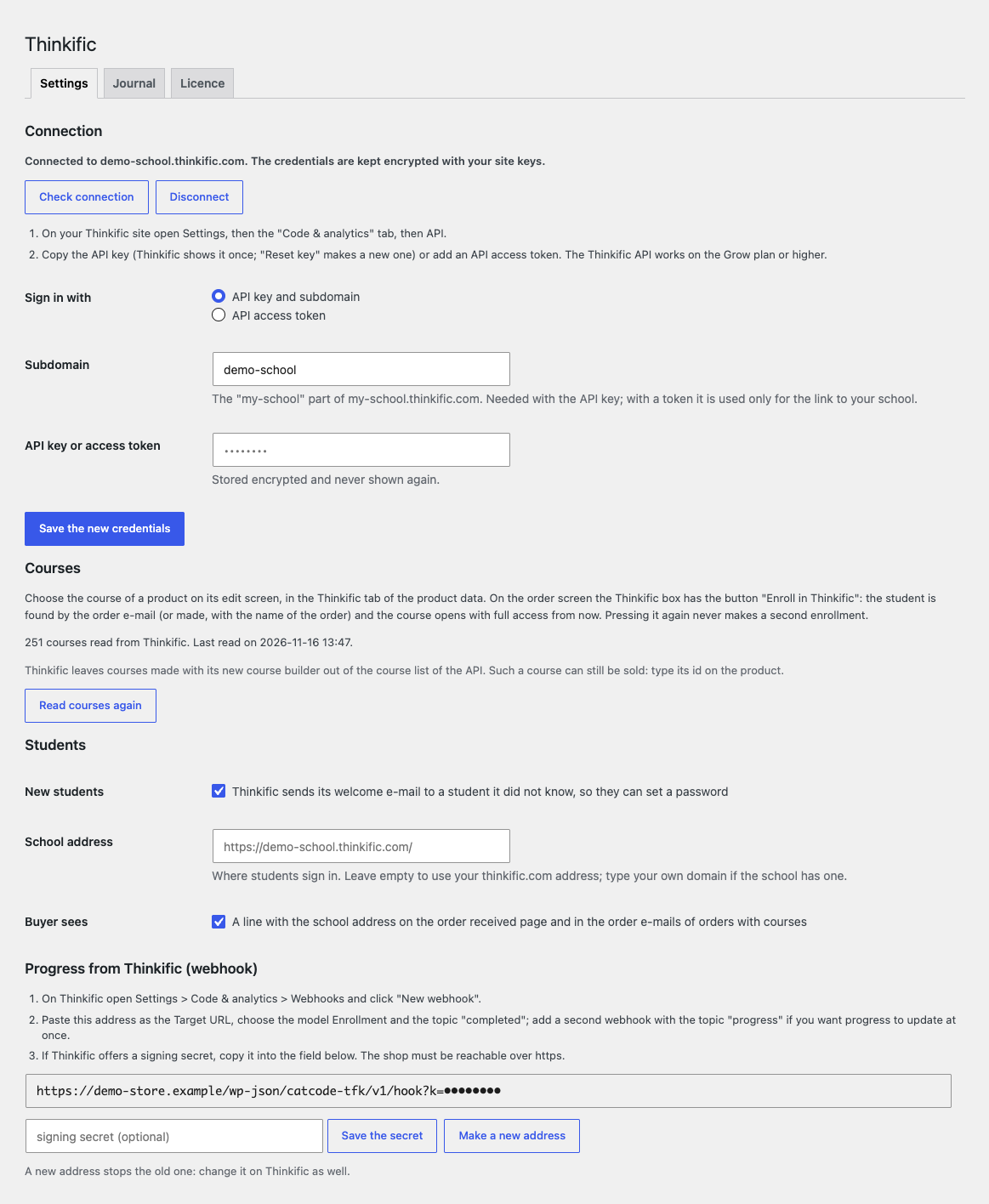
WooCommerce → Thinkific: type the school subdomain, paste the API key (or switch to an access token) and press “Connect”.

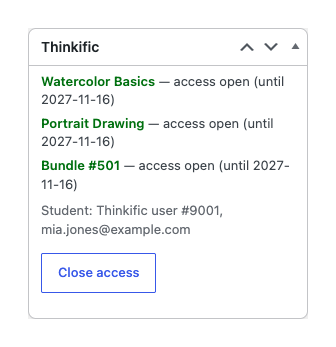
A Thinkific box appears in the order: for every course it shows the state (“access open”, “not enrolled” and the reason from Thinkific).

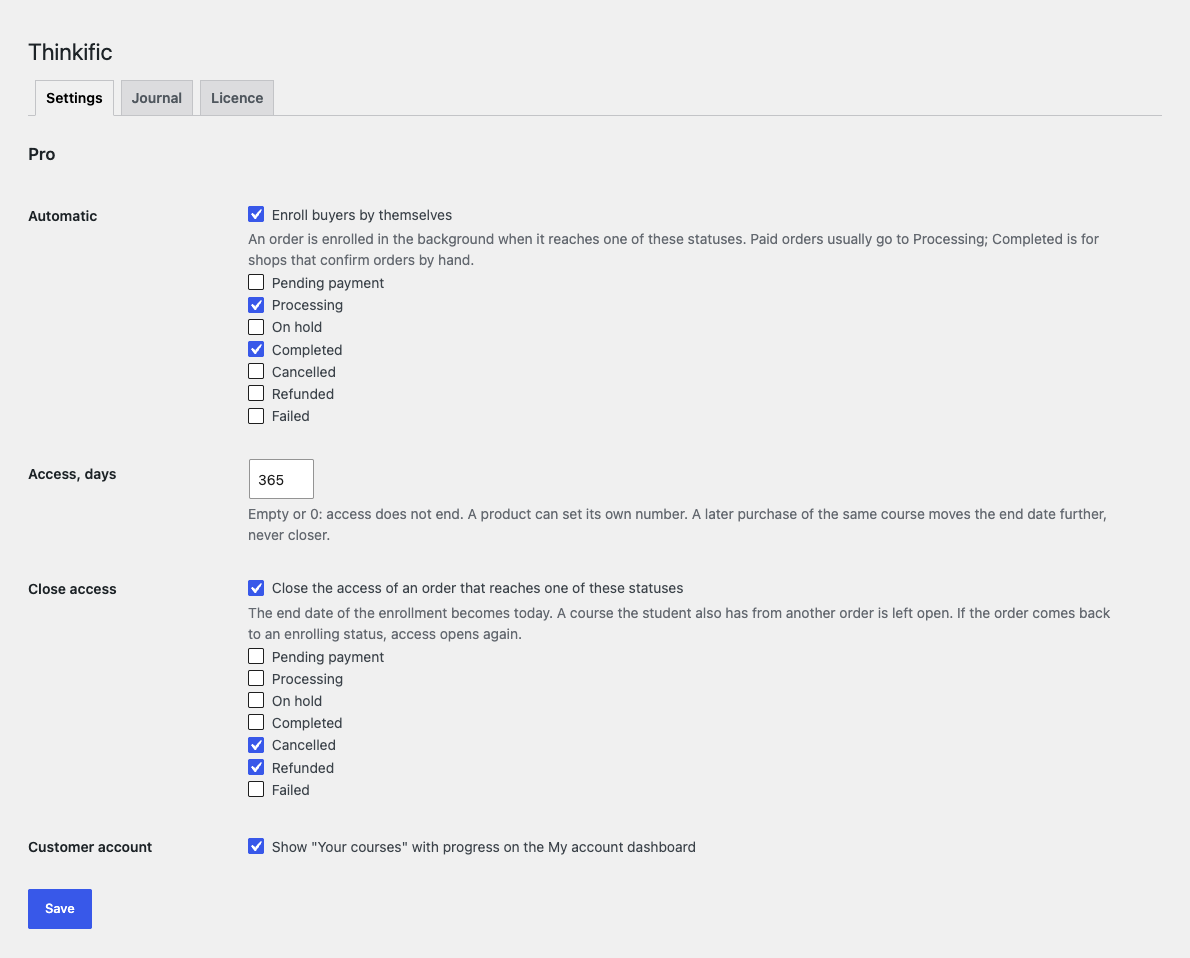
Automatic enrollment. An order that reaches the chosen statuses (by default “Processing” and “Completed”) is enrolled in the background through Action Scheduler: the checkout does not wait for Thinkific.

A fresh install is the free version, nothing switches on by itself. The “Try Pro for 7 days” button → e-mail → the key right in the window and by e-mail.

Moving the site? Unlink the licence on the old domain and activate it on the new one yourself. A staging copy (staging., dev.) works with the same key and does not take a site slot. For studios — keys for 5 or 25 sites, or unlimited.
 WordPress 6.2+, WooCommerce 8.0+ (HPOS, block checkout), PHP 7.4+.A Thinkific school on the Grow plan or higher (API access), an API key or an access token.For the progress webhook (Pro) — a site reachable from the internet over https.Interface language: English.
Connection with an API key or a token, a course in a product, enrolling a student with a button in the order (the student by e-mail, no doubles, expired access opened again), notes and the…


Thinkific Course Enrollment for WooCommerce enrolls the buyers of your shop in your Thinkific courses. Each WooCommerce product is tied to a course; in the order, the “Enroll in Thinkific” button finds the student by the order e-mail or creates them in Thinkific and opens the course with full access. Pressing it again makes no second enrollment. The module is for shops that sell courses with WooCommerce and teach them in Thinkific; the language of the module is English.
What you need in Thinkific. A Thinkific school on a plan with API access (Grow or higher): on lower plans Thinkific answers the key with a 401 error, and the module says so. The API key is in Settings → Code & analytics → API, and the subdomain is the “my-school” part of my-school.thinkific.com. The key stays on your site in encrypted form; there is no CatCode server in between.
WooCommerce → Thinkific: type the school subdomain, paste the API key (or switch to an access token) and press “Connect”. The module reads the list of courses at once (up to 2000, 250 per request) and shows how many it found. The key is stored encrypted and never shown again; the buttons “Check connection”, “Read courses again” and “Disconnect” test the connection, refresh the list and remove the access.
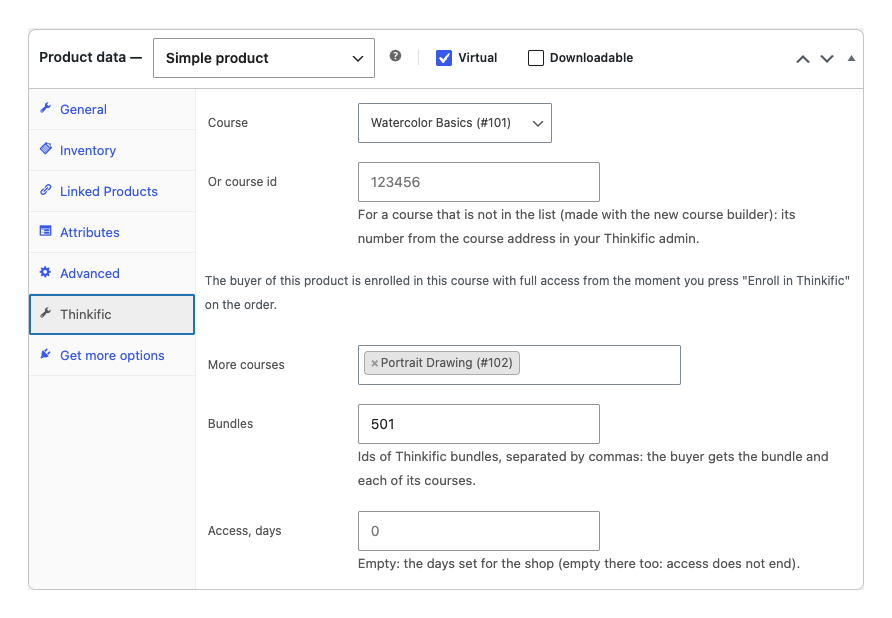
The course is chosen in the “Thinkific” tab of the product data: from the list or by a course id. The id is for courses made with the new Thinkific course builder: the API leaves them out of the list, but enrolling a student in such a course works.
A Thinkific box appears in the order: for every course it shows the state (“access open”, “not enrolled” and the reason from Thinkific). The “Enroll in Thinkific” button looks for the student by the order e-mail; if there is none, it creates one with the first and last name of the order (Thinkific requires a last name; if there is none, “-” is used) and by default turns on the Thinkific welcome e-mail so the student can set a password. The course opens with full access from now.
Pressing the button again duplicates nothing. If the student has expired access or only a preview, the module opens it again. The result stays as a note in the order, and the buyer sees a line with the address of your school on the “Order received” page and in the order e-mails (it can be changed to your own domain or turned off). Thinkific errors (key, plan, rate limit, outage) are shown in words, not as an HTML page.
Automatic enrollment. An order that reaches the chosen statuses (by default “Processing” and “Completed”) is enrolled in the background through Action Scheduler: the checkout does not wait for Thinkific. Automatic enrollment is switched on separately; it is off by default.
Several courses, bundles, variations. A product can have a main course, more courses and Thinkific bundles; each variation can have its own courses.
Access days. Access for N days for the shop or for a single product; a later purchase of the same course only extends the access and never shortens it.
Closing access. A refunded or cancelled order closes the access (off by default); a course that another live order of the same student gives stays open, and when the order comes back the access opens again. There is also a “Close access” button in the order.
Progress. A “Your courses” block with percentages on the My account page (live data cached for 10 minutes). A Thinkific webhook about course completion or progress writes a note in the order and fires the action catcode_tfk_course_completed for your own code; the webhook address carries a key and the HMAC signature is checked.
Bulk action, journal, updates. “Enroll in Thinkific” in the orders list runs 10 orders per 30 seconds, and Thinkific failures (429, 5xx, timeout) are retried up to 6 times. The “Journal” tab shows every enrollment with the reasons of refusals, and module updates come from catcode.com.ua.
Didn't find the answer? Message us on Telegram and we'll reply within a business day.
 @catcode_support
Setup, compatibility, activation
No, it is an independent integration made by CatCode through the public API. Thinkific is a trademark of its owner; the module is not affiliated with Thinkific and is not endorsed by it.
A plan with API access: Grow or higher. On lower plans Thinkific does not accept the API key, and the module says so in the settings.
Yes: the student is looked up by the order e-mail, and if there is none, one is created with the name from the order. The Thinkific welcome e-mail for new students can be turned off.
No. Pressing the button again makes no second enrollment; expired or preview access is opened again.
Yes, in Pro: a product can have bundles; the student gets the bundle and each of its courses.
The Thinkific API does not return them in the course list. You type the course id in the product tab and the enrollment works.
Pro switches off and the free part keeps working: the connection, the course in a product, enrolling with the button in the order. Jobs that waited in the queue stop with an explanation in the order note.
One key works on two sites: the shop and its test copy.
No reviews yet. Be the first.
No questions yet. Ask one — we answer within 24 hours.
We build custom modules for WordPress, WooCommerce, OpenCart and Shopify. Tell us about the task and we'll prepare an estimate.
Order a custom module
—
Charged in UAH; your bank converts it to your currency. EUR price is approximate.

CatCode assistant
Just now


CatCode assistant
Online

I’ll help with your website task
Describe your website task — I’ll find a ready-made module or pass it to a developer for an estimate. Modules, custom features, layout, integrations, speed, migration, technical SEO.