













OpenCart
1 290 UAH839 UAH≈ €17
Black November: −35% on all modules until 30 November Black November: −35% until 30 November Choose a module
 Website auditA PDF report by email in 3 minutesCheck a website
Everyday tasks
Image compressorSize, quality and WebP in bulkQR generatorLink, Wi-Fi, payment to IBANVAT calculator20, 14, 7% and amount in wordsTransliterationOfficial Ukrainian standardWebsite checks
PHP and pluginsPHP version, WordPress, pluginsGoogle Merchant feedFields, prices, GTIN, imagesDomain emailSPF, DKIM, DMARC, blacklistsAI search readinessllms.txt, bots, markupAll 9 toolsEnter at least 2 characters
Shipping with Qapla' for OpenCart 4.x, 3.x, 2.3 (Italy): pickup points at checkout and sending to Qapla' free, Pro adds labels, tracking and bulk actions. Lifetime licence.
The free version works with no time limit. Pro adds the rest of the features in the table.


The checkout (the stock one and CatCode One Page Checkout) shows the delivery methods you set up: a courier of your channel, to the address or to a pickup point.

Extensions → Extensions → Shipping → Shipping with Qapla’ has six tabs: “Delivery methods”, “Qapla’ account”, “Orders”, “Labels and tracking”, “Journal” and “Licence”.

In Pro the “Create label” button creates the shipment and the label from the order: PDF, JPG or ZPL to download, a return label and label removal (Delete label).

A fresh install is the free version, nothing switches on by itself. The “Try Pro for 7 days” button → e-mail → the key right in the window and by e-mail.

Moving the site? Unlink the licence on the old domain and activate it on the new one yourself. A staging copy (staging., dev.) works with the same key and does not take a site slot. For studios — keys for 5 or 25 sites, or unlimited.
 OpenCart 4.0.2.x–4.1.x, 3.0.x or 2.3.0.2; the cURL extension.A Qapla’ channel with a private API key. API access depends on the Qapla’ plan, and Qapla’ support switches the pickup point search on by request: without it a “to a pickup point” method shows at checkout that the points could not be loaded (the “Try it” box shows the Qapla’ answer). The “to the address” methods and “Send to Qapla’” work without the point search.Creating a label can create a paid shipment in Qapla’: one label is active per order. Deleting the shipment in the Qapla’ panel does not remove the label in OpenCart: use the “Delete label” button for that.The Qapla’ limit is 150 calls a minute per channel: after a 429 answer the module makes no calls to Qapla’ for a minute. Bulk labels go up to 50 at a time, and the request can take longer.Time in Qapla’ is Rome time (CET/CEST): order dates and tracking checks are formed in it. The recipient’s province comes from the OpenCart zone code (for Italy “MI”, “RM”…); if the shop has its own zone codes, check them.The “delivered” status is written straight into the order and its history, without OpenCart events: other modules do not react to that status change.
Delivery methods on the couriers of the Qapla’ channel (to the address or to a pickup point), the point choice at checkout, the point as the order address, “Send to Qapla’”, a connection…



Shipping with Qapla’ for OpenCart (OpenCart 4.x, 3.x and 2.3) connects the shop to Qapla’, the Italian shipping and tracking platform. At checkout the buyer picks a courier pickup point (punto di ritiro), and the order goes to Qapla’ with one button, with the recipient, the parcel, the products and the chosen point. Pro adds labels, automation by status, tracking in the order and an e-mail to the buyer with the tracking number.
What you need from Qapla’. A Qapla’ channel with a private API key (the Qapla’ panel → Settings → Channels → your channel → Configure → Channel → Private API Key). API access depends on your Qapla’ plan, and the pickup point search is switched on by Qapla’ support on request. Qapla’ plans are paid separately. The key is stored encrypted and is never shown on the page again.
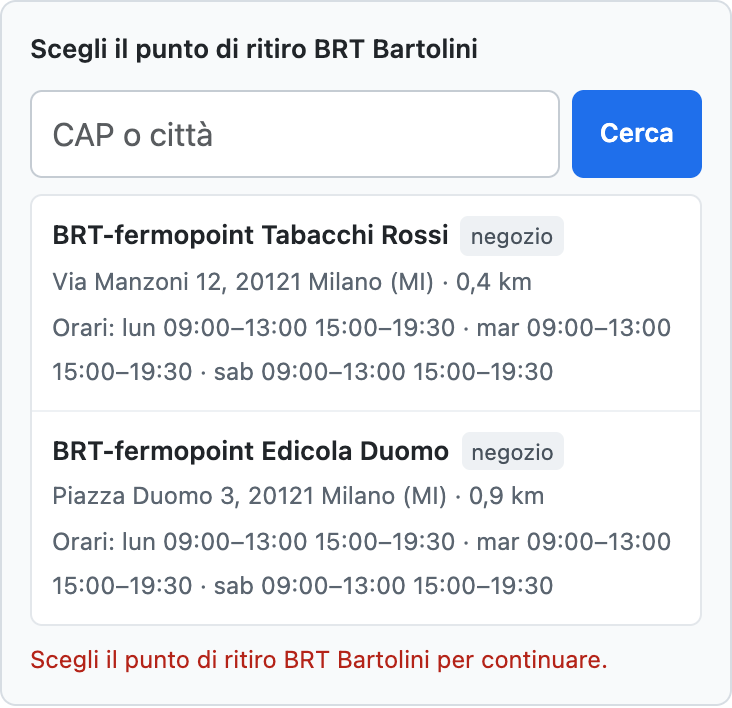
The checkout (the stock one and CatCode One Page Checkout) shows the delivery methods you set up: a courier of your channel, to the address or to a pickup point. Under a “to a pickup point” method a panel opens: the buyer sees the points by the post code (CAP) of their address, can type another CAP or a town, and sees the name, address, distance and opening hours. An order without a chosen point cannot be placed: the server checks it, not only the page.
The delivery address of the order becomes the address of the point, so it goes that way to the admin, the invoice and the e-mails. A PTI (Poste Italiane) point does not take cash on delivery, and that combination is refused with an explanation. A point is accepted only from the server’s own search, and an invented identifier is refused. Search results are cached for 6 hours and searches are limited to 20 per 10 minutes per session, so the shop stays under the Qapla’ limit of 150 calls a minute per channel. The buyer interface is Italian when the shop is Italian and English otherwise.
Extensions → Extensions → Shipping → Shipping with Qapla’ has six tabs: “Delivery methods”, “Qapla’ account”, “Orders”, “Labels and tracking”, “Journal” and “Licence”. On “Qapla’ account” you paste the API key and press “Save and check the connection”: the module shows the name of the channel and the couriers connected to it (for example BRT, GLS, Poste Italiane), and the page reloads with the lists for setting up the methods. The “Try it” box searches points by courier, country and CAP, so you see what the buyer will see, and if Qapla’ answers with an error its text is shown on the spot.
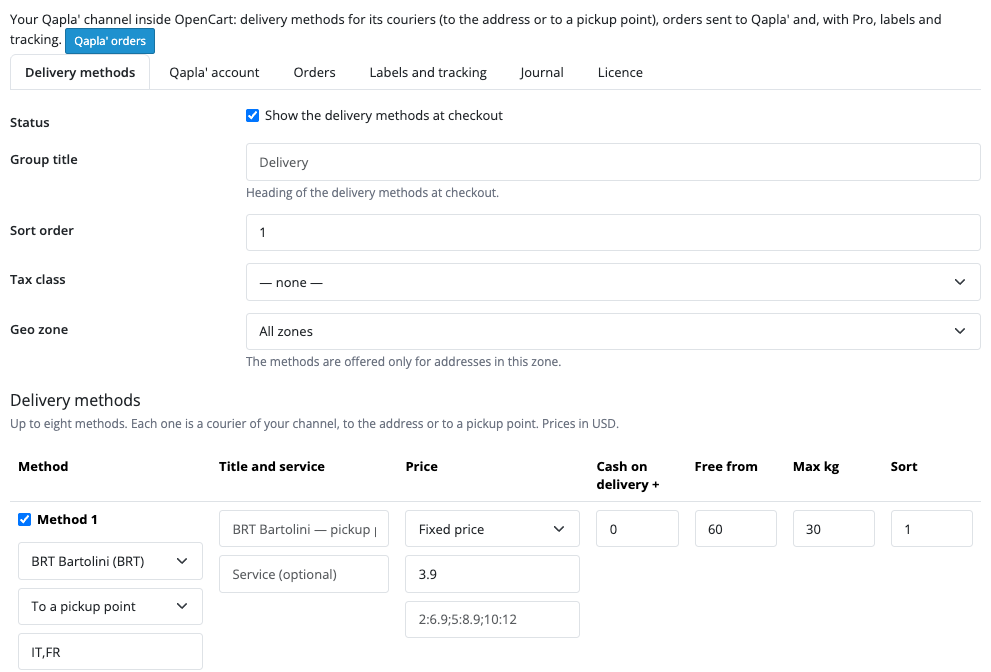
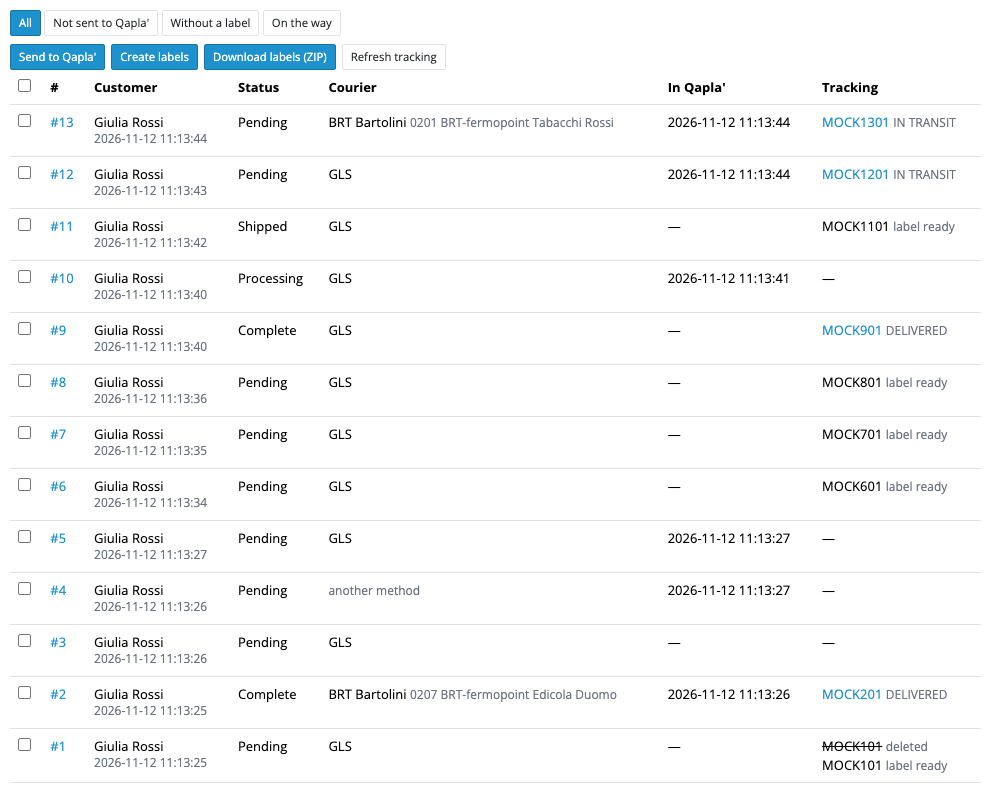
On “Delivery methods” you set up to eight methods: a courier of the channel (with contract variants such as BRT-V1), to the address or to a pickup point, a title, a price (fixed), free from an amount, a maximum weight, countries, a geo zone and a tax class. The “Qapla’ orders” button leads to the list of Qapla’ orders with the filters “Not sent to Qapla’”, “Without a label” and “On the way”.
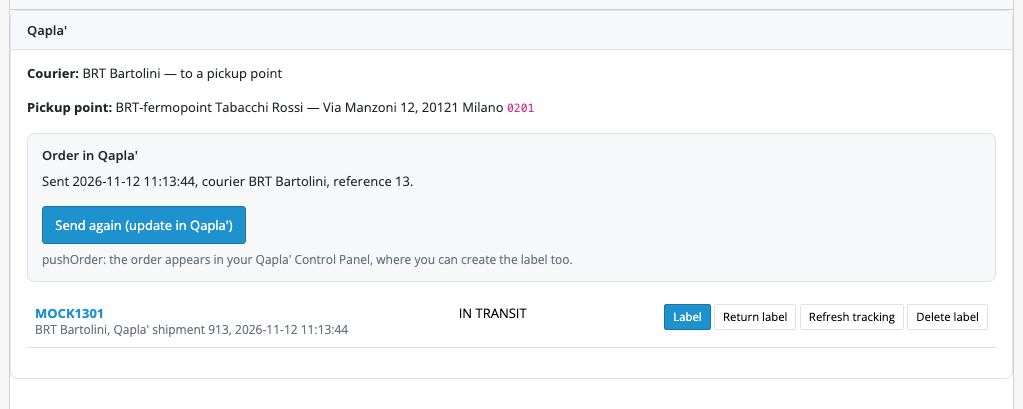
The order gets a “Qapla’” panel: the courier, the chosen point and the “Send to Qapla’” button (the recipient, province, amount, cash on delivery, products with SKUs, weight and size, the point). Sending again updates the order in Qapla’. An order with another delivery method goes with the courier you choose, or with the default courier. The point can be found and changed in the order, and the text of a Qapla’ refusal lands in the panel and in the order history as one line.
In Pro the “Create label” button creates the shipment and the label from the order: PDF, JPG or ZPL to download, a return label and label removal (Delete label). One label is active per order: a double click does not duplicate it, and a shipment in the pending state is read again later by the module. The test mode (“sandbox”) creates labels without booking.
Automation: you choose the order statuses on which the order is sent to Qapla’ and on which the label is created. Tracking arrives from the Qapla’ webhook (its address is shown on the “Labels and tracking” tab, and the channel key is checked in the request itself) and from an hourly check; the “Refresh tracking” button updates it by hand. The Qapla’ status “delivered” (99) moves the order to the status you chose, and returns (95) are added as a row. The buyer gets one e-mail with the number and a tracking link.
The list of Qapla’ orders has bulk actions: send to Qapla’ (up to 100 orders in one call), create labels (up to 50), download all labels as one ZIP and refresh tracking. The journal shows the last 300 calls to Qapla’ and webhooks. Pro also has courier rules for orders with other methods (by country, weight and method), price by weight and a cash-on-delivery surcharge.
Didn't find the answer? Message us on Telegram and we'll reply within a business day.
 @catcode_support
Setup, compatibility, activation
No, it is an independent integration with Qapla' by CatCode. Qapla' is a trademark of its owner; the module is not a Qapla' product.
Yes. The module works with your Qapla' channel and its private key. API access depends on your Qapla' plan, and the pickup point search is switched on by Qapla' support on request.
Press the search in the “Try it” box on the settings page: it shows the answer of Qapla', for example that the point search is not switched on for the channel yet.
The courier of the chosen method or point; for an order with another delivery method the one you choose in the order, or the default courier. In Pro the courier can be set by rules by country, weight and method.
No. One label is active per order and a second click does not duplicate it. To create a new one, first delete the old one with “Delete label”.
OpenCart 4.0.2.x–4.1.x, 3.0.x and 2.3.0.2: three separate archives in one product. The stock checkout and CatCode One Page Checkout are supported.
Yes, for OpenCart one payment and a lifetime licence, for two sites.
Pro switches off and the free part keeps working: the delivery methods, the point choice and “Send to Qapla'”.
No reviews yet. Be the first.
No questions yet. Ask one — we answer within 24 hours.
We build custom modules for WordPress, WooCommerce, OpenCart and Shopify. Tell us about the task and we'll prepare an estimate.
Order a custom module
—
Charged in UAH; your bank converts it to your currency. EUR price is approximate.

CatCode assistant
Just now


CatCode assistant
Online

I’ll help with your website task
Describe your website task — I’ll find a ready-made module or pass it to a developer for an estimate. Modules, custom features, layout, integrations, speed, migration, technical SEO.