











WooCommerce
1 290 UAH839 UAH/year≈ €17
Black November: −35% on all modules until 30 November Black November: −35% until 30 November Choose a module
 Website auditA PDF report by email in 3 minutesCheck a website
Everyday tasks
Image compressorSize, quality and WebP in bulkQR generatorLink, Wi-Fi, payment to IBANVAT calculator20, 14, 7% and amount in wordsTransliterationOfficial Ukrainian standardWebsite checks
PHP and pluginsPHP version, WordPress, pluginsGoogle Merchant feedFields, prices, GTIN, imagesDomain emailSPF, DKIM, DMARC, blacklistsAI search readinessllms.txt, bots, markupAll 9 toolsEnter at least 2 characters

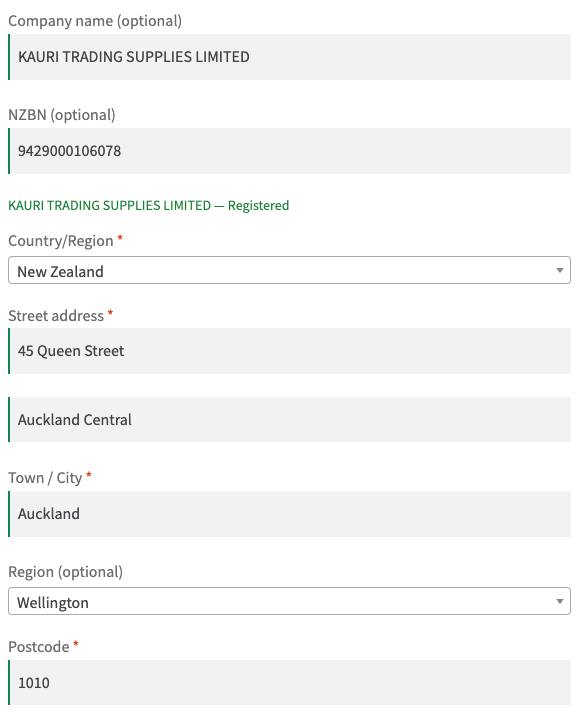


Check a New Zealand business by NZBN at the WooCommerce checkout: name and status from the MBIE register, data on the order; Pro adds search by name, address autofill, a B2B role and refusing closed businesses.
The free version works with no time limit. Pro adds the rest of the features in the table.


The checkout gets an NZBN field (the label can be changed).

WooCommerce → NZBN: paste the subscription key, choose Production (the live register) or Sandbox (MBIE test data, only with the Sandbox key), press “Check connection”, and say whether the number is required.

Search by name. The buyer types a business name, picks it from a list, and the NZBN fills itself in.

A fresh install is the free version, nothing switches on by itself. The “Try Pro for 7 days” button → e-mail → the key right in the window and by e-mail.

Moving the site? Unlink the licence on the old domain and activate it on the new one yourself. A staging copy (staging., dev.) works with the same key and does not take a site slot. For studios — keys for 5 or 25 sites, or unlimited.
 WordPress 6.4+, WooCommerce 8.6+, PHP 7.4+.You need your own NZBN API subscription key from api.business.govt.nz (Production or Sandbox).Compatible with HPOS, the classic and the block checkout. Interface language: English.
The NZBN field at the classic and block checkout and in the account, the check digit test, a lookup in the NZBN register (Production or Sandbox), the business name on the order, a note and…


NZBN Lookup for WooCommerce adds an NZBN field to the checkout and to My account and checks the typed number against the New Zealand Business Number register through the free NZBN API of the Ministry of Business, Innovation and Employment (MBIE). An NZBN has 13 digits and the last one is a check digit, so a typo is caught at once, before the register is asked. The shop sees the business name and status, and the order keeps them. You need your own subscription key from api.business.govt.nz.
What you need. Every shop uses its own NZBN API key: register at api.business.govt.nz, subscribe to the NZBN API (the portal says there is no fee) and wait for the subscription to be approved by the MBIE API team, which approves subscriptions by hand and may ask what you need it for. The key goes into the plugin settings. The check confirms that a business with this number is in the register and what its status is; it does not check the GST number.
The checkout gets an NZBN field (the label can be changed). When the buyer leaves the field, the business name and status appear under it (“Example Trading Limited — Registered”), or a message says that the number is not in the register. A wrong check digit or length is caught without any request to the register. If the company field is empty, the name from the register goes there. Private buyers can skip the field: it is optional, and it is worth making it required only for a wholesale-only shop.
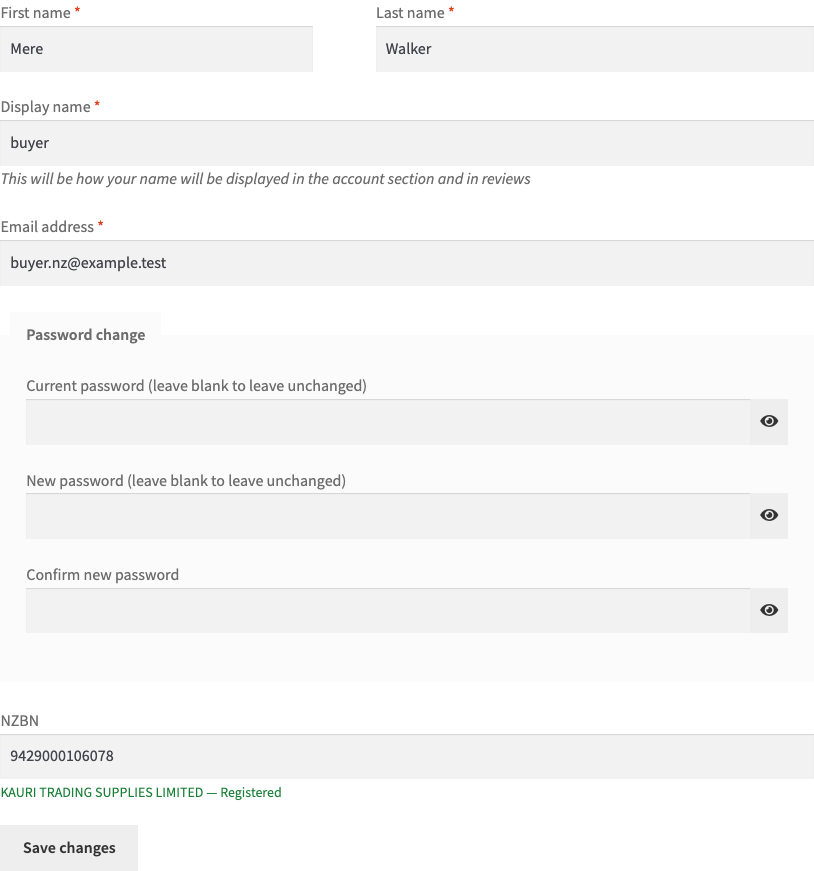
My account → Account details has the same field. The number the buyer typed at the checkout or here is kept on the customer, and the next checkout starts with it. The field at the block checkout and in Account details is one and the same value.
A number with a wrong format stops the order with a plain message. A number the register does not know does not stop the order by default: it only leaves a note on it. The “Refuse unknown numbers” option is off by default and can be turned on in the settings. If the register is down for a while, the order goes through and the note says that the number was not verified, so a government service never blocks sales.
WooCommerce → NZBN: paste the subscription key, choose Production (the live register) or Sandbox (MBIE test data, only with the Sandbox key), press “Check connection”, and say whether the number is required. The key is stored encrypted and never reaches the browser. The “Look up” button checks any number right in the settings. Register answers are kept for 6 hours, and the requests come from your server, not from the buyer’s browser.
The order gets a box: number, name, status, type, address, registration date and the register number. The same goes into the order note. In Pro the box has a “Check again” button and the GST number the business published in the register.
Search by name. The buyer types a business name, picks it from a list, and the NZBN fills itself in.
Address autofill. The business name and its address from the register (invoice, postal or registered) go into empty billing fields when the buyer enters the number. Works at the classic and the block checkout. The register gives no region, so the buyer fills that field in.
Closed businesses. A business the register shows as removed, closed, in liquidation, receivership or administration cannot place an order; the buyer sees the reason.
Register unavailable. If you wish, the order is refused when the register cannot be reached (by default it goes through with a note).
GST number on the order. The GST number the business published in the register is kept with the order. The plugin does not check whether the GST registration is valid and only shows what the register holds.
B2B customer role. A customer with a verified, trading business gets the role you picked (the one your trade-price plugin gives wholesale prices to); the role is taken back when the business closes. Shop managers and administrators are never touched, and the role is taken only from customers who got it from this plugin.
Customers re-checked on a schedule. The numbers saved on customer accounts are asked again every few days, in batches of 25 an hour (an unchanged record costs the register almost nothing: ETag is used). Name and status changes go to a journal and to the shop e-mail. The “Check all customers now” button runs the same check over all customers in batches.
Check again and check before shipping. The button on the order asks the register again and writes the change to the notes; if you wish, the register is asked once more when the order goes to Processing, and if the business no longer trades, the order is put on hold.
Updates from catcode.com.ua.
Didn't find the answer? Message us on Telegram and we'll reply within a business day.
 @catcode_support
Setup, compatibility, activation
No, it is an independent integration by CatCode. The register data belongs to MBIE (the Ministry of Business, Innovation and Employment, the New Zealand government); the module is not affiliated with them and not endorsed by them.
Yes. The NZBN API subscription at api.business.govt.nz is free, but the key is yours, not ours. The MBIE API team approves the subscription by hand and may ask what it is for.
It is off by default. Then a number the register does not know does not stop the order: it only leaves a note on it. Turn it on if you want such numbers refused.
No. It checks that a business with this NZBN is in the register and what its status is. Pro keeps the GST number the business itself published in the register.
Yes. Leave "Required" off and the field is optional.
The order goes through, and a note says the number was not verified. In Pro you can choose the opposite and refuse the order.
The MBIE Sandbox holds test records and old Companies Register data, not the live register. For real numbers switch to Production with the Production key.
Pro switches off and the free part keeps working: the field, the register check, the data on the order, the field in the account.
One Pro licence key works on two sites: the shop and its test copy.
No reviews yet. Be the first.
No questions yet. Ask one — we answer within 24 hours.
We build custom modules for WordPress, WooCommerce, OpenCart and Shopify. Tell us about the task and we'll prepare an estimate.
Order a custom module
—
Charged in UAH; your bank converts it to your currency. EUR price is approximate.

CatCode assistant
Just now


CatCode assistant
Online

I’ll help with your website task
Describe your website task — I’ll find a ready-made module or pass it to a developer for an estimate. Modules, custom features, layout, integrations, speed, migration, technical SEO.