















WooCommerce
990 UAH644 UAH/year≈ €14
Black November: −35% on all modules until 30 November Black November: −35% until 30 November Choose a module
 Website auditA PDF report by email in 3 minutesCheck a website
Everyday tasks
Image compressorSize, quality and WebP in bulkQR generatorLink, Wi-Fi, payment to IBANVAT calculator20, 14, 7% and amount in wordsTransliterationOfficial Ukrainian standardWebsite checks
PHP and pluginsPHP version, WordPress, pluginsGoogle Merchant feedFields, prices, GTIN, imagesDomain emailSPF, DKIM, DMARC, blacklistsAI search readinessllms.txt, bots, markupAll 9 toolsEnter at least 2 characters

Stripe Checkout for WooCommerce: cards, Apple Pay and Google Pay on the Stripe page, any currency; Pro adds refunds, time to pay, a background check and a log.
The free version works with no time limit. Pro adds the rest of the features in the table.


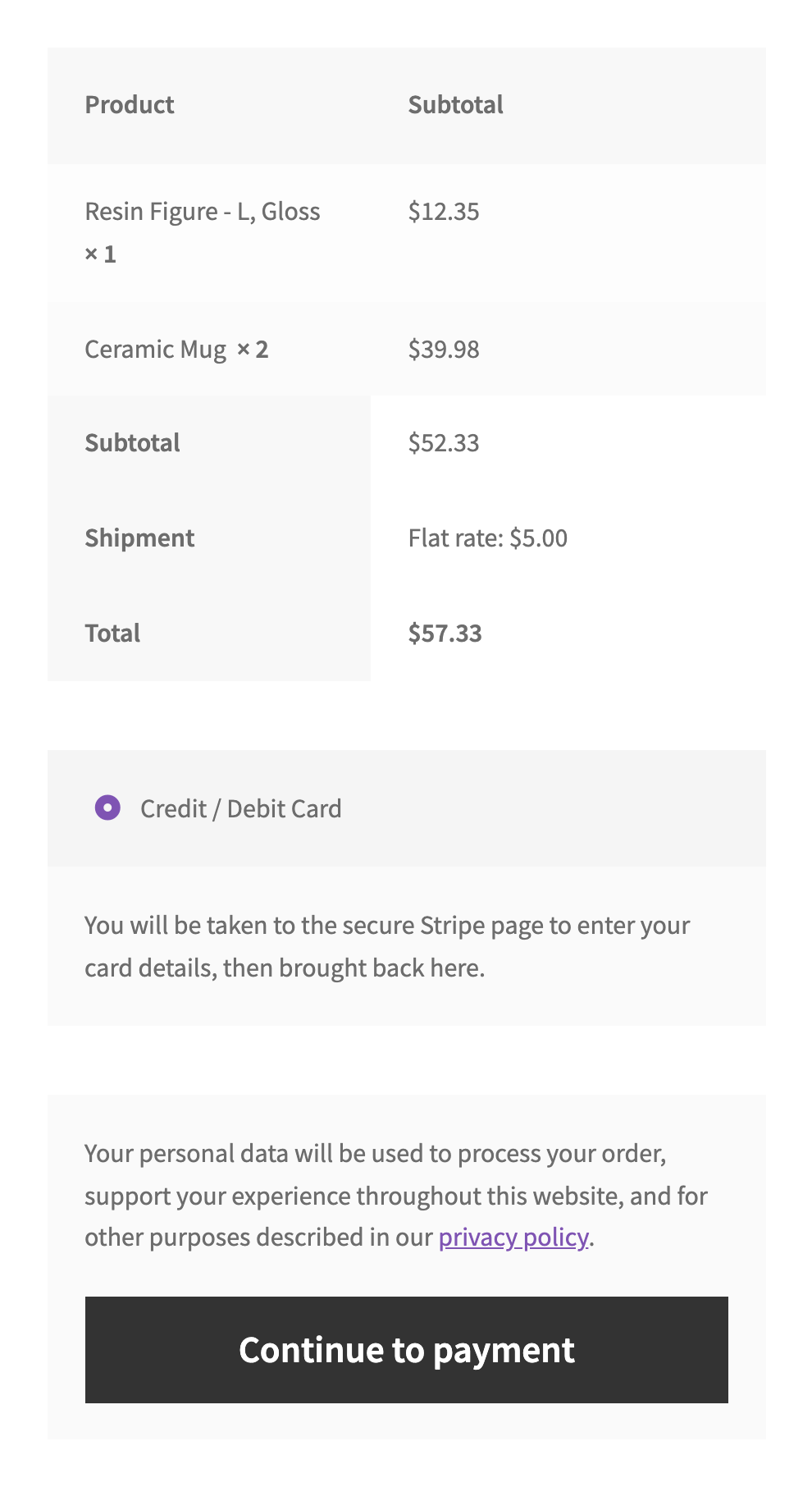
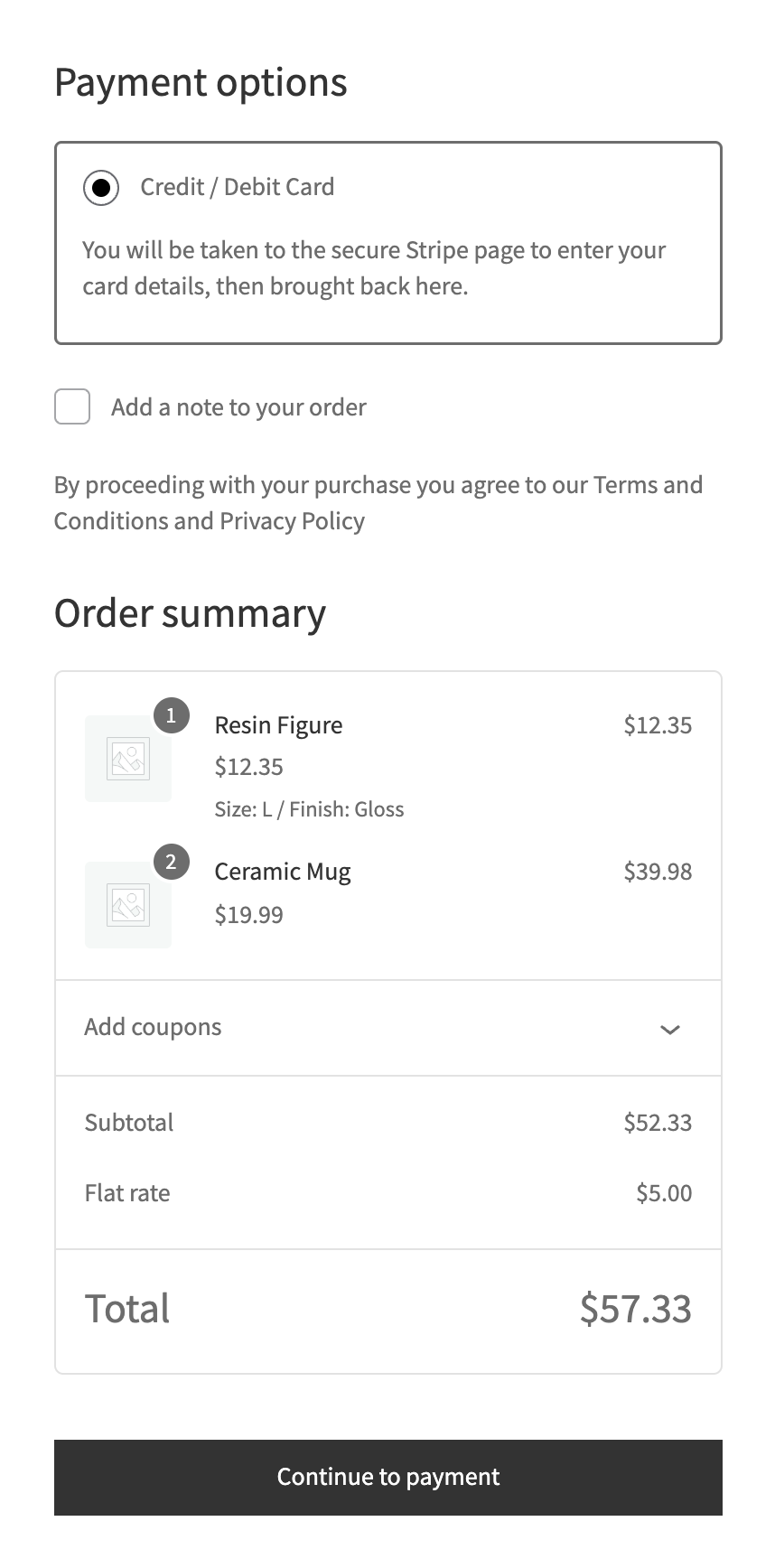
At the checkout the buyer sees the “Credit / Debit Card” method (the title, description and button text can be changed) with a note that the payment happens on the secure Stripe page.

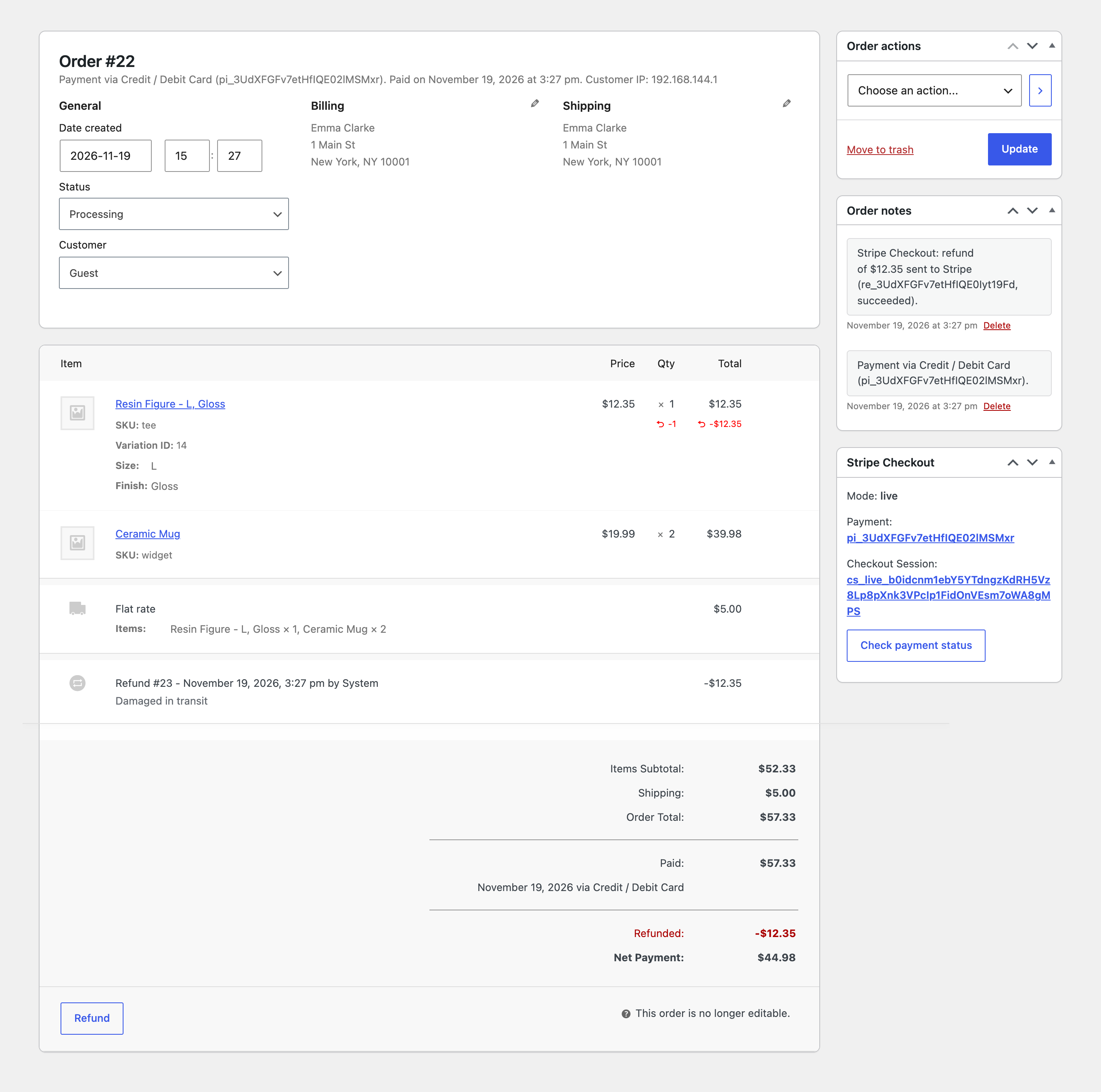
Refunds from WooCommerce. A full or partial refund from the order goes to Stripe, and the order keeps a note of it.

A fresh install is the free version, nothing switches on by itself. The “Try Pro for 7 days” button → e-mail → the key right in the window and by e-mail.

Moving the site? Unlink the licence on the old domain and activate it on the new one yourself. A staging copy (staging., dev.) works with the same key and does not take a site slot. For studios — keys for 5 or 25 sites, or unlimited.
 WordPress 6.4+, WooCommerce 8.6+ (HPOS and the block checkout are supported), PHP 7.4+.A Stripe account and its secret key; for the webhook, a site on HTTPS reachable from the internet.Store currency: any currency Stripe takes for your account.
Payment on the Stripe Checkout page, order lines with options and images, every Stripe currency, confirmation on return and by a signed webhook, one-button webhook setup, delayed payment…


Stripe Checkout Payments for WooCommerce adds Stripe Checkout to WooCommerce: the buyer presses “Continue to payment”, pays on the secure Stripe-hosted page (checkout.stripe.com) and comes back to the order confirmation. Card details never touch your shop, 3-D Secure is handled by Stripe, and the page offers the methods you switched on in your Stripe Dashboard: cards, Apple Pay, Google Pay, Link and others available in your country. The module works with your own Stripe account and with any currency Stripe takes.
What you need from Stripe. Your own Stripe account and its secret key from Stripe Dashboard → Developers → API keys (sk_test_… for Stripe test mode, sk_live_… for live). Stripe has to activate the account before live payments. Payment methods are switched on in Stripe Dashboard → Settings → Payment methods.
At the checkout the buyer sees the “Credit / Debit Card” method (the title, description and button text can be changed) with a note that the payment happens on the secure Stripe page. While the title, description and button are left at their defaults, the buyer sees them in their own language: English, German, French or Spanish.
The same on the block checkout, phones included. The module checks the cart currency against the list of Stripe currencies: for a currency Stripe does not take, the method is not offered.
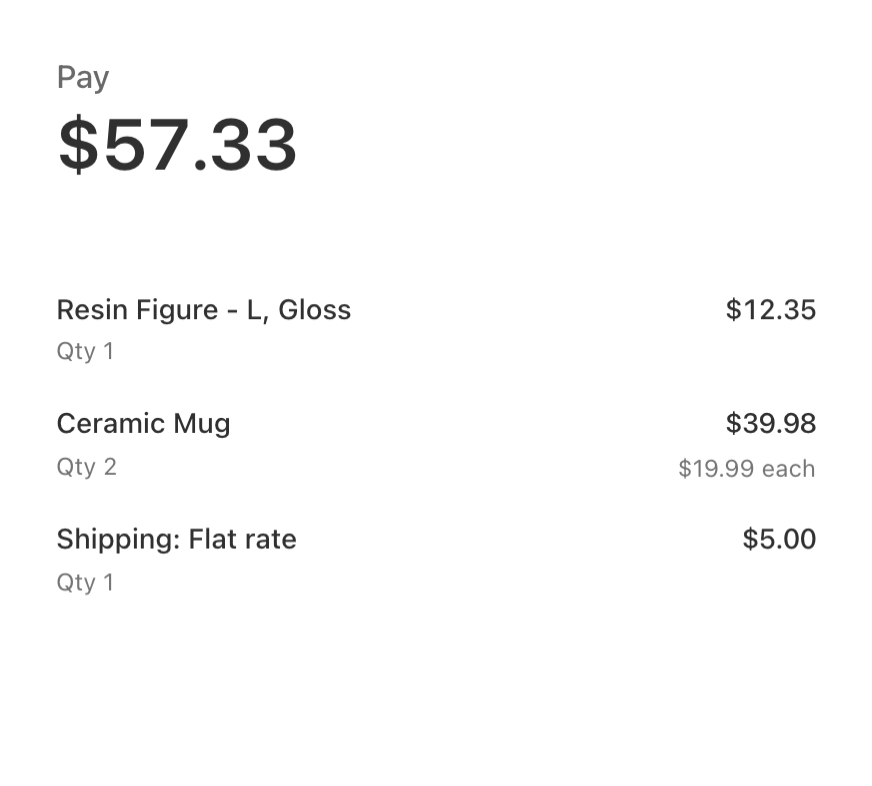
On the Stripe page every product is its own line: quantity, price including tax and discounts, the product image and the item options the shop shows on the order (size, colour, add-on fields), plus fees and shipping. When the lines would not add up to the order total to the cent, Stripe shows one line “Order #N” with the exact total: the buyer always pays exactly the order total. Amounts go in the currency’s minor unit, including zero-decimal currencies (JPY, KRW, CLP, VND…) and three-decimal ones (KWD, BHD, JOD, OMR, TND).
The module confirms the payment twice and counts it once: when the buyer comes back (the confirmation page already shows the paid order) and when the Stripe webhook arrives, even if the buyer closed the tab. The order is marked paid only when the Stripe session belongs to it (order number and order key) and the amount and currency are the order’s own; a different amount puts the order On hold with a note. Repeated or late events change nothing, and a paid order is never set back. A method the bank confirms later keeps the order On hold until Stripe reports the result; a refusal fails the order.
“Back” on the Stripe page returns the buyer to the checkout with the cart intact and a short notice. A new attempt closes the page of the previous one, so one order cannot be paid twice. On the order screen the Stripe Checkout box shows the mode, the payment and the session with links to the Stripe Dashboard, and a “Check payment status” button.
Refunds from WooCommerce. A full or partial refund from the order goes to Stripe, and the order keeps a note of it.
Refunds from the Stripe Dashboard. A refund made right in Stripe arrives by webhook and is recorded on the order as a WooCommerce refund: the totals and the Refunded status follow what really happened.
Time to pay. How long the Stripe page stays open: 30 minutes to 24 hours. Optionally the unpaid order is cancelled when its page expires, and the stock goes back.
Hourly check. Unpaid orders of the last 3 days are checked with Stripe in the background: if a webhook did not arrive, the order is closed anyway.
Payment log. The last 200 payments, webhook events, refunds and errors on the settings page.
Translations and updates. German, French and Spanish interface and updates from catcode.com.ua right in the admin.
Didn't find the answer? Message us on Telegram and we'll reply within a business day.
 @catcode_support
Setup, compatibility, activation
No, it is an independent integration by CatCode. Stripe is a trademark of Stripe, Inc.; the plugin is not affiliated with or endorsed by Stripe.
Yes, your own. The plugin does not do the sign-up, and Stripe has to activate the account before live payments.
No. The buyer enters them on the Stripe page; only the result comes back to the shop.
It is strongly recommended. Without it a payment is confirmed when the buyer comes back, but not when the buyer closes the tab after paying. The webhook is set up with one button, "Set up the webhook".
Those enabled in Stripe Dashboard → Settings → Payment methods and available for the currency, the amount and the buyer's country: cards, Apple Pay, Google Pay, Link and others.
The store currency, if Stripe takes it for your account, including zero-decimal and three-decimal currencies. For other currencies the method is not offered at the checkout.
It waits for the buyer to pay on the Stripe page and moves to Processing as soon as Stripe confirms the payment.
Yes, in Pro: a full or partial refund from the WooCommerce order goes to Stripe, and refunds from the Stripe Dashboard are recorded on the order.
One key works on two sites: the shop and its development copy.
No reviews yet. Be the first.
No questions yet. Ask one — we answer within 24 hours.
We build custom modules for WordPress, WooCommerce, OpenCart and Shopify. Tell us about the task and we'll prepare an estimate.
Order a custom module
—
Charged in UAH; your bank converts it to your currency. EUR price is approximate.

CatCode assistant
Just now


CatCode assistant
Online

I’ll help with your website task
Describe your website task — I’ll find a ready-made module or pass it to a developer for an estimate. Modules, custom features, layout, integrations, speed, migration, technical SEO.