











WooCommerce
890 UAH579 UAH/year≈ €12
Black November: −35% on all modules until 30 November Black November: −35% until 30 November Choose a module
 Website auditA PDF report by email in 3 minutesCheck a website
Everyday tasks
Image compressorSize, quality and WebP in bulkQR generatorLink, Wi-Fi, payment to IBANVAT calculator20, 14, 7% and amount in wordsTransliterationOfficial Ukrainian standardWebsite checks
PHP and pluginsPHP version, WordPress, pluginsGoogle Merchant feedFields, prices, GTIN, imagesDomain emailSPF, DKIM, DMARC, blacklistsAI search readinessllms.txt, bots, markupAll 9 toolsEnter at least 2 characters

An FGO invoice from every WooCommerce order: the CUI at the checkout, VAT rates, PDF, no duplicates; Pro adds invoices by status, payments, storno, e-Factura.
The free version works with no time limit. Pro adds the rest of the features in the table.


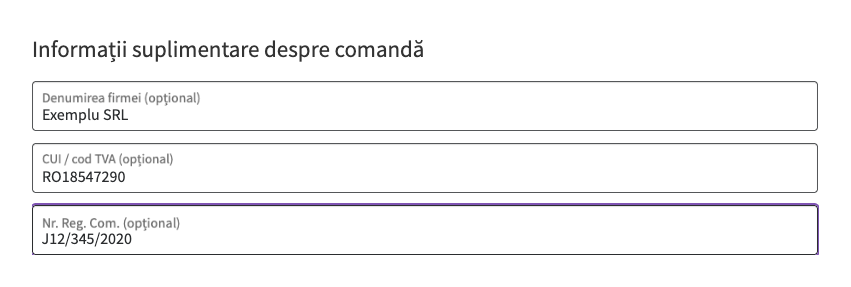
The checkout gets optional fields “Denumirea firmei”, “CUI / cod TVA” and “Nr. Reg.

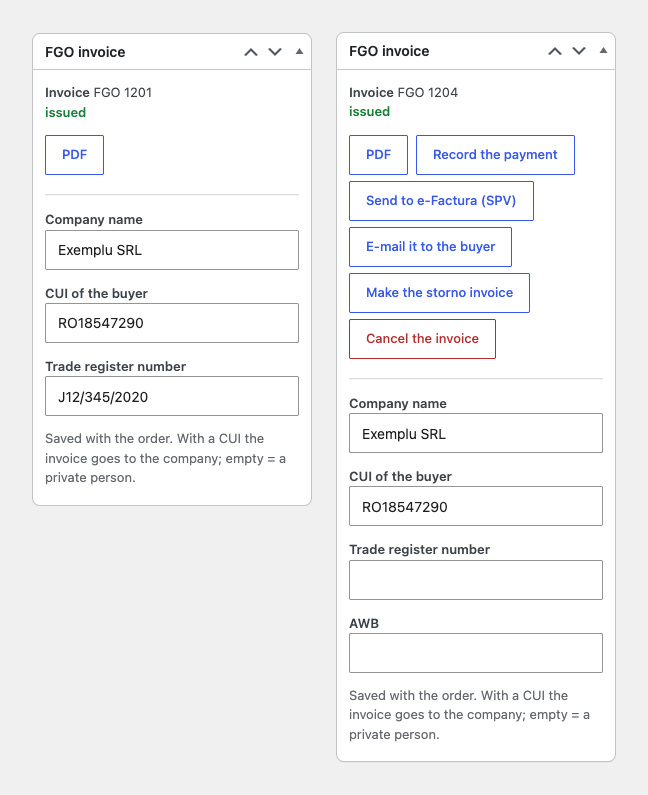
The order gets an “FGO invoice” box.

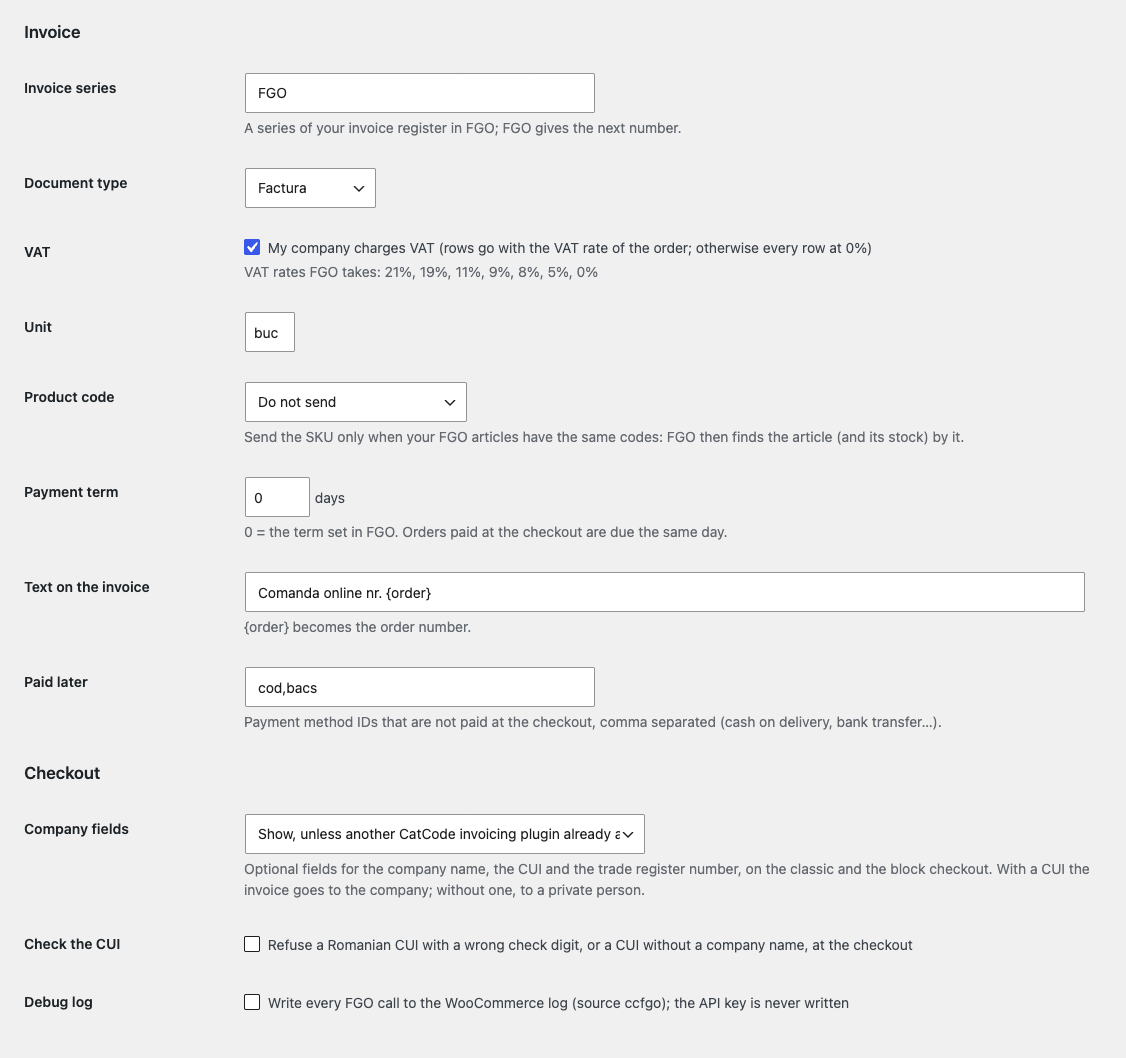
WooCommerce → FGO invoices: enter the API key, your company’s CUI and the shop address registered in FGO and press “Check connection”: the plugin shows the rights of the key and loads the VAT rates and document types.

A fresh install is the free version, nothing switches on by itself. The “Try Pro for 7 days” button → e-mail → the key right in the window and by e-mail.

Moving the site? Unlink the licence on the old domain and activate it on the new one yourself. A staging copy (staging., dev.) works with the same key and does not take a site slot. For studios — keys for 5 or 25 sites, or unlimited.
 WordPress 6.4+, WooCommerce 8.6+ (HPOS, block checkout), PHP 7.4+.An FGO account with an API v2 key (Premium or Enterprise subscription) and your company’s CUI.The order currency goes to FGO as it is (usually lei, RON); the shop address on https, registered in FGO.
November 2026.


FGO Invoices for WooCommerce creates an invoice (factura) in the Romanian service FGO from a shop order through the API v2. The buyer enters a CUI, a company name and a trade register number at the checkout, and a button on the order creates the invoice in your series with the right buyer, rows and VAT (TVA) rates. The invoice number and the PDF link stay with the order. The plugin uses your own FGO account and is made for shops in Romania.
What you need in FGO. A company with an FGO account and an API v2 key: FGO gives such keys on the Premium and Enterprise subscriptions. The key is created in FGO under eCommerce → API, where the address of your shop is registered too. The order currency goes to FGO as it is (usually lei, RON).
The checkout gets optional fields “Denumirea firmei”, “CUI / cod TVA” and “Nr. Reg. Com.”, on the classic and on the block checkout. A buyer who enters a CUI gets an invoice for the company; one who does not gets it as a private person. The check digit test of the Romanian CUI can be switched on: the checkout then refuses a wrong CUI and says why. If another CatCode plugin for Romanian invoices already runs on the site, this one does not repeat the fields.
The order gets an “FGO invoice” box. The button issues the invoice: products, shipping and fees go as separate rows, each with its VAT rate, a negative fee becomes a “Discount” row, and the invoice total equals the order total to the last ban. A buyer with a CUI gets an invoice for the company, without a CUI for a private person. The CUI, the name and the register number can be corrected in the box itself.
Each invoice carries its own order reference and FGO checks for a duplicate: when the answer from FGO is lost, the retry links the invoice FGO already made and no second one appears. FGO errors (another company’s CUI, a shop address that is not registered, an unknown series, a service that is down) are shown in the box in plain words with a “Try again” button.
The invoice number, its state and the PDF link are kept with the order, and the “Invoices” tab lists every order with its FGO invoice, the state, the total and the reason when something stopped.
WooCommerce → FGO invoices: enter the API key, your company’s CUI and the shop address registered in FGO and press “Check connection”: the plugin shows the rights of the key and loads the VAT rates and document types. Below are the series, the document type, VAT payer or not, the unit, the product code (SKU), the payment term, the text on the invoice with the order number, the payment methods paid “later” (cash on delivery, bank transfer) and the checkout settings. The debug mode writes a WooCommerce log without the key.
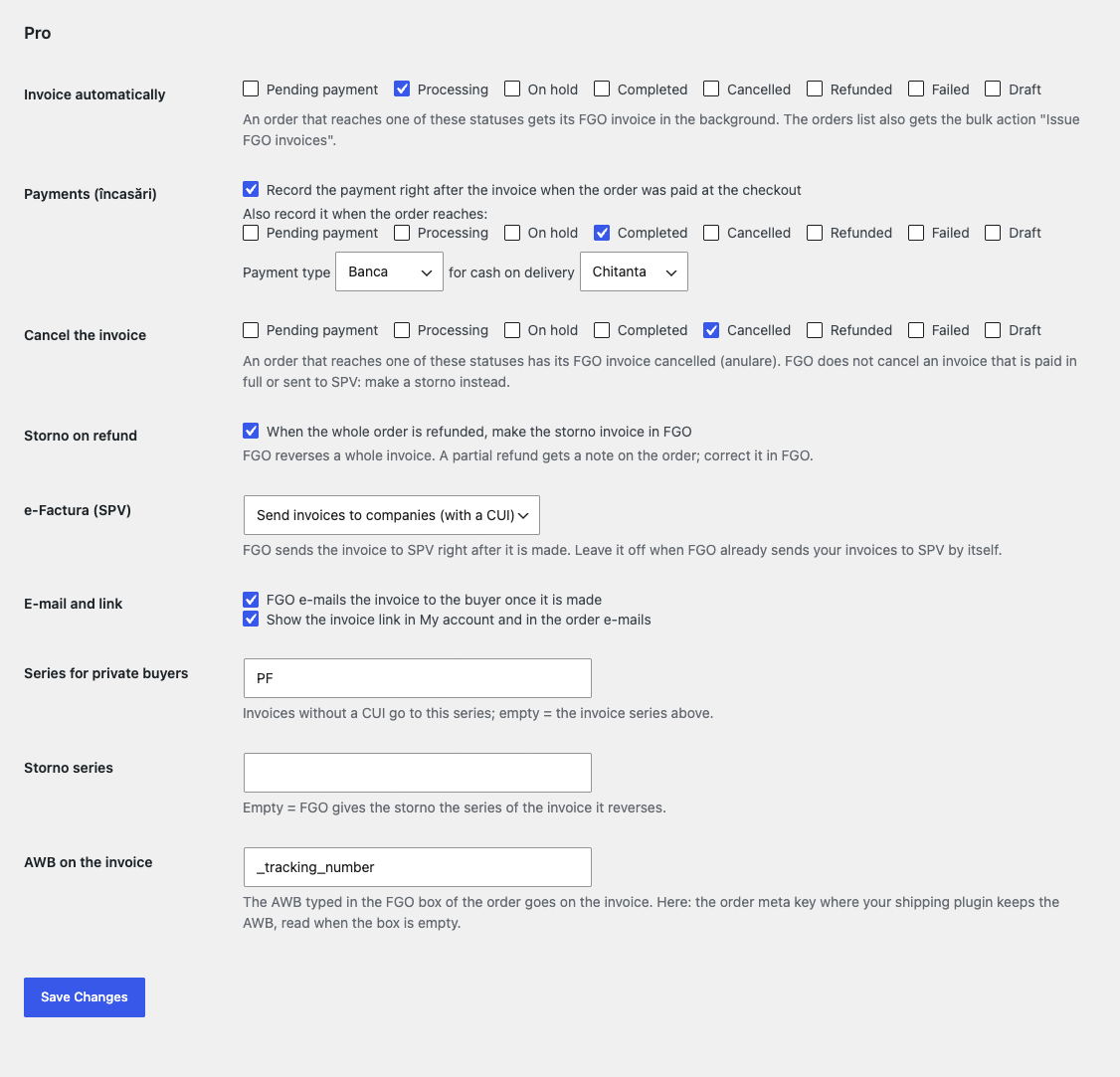
Invoices by status. Pick the order statuses (for example “Processing”): the invoice is created in the background and the checkout never waits for FGO. The orders list gets the bulk action “Issue FGO invoices”.
Payments (încasări). The payment is recorded in FGO right after the invoice for orders paid at the checkout, when the order reaches a status (for example “Completed” for cash on delivery) or with a button; the payment type is set separately for cash on delivery.
Cancelling and storno. The invoice is cancelled by a status or a button; when the whole order is refunded the storno invoice is made, and a storno can be withdrawn (repune in vigoare). A partial refund leaves a note on the order.
e-Factura (SPV). FGO sends the invoice to SPV right after it is made (to companies or to everyone); a button and the SPV state of the document are there too.
E-mail to the buyer and the link. FGO e-mails the invoice to the buyer itself; the PDF link appears in My account and in the order e-mails.
AWB and series. The AWB is typed on the order or read from your shipping plugin and goes on the invoice. A separate series for private buyers and one for storno invoices.
Languages and updates. Interface: English and română; updates from catcode.com.ua.
Selling on OpenCart? There is a separate module for it: FGO Invoices for OpenCart (4.x, 3.x, 2.3).
Didn't find the answer? Message us on Telegram and we'll reply within a business day.
 @catcode_support
Setup, compatibility, activation
No, it is an independent integration by CatCode through the public FGO API. FGO is a trademark of its owner; the plugin is not affiliated with or endorsed by FGO.
FGO API v2 keys are available on the Premium and Enterprise subscriptions. To get acquainted there is FGO's test environment (testuat.fgo.ro).
The shop address on the plugin settings page must equal the address registered in FGO (eCommerce → API) character for character: with https and without a trailing slash.
The plugin tries again with the same order reference. FGO answers with the invoice it already made and the plugin links it, so there is never a second invoice.
The invoice goes to a private person; Pro has a separate series for such buyers.
Yes, in Pro: by the order statuses you choose, in the background. By hand from the order box it works in the free version too.
In Pro: FGO sends the invoice to SPV right after it is made (to companies or to everyone) or by a button, and the state of the document shows on the order.
FGO reverses a whole invoice, so a partial refund is only noted on the order and you make the correction in FGO.
Pro switches off and the free part keeps working: the connection, the checkout fields, an invoice from the order, the PDF and the list of invoices.
One key covers two sites: the shop and its test copy.
No reviews yet. Be the first.
No questions yet. Ask one — we answer within 24 hours.
We build custom modules for WordPress, WooCommerce, OpenCart and Shopify. Tell us about the task and we'll prepare an estimate.
Order a custom module
—
Charged in UAH; your bank converts it to your currency. EUR price is approximate.

CatCode assistant
Just now


CatCode assistant
Online

I’ll help with your website task
Describe your website task — I’ll find a ready-made module or pass it to a developer for an estimate. Modules, custom features, layout, integrations, speed, migration, technical SEO.