











WooCommerce
990 UAH644 UAH/year≈ €14
Black November: −35% on all modules until 30 November Black November: −35% until 30 November Choose a module
 Website auditA PDF report by email in 3 minutesCheck a website
Everyday tasks
Image compressorSize, quality and WebP in bulkQR generatorLink, Wi-Fi, payment to IBANVAT calculator20, 14, 7% and amount in wordsTransliterationOfficial Ukrainian standardWebsite checks
PHP and pluginsPHP version, WordPress, pluginsGoogle Merchant feedFields, prices, GTIN, imagesDomain emailSPF, DKIM, DMARC, blacklistsAI search readinessllms.txt, bots, markupAll 9 toolsEnter at least 2 characters

Finnish e-invoices (verkkolasku) from WooCommerce orders through Apix: Finvoice 3.0 with a PDF copy, Business ID fields at the checkout; Pro adds automatic sending, a bulk queue and incoming invoices.
The free version works with no time limit. Pro adds the rest of the features in the table.


WooCommerce → Apix E-invoicing.

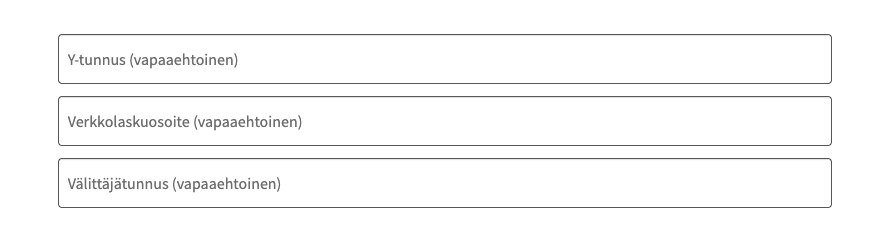
Three optional fields on the classic and on the block checkout: the Business ID (Y-tunnus), the e-invoice address (verkkolaskuosoite) and the operator ID (välittäjätunnus).

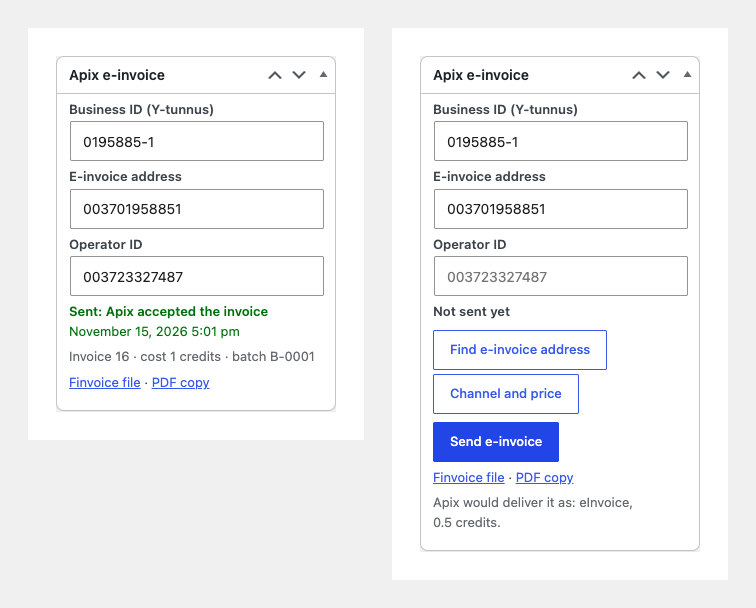
The order gets an “Apix e-invoice” box. The three buyer fields can be edited there, and the button “Send e-invoice” sends this order.

A fresh install is the free version, nothing switches on by itself. The “Try Pro for 7 days” button → e-mail → the key right in the window and by e-mail.

Moving the site? Unlink the licence on the old domain and activate it on the new one yourself. A staging copy (staging., dev.) works with the same key and does not take a site slot. For studios — keys for 5 or 25 sites, or unlimited.
 WordPress 6.4+, WooCommerce 9.9+ (HPOS, block checkout), PHP 7.4+.A contract with Apix Messaging (Laskumappi with the sending service) and the Finnish Business ID (Y-tunnus) of the seller; access of the shop server to api.apix.fi (HTTPS).Interface languages: English and Finnish (the Finnish translation is part of Pro).
The connection to Apix by user and password or by TransferID and TransferKey, the seller details with the Business ID, IBAN and BIC checks, optional Business ID, e-invoice address and…


Apix E-invoicing for WooCommerce sends the orders of a Finnish shop to business buyers as e-invoices (verkkolasku) through Apix Messaging. An order becomes a Finvoice 3.0 invoice with a PDF copy; Apix delivers it to the e-invoice address of the buyer, or as a paper letter when the buyer cannot receive e-invoices. The plugin works through the Apix API with your own Apix account, so the invoices go out under your Business ID and your e-invoice address.
What you need. A contract with Apix (an account in Apix Laskumappi with the sending service “Lähetä”) and the Finnish Business ID (Y-tunnus) of the seller. Apix charges credits (Netstamps) of your account for every delivered invoice. No Apix account yet: request one from Apix at apix.fi.
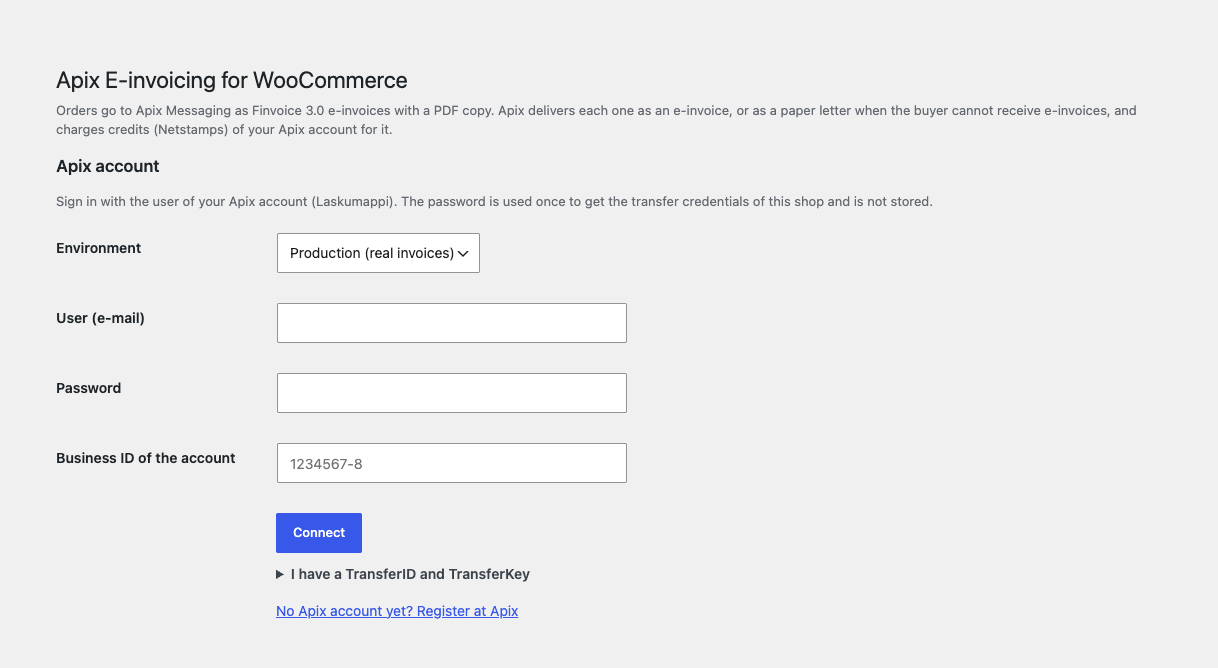
WooCommerce → Apix E-invoicing. Enter the user (e-mail) and the password of your Apix account and the Business ID of the account, and press “Connect”: the plugin gets the transfer credentials of the shop from Apix and the password is not kept. If Apix has given you a TransferID and a TransferKey, enter them instead. A production or a separate Apix environment can be chosen.
After connecting the page shows the company on the account, your own e-invoice address and the credits left, with the buttons “Check connection” and “Disconnect”. Below are the seller details of the invoice: the company name, the Business ID (the check digit is checked), the VAT number (empty means FI and the eight digits of the Business ID), the domicile, the IBAN (checked) and the BIC, the e-mail and the phone. The address is the store address of WooCommerce. You also set the payment term in days and which payment methods are paid by the invoice: bank transfer, cheque and cash on delivery by default, and methods with “invoice” in their id.
Three optional fields on the classic and on the block checkout: the Business ID (Y-tunnus), the e-invoice address (verkkolaskuosoite) and the operator ID (välittäjätunnus). They show for billing country Finland, for all countries or not at all, and they never stop an order.
The values are kept on the order (HPOS and legacy storage), shown in the e-mails and on the thank-you page, and included in the privacy export and erase of WooCommerce. A Business ID with a wrong check digit is kept and the order box warns about it. If the YTJ Business ID Lookup plugin of CatCode is active, its Business ID is reused.
The order gets an “Apix e-invoice” box. The three buyer fields can be edited there, and the button “Send e-invoice” sends this order. Before sending you can download the Finvoice file or open the PDF copy. After sending the box shows the state: accepted by Apix (with the invoice number, the cost in credits, the batch and the warnings of Apix), or rejected with the reason and the Apix code.
An invoice Apix accepted is never sent twice. One order is sent by one request at a time. When Apix does not answer within 9 seconds the state is “unknown”: Apix may have taken the invoice, so sending it again needs your tick “I checked in Apix”. An unreachable Apix gives “failed” and a retry. Orders with refunds, and orders whose rows do not add up to the order total, are not sent.
A Finvoice 3.0 file (ISO-8859-15, decimal comma) with the seller and the buyer, the rows with their VAT rates (25.5, 14 and 10 % as in your WooCommerce tax rates), shipping and fees, a coupon discount, the VAT summary, the due date and the Finnish reference number (viitenumero) with its check digit for the payment, plus the IBAN and BIC of the seller. The PDF copy goes in the same ZIP, with the Finnish letters and the pages for long orders.
An order already paid, for example by card, goes out marked as paid with nothing left to pay. The invoice number is the order number; in Pro it can have a prefix and a text of your own. A consumer without a Business ID or an e-invoice address can still be sent by the button: Apix chooses the channel by the receiver.
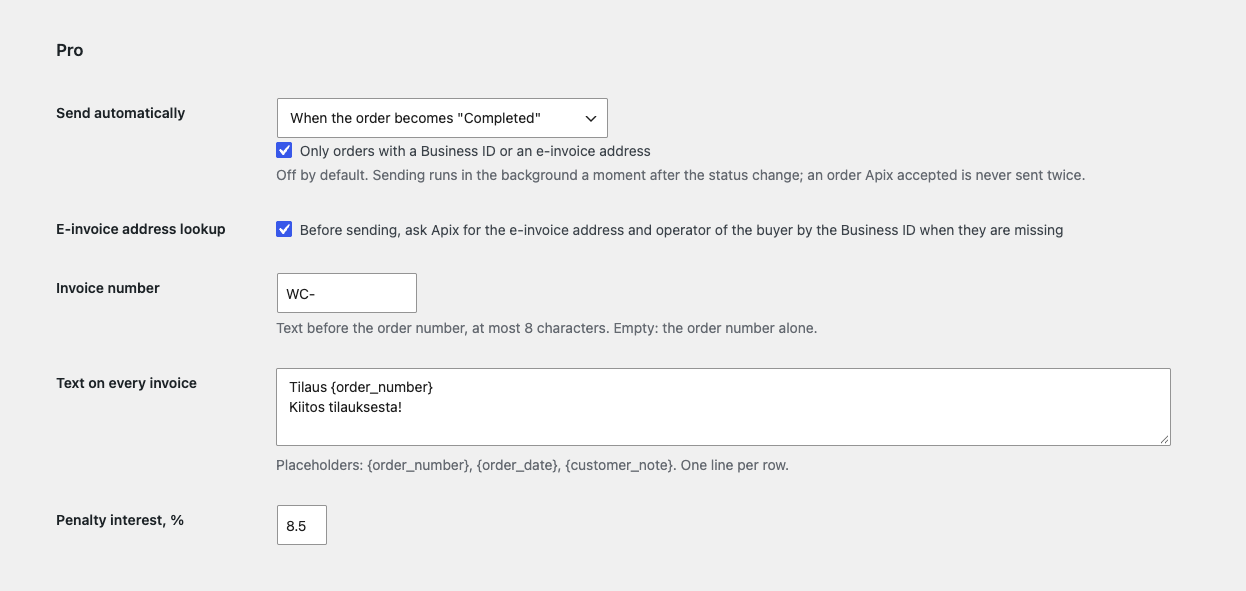
Automatic sending: when an order reaches the status you choose it is sent in the background through Action Scheduler. It is off by default, and it can be limited to orders with a Business ID or an e-invoice address. An order that Apix accepted is not queued again.
The e-invoice address lookup: Apix is asked for the e-invoice address and operator of a buyer by the Business ID, with a button in the order box or automatically before sending when the address is missing (once a day per order).
The bulk action “Send e-invoices (Apix)” in the orders list, on both the classic and the HPOS screen: the queue sends 5 orders a minute, skips orders already accepted, and stops by itself when the account has no credits, no contract or wrong credentials, with one alert. When Apix is unreachable the order stays in the queue and waits 5 minutes. “Empty the queue” clears it.
“Channel and price”: asks Apix how this invoice would be delivered (e-invoice or letter) and how many credits it costs, before you send it.
Incoming invoices: the purchase invoices sent to your own e-invoice address (this month and the last one) are listed on the settings page, with a download of the ZIP. It needs the Apix receiving service Vastaanota.
The sending log keeps the last 200 sendings, newest first, and an e-mail alert tells you when an automatic or bulk sending fails. Templates: a prefix of the invoice number, a text on every invoice with {order_number}, {order_date} and {customer_note}, and the penalty interest. The interface is English and Finnish.
Didn't find the answer? Message us on Telegram and we'll reply within a business day.
 @catcode_support
Setup, compatibility, activation
Yes. Apix bills the sending in credits (Netstamps) bought in the Apix webshop or by its own contract, and the sending needs the Apix service “Lähetä”.
Leave the field empty. Apix chooses the channel by the receiver; when the buyer cannot receive e-invoices, Apix can send the PDF copy as a paper letter at the price of a letter. In Pro the “Channel and price” button shows beforehand how it would be delivered.
No. An invoice Apix accepted is not sent again, and two requests for one order cannot run together. If Apix does not answer in time, the plugin does not guess: sending again needs your tick “I checked in Apix”.
Not in this version: an order with refunds is not sent.
Yes, with HPOS order storage and the legacy one, and with the block and the classic checkout.
No: nothing is sent to Apix while the order is placed. The invoice is sent by the button or, in Pro, in the background.
Pro switches off: automatic sending, the bulk queue and the lookups stop, and the orders that were queued get a note with the reason. The free part and the button keep working.
No, it is an independent plugin from CatCode. Apix is a trademark of its owner; the plugin is not affiliated with Apix Messaging Oy and not endorsed by it.
No reviews yet. Be the first.
No questions yet. Ask one — we answer within 24 hours.
We build custom modules for WordPress, WooCommerce, OpenCart and Shopify. Tell us about the task and we'll prepare an estimate.
Order a custom module
—
Charged in UAH; your bank converts it to your currency. EUR price is approximate.

CatCode assistant
Just now


CatCode assistant
Online

I’ll help with your website task
Describe your website task — I’ll find a ready-made module or pass it to a developer for an estimate. Modules, custom features, layout, integrations, speed, migration, technical SEO.