















WooCommerce
990 UAH644 UAH/year≈ €14
Black November: −35% on all modules until 30 November Black November: −35% until 30 November Choose a module
 Website auditA PDF report by email in 3 minutesCheck a website
Everyday tasks
Image compressorSize, quality and WebP in bulkQR generatorLink, Wi-Fi, payment to IBANVAT calculator20, 14, 7% and amount in wordsTransliterationOfficial Ukrainian standardWebsite checks
PHP and pluginsPHP version, WordPress, pluginsGoogle Merchant feedFields, prices, GTIN, imagesDomain emailSPF, DKIM, DMARC, blacklistsAI search readinessllms.txt, bots, markupAll 9 toolsEnter at least 2 characters

A Big Red Cloud sales invoice from every WooCommerce order: amounts to the cent, Irish VAT, no duplicates; Pro adds automatic sending, customers, products, cash receipts and a report.
The free version works with no time limit. Pro adds the rest of the features in the table.


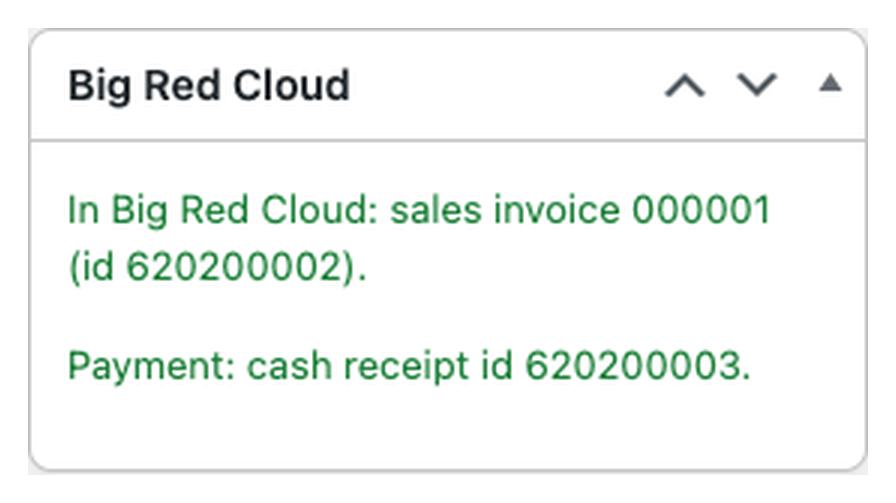
The order gets a “Big Red Cloud” box with a “Send to Big Red Cloud” button. It creates the sales invoice, shows its number and leaves a record in the order notes.

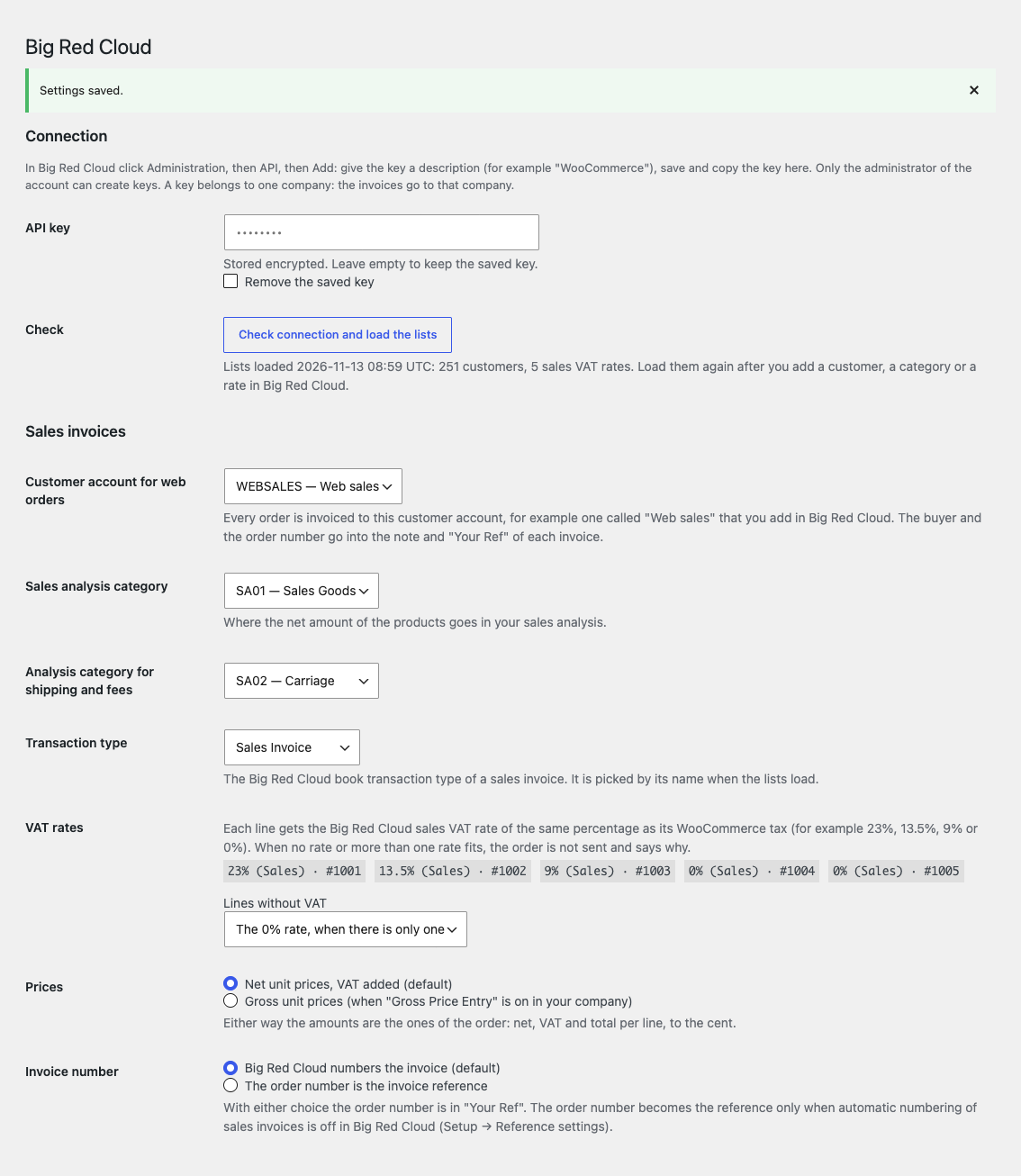
WooCommerce → Big Red Cloud: paste the key and press “Check connection and load the lists”: the plugin reads the VAT rates, analysis categories, transaction types, sales reps and customers of your company, and you pick the ones you need from the lists.

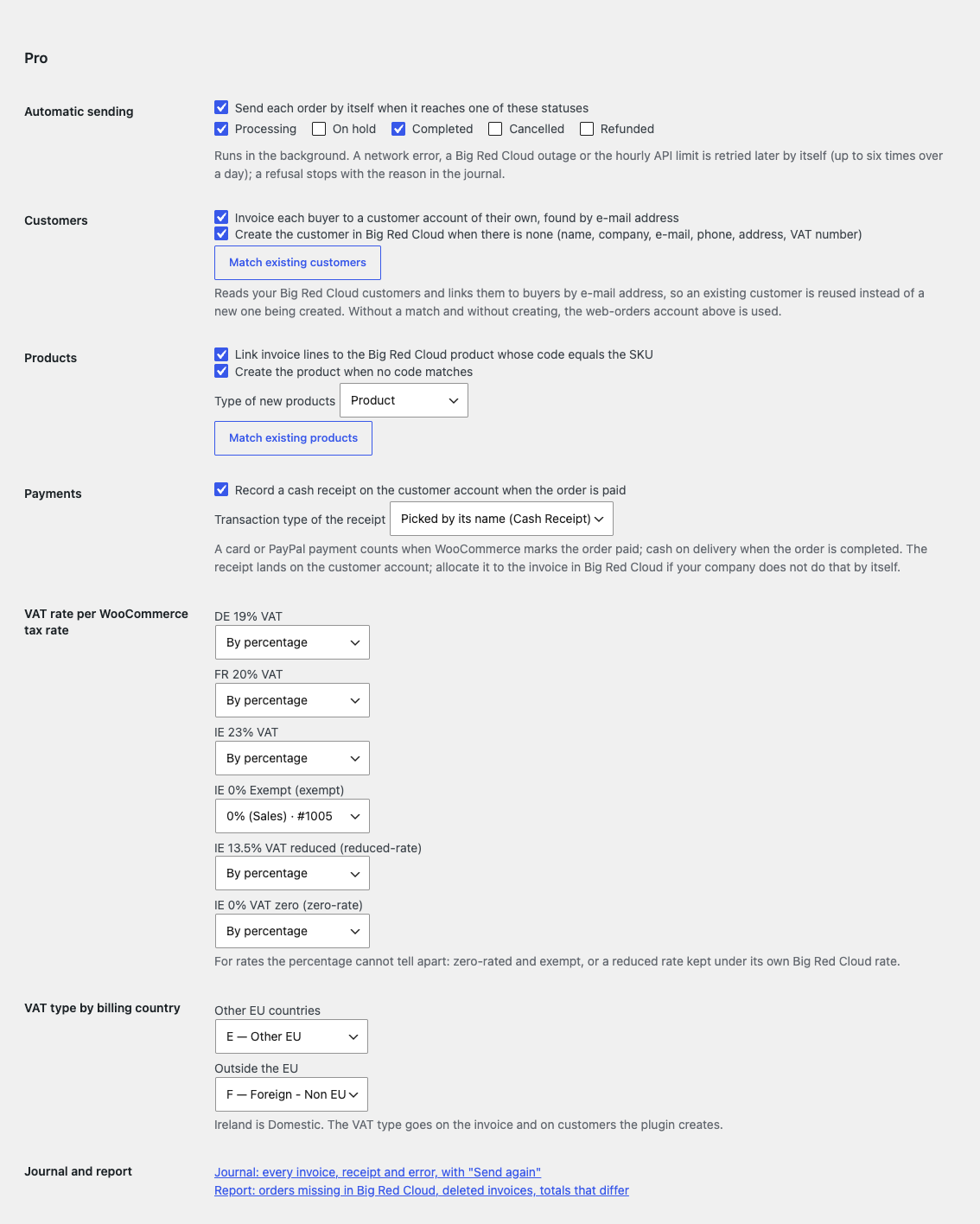
Automatic sending. Every order that reaches the statuses you choose goes to Big Red Cloud in the background.

A fresh install is the free version, nothing switches on by itself. The “Try Pro for 7 days” button → e-mail → the key right in the window and by e-mail.

Moving the site? Unlink the licence on the old domain and activate it on the new one yourself. A staging copy (staging., dev.) works with the same key and does not take a site slot. For studios — keys for 5 or 25 sites, or unlimited.
 WordPress 6.2+, WooCommerce 7.0+ (HPOS and block checkout are supported), PHP 7.4+.A Big Red Cloud account and an API key of the company.The plugin adds nothing to the checkout: there are no requests to Big Red Cloud while an order is placed.
Connection with a key, a sales invoice from the order, Irish VAT rates, analysis categories, numbering, protection against duplicates, HPOS.


Accounting Sync with Big Red Cloud for WooCommerce sends the orders of your shop to Big Red Cloud, the Irish cloud accounting software, as sales invoices with the right Irish VAT rate on every line. It works through the public Big Red Cloud API and the API key of your company; an invoice is one click on the order.
What you need in Big Red Cloud. Your own Big Red Cloud account and an API key of your company: in Big Red Cloud click Administration → API → Add; only the administrator of the account can create keys. Big Red Cloud has no separate test company for the API: invoices go to the company the key belongs to.
The order gets a “Big Red Cloud” box with a “Send to Big Red Cloud” button. It creates the sales invoice, shows its number and leaves a record in the order notes. An order is never invoiced twice: a second request at the same moment is turned away while the first runs, and when the answer of Big Red Cloud is lost on the way, the next attempt finds the invoice among the latest ones instead of creating another.
The lines carry the amounts of the order: products, shipping and fees, each line total exactly as WooCommerce charged it, so the invoice total is the order total. Each line gets the Big Red Cloud sales VAT rate of the same percentage (for example 23%, 13.5%, 9% or 0%). When no rate or more than one rate fits, the order says so and nothing is sent.
Big Red Cloud works the VAT of each line out from its rate; when that differs by a cent from the order, the order note says so. A total that does not add up stops with both amounts instead of landing wrong in your books. A Big Red Cloud error shows in the order box and in one order note in plain words; the button stays so you can try again. Refunds are not sent: a credit note is entered in Big Red Cloud.
WooCommerce → Big Red Cloud: paste the key and press “Check connection and load the lists”: the plugin reads the VAT rates, analysis categories, transaction types, sales reps and customers of your company, and you pick the ones you need from the lists.
Choose the customer account for web orders (for example a customer “Web sales” you added in Big Red Cloud), the sales analysis category for products and another for shipping and fees, the rate for lines without VAT, net or gross prices, and whether Big Red Cloud numbers the invoice or the order number is the reference. The order number is always in “Your Ref”. The plugin interface is in English.
Automatic sending. Every order that reaches the statuses you choose goes to Big Red Cloud in the background. Network errors, outages and the hourly API limit are retried by themselves, up to six attempts over a day (5 min, 30 min, 2, 6 and 12 hours); a refusal by Big Red Cloud stops the sending with the reason in the journal.
Payments. When an order is paid (cash on delivery: when it is completed), a cash receipt for the order total is recorded on the customer account.
A customer per buyer. Buyers are matched to your Big Red Cloud customers by e-mail address (“Match existing customers” reads your customer list); a new buyer becomes a new customer with name, company, e-mail, phone, address and VAT number.
Products. Invoice lines are linked to the Big Red Cloud product whose code is the SKU, and missing products can be created with the product type you choose.
VAT by hand. A Big Red Cloud VAT rate per WooCommerce tax rate (zero-rated, exempt, a reduced rate of its own) and the VAT type by billing country: Domestic for Ireland, your choice for other EU countries and for the rest of the world.
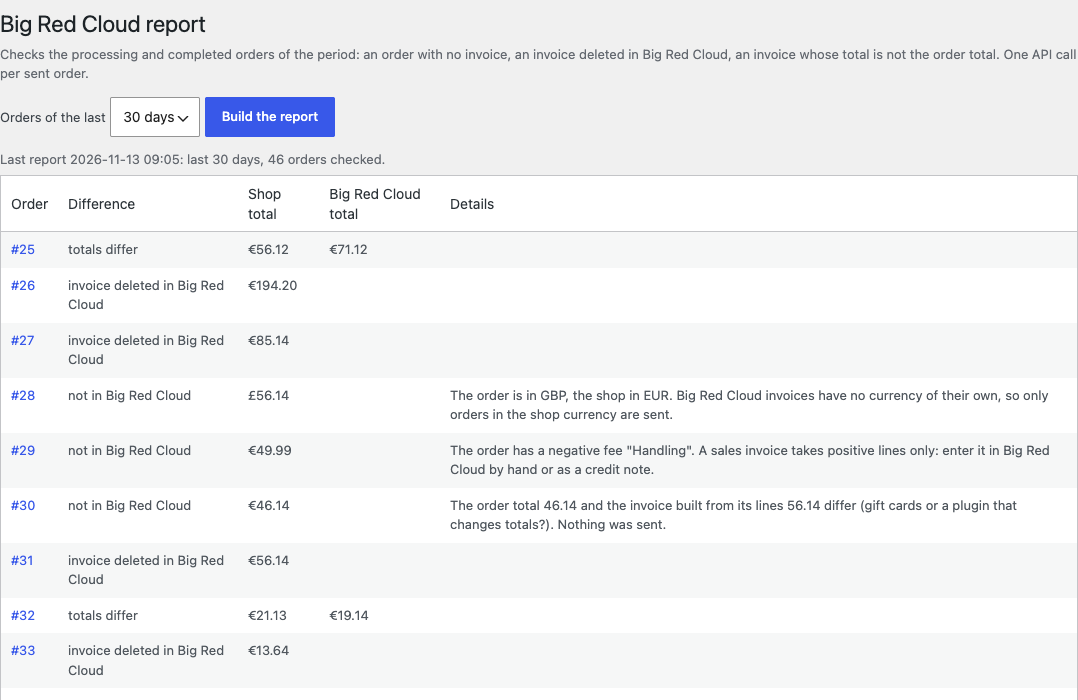
Bulk sending, journal and report. “Send to Big Red Cloud” in the bulk actions of the orders list; a journal of every invoice, receipt and error with “Send again”; a report of a period: orders missing in Big Red Cloud, invoices deleted there, and totals that differ.
Didn't find the answer? Message us on Telegram and we'll reply within a business day.
 @catcode_support
Setup, compatibility, activation
No, it is an independent integration by CatCode. Big Red Cloud is a trademark of its owner; the plugin is not affiliated with or endorsed by Big Red Cloud.
Yes, and an API key of the company the invoices should go to. Big Red Cloud has no separate test company for the API.
In the free version, the customer account you choose for web orders; the buyer's name or company and the order number are in the note and in "Your Ref". Pro can keep a customer per buyer.
No. An order with an invoice shows it in its box and the button is gone; a second request at the same moment is turned away, and an attempt after a lost answer looks for the invoice first.
By percentage: each line gets the Big Red Cloud sales VAT rate of the same percentage. When no rate or more than one rate fits, the order is not sent and says why. In Pro you can set the Big Red Cloud rate per WooCommerce tax rate.
Refunds are not sent: enter a credit note in Big Red Cloud.
Pro switches off and the free part keeps working: the connection and sending an order.
One key covers two sites: the shop and its test copy.
No reviews yet. Be the first.
No questions yet. Ask one — we answer within 24 hours.
We build custom modules for WordPress, WooCommerce, OpenCart and Shopify. Tell us about the task and we'll prepare an estimate.
Order a custom module
—
Charged in UAH; your bank converts it to your currency. EUR price is approximate.

CatCode assistant
Just now


CatCode assistant
Online

I’ll help with your website task
Describe your website task — I’ll find a ready-made module or pass it to a developer for an estimate. Modules, custom features, layout, integrations, speed, migration, technical SEO.