












OpenCart
1 290 UAH839 UAH≈ €17
Black November: −35% on all modules until 30 November Black November: −35% until 30 November Choose a module
 Website auditA PDF report by email in 3 minutesCheck a website
Everyday tasks
Image compressorSize, quality and WebP in bulkQR generatorLink, Wi-Fi, payment to IBANVAT calculator20, 14, 7% and amount in wordsTransliterationOfficial Ukrainian standardWebsite checks
PHP and pluginsPHP version, WordPress, pluginsGoogle Merchant feedFields, prices, GTIN, imagesDomain emailSPF, DKIM, DMARC, blacklistsAI search readinessllms.txt, bots, markupAll 9 toolsEnter at least 2 characters

Billingo for OpenCart 4.x, 3.x, 2.3 (Hungary): invoices from the order page free; Pro adds status rules, díjbekérő, storno, payments and a journal. A licence for life.
The free version works with no time limit. Pro adds the rest of the features in the table.


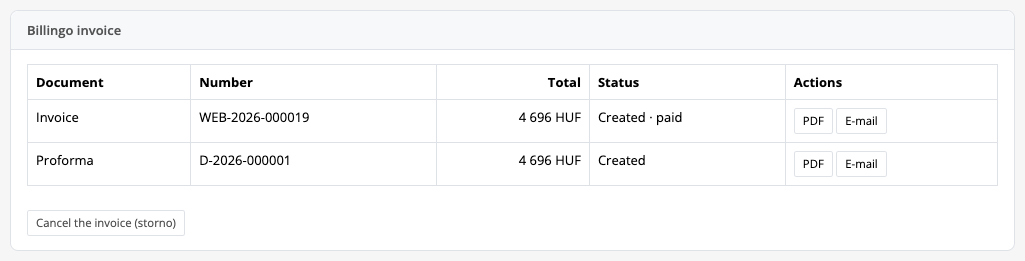
The order page gets a “Billingo invoice” box: after the create button it shows the document, number, total, status (“Created · unpaid”, “Created · paid”) and the PDF and E-mail (Pro) buttons.

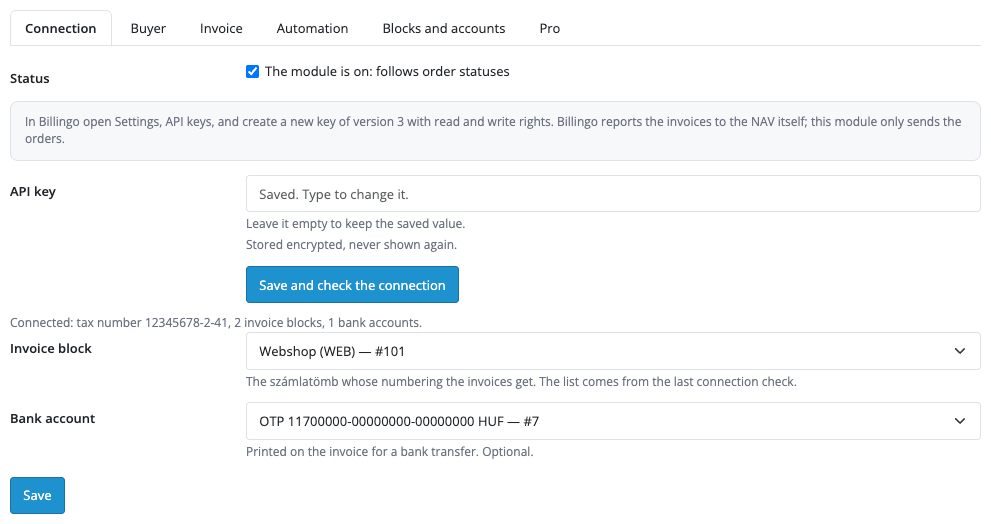
Extensions → Extensions → Modules → Billingo: the tabs “Connection”, “Buyer”, “Invoice”, “Automation”, “Blocks and accounts” and “Pro”.

A fresh install is the free version, nothing switches on by itself. The “Try Pro for 7 days” button → e-mail → the key right in the window and by e-mail.

Moving the site? Unlink the licence on the old domain and activate it on the new one yourself. A staging copy (staging., dev.) works with the same key and does not take a site slot. For studios — keys for 5 or 25 sites, or unlimited.
 OpenCart 4.0.2.x–4.1.x, 3.0.x or 2.3.0.2; the cURL extension; a store address on https.A Billingo account with an API v3 key (read and write); creating invoices through the API depends on the Billingo package.A Billingo invoice is final and goes to the NAV: only storno corrects a mistake. The right VAT key for rows without tax (TAM, AAM, EU…) is chosen by the store owner or the accountant.The module does not understand OpenCart gift vouchers and fixed taxes: such orders stop with an explanation.Without a buyer address (digital goods with no payment address and no shipping) no invoice is created: Billingo requires the partner address.Invoice languages: Hungarian, English, German, French, Croatian, Italian, Romanian, Slovak; for other store languages the invoice is made in Hungarian.Stock OpenCart has no regions for Hungary while the checkout requires one: the store owner adds them.
For OpenCart 4.x, 3.x and 2.3: Billingo invoices from the order page, the partner with an existing one reused, Billingo VAT keys, the coupon in the row price, currency with the Billingo…


Billingo for OpenCart 4.x, 3.x and 2.3 creates invoices in the Hungarian service Billingo straight from store orders: a button on the order page finds or creates the buyer as a Billingo partner, sends the rows with gross prices and Billingo VAT keys (27%, 18%, 5%, AAM, TAM, EU…), reads the invoice back and gives a link to the PDF. Billingo reports the invoices to the NAV itself; the module only sends the orders.
What you need from Billingo. A Billingo account and an API key of version 3 with read and write rights (Settings → API keys). Creating invoices through the API is part of the Billingo package with API access: check it in your plan. Billingo itself is paid by your plan; the module adds no per-document fee.
The order page gets a “Billingo invoice” box: after the create button it shows the document, number, total, status (“Created · unpaid”, “Created · paid”) and the PDF and E-mail (Pro) buttons. Before creating you can open a preview: rows with gross prices, VAT keys and a total that has to match the order total.
A Billingo invoice is final at once, so the module stops sending when the Billingo total differs from the order and shows both totals. A mistake in a created invoice is corrected only by storno (Pro: the “Cancel the invoice (storno)” button in the order or a refund status). If Billingo did not answer, the module looks for the document by the internal order number before a retry, so there is no second invoice.
Extensions → Extensions → Modules → Billingo: the tabs “Connection”, “Buyer”, “Invoice”, “Automation”, “Blocks and accounts” and “Pro”. On the first one you paste the API key and press “Save and check the connection”: the module shows the account tax number, the number of invoice blocks and bank accounts, and then lets you pick a block and an account. The key is stored encrypted and never shown again.
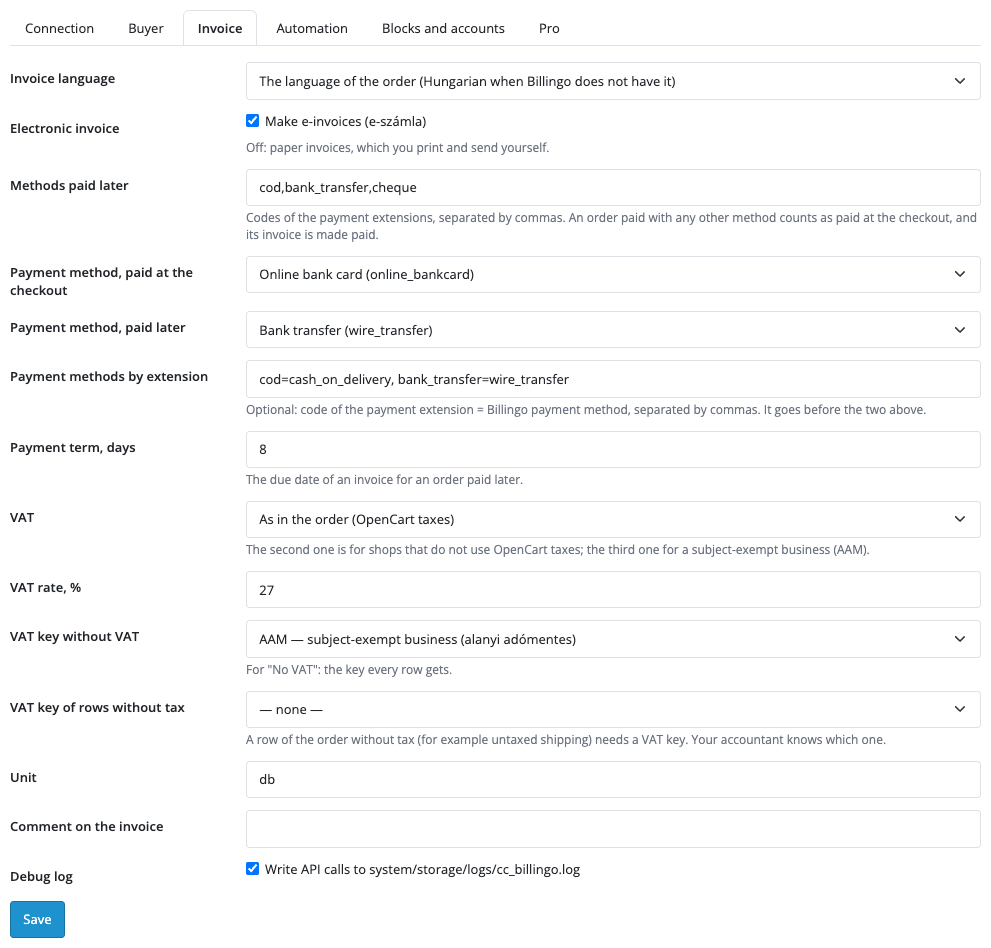
The “Invoice” tab sets the invoice language, e-számla or paper, the payment methods “paid at the checkout” and “paid later” (mapped to Billingo methods), the payment term in days (8 by default), VAT “as in the order” (OpenCart taxes) or a fixed rate, the key for rows without tax (for example AAM for a subject-exempt business), the unit and a comment on the invoice. The “Buyer” tab creates the adószám field for customers with the “Create the field” button and turns on the 12345678-1-23 format check at the checkout for buyers in Hungary.
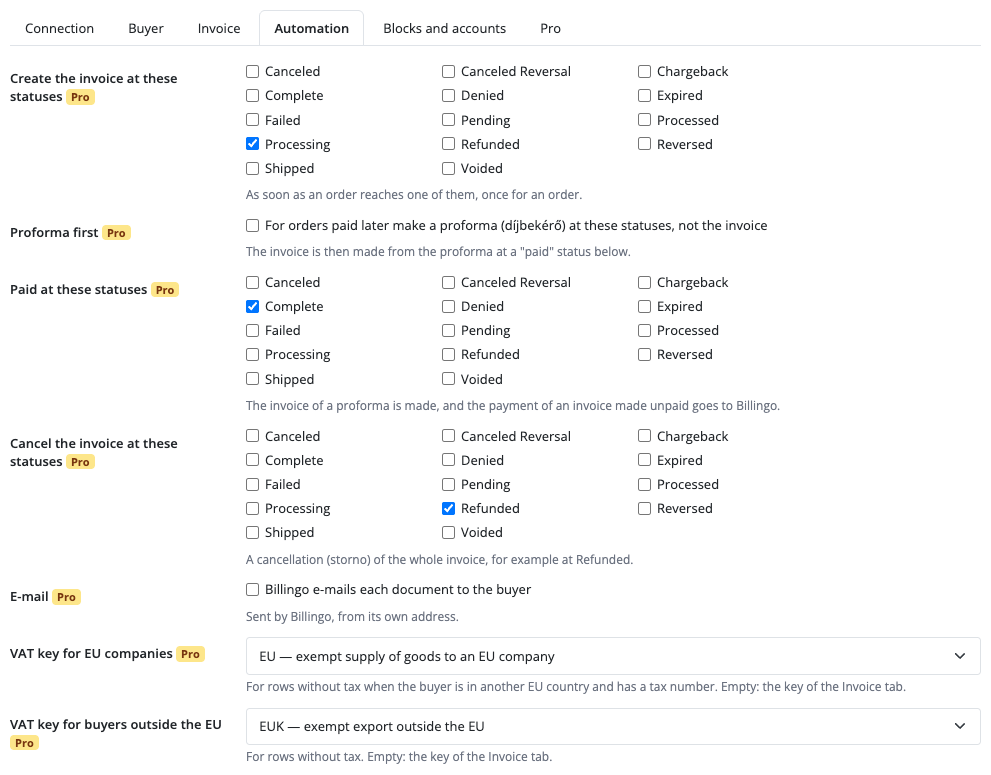
The “Automation” and “Blocks and accounts” tabs are for Pro. Without a key they open with an explanation and disabled fields, and saved Pro values are not shown.
Pro creates invoices itself when an order reaches a chosen status. For orders paid later (cash on delivery, bank transfer) you can issue a díjbekérő first and make the invoice from it when the order becomes “paid”. The payment of an unpaid invoice is recorded in Billingo by a status or with the “Record the payment” button. Storno for the whole invoice is made with a button or at a status (for example “Refunded”). Billingo can e-mail each document to the buyer from its own address. Companies from another EU country with a tax number and buyers outside the EU get their own VAT keys (EU, EUK).
The “Billingo invoices” journal in the Sales menu shows each document with its status, filters by period, slot and type (invoices, proformas, cancellations, stopped, orders without an invoice), totals for the period and a CSV download. Bulk invoicing takes order numbers, and “Retry all stopped” repeats the stopped ones. Up to three slots: another invoice block of the same account or another Billingo account for a separate OpenCart store.
Didn't find the answer? Message us on Telegram and we'll reply within a business day.
 @catcode_support
Setup, compatibility, activation
No, it is an independent Billingo integration by CatCode. Billingo is a trademark of its owner.
A Billingo account and an API key of version 3 with read and write rights.
Billingo does. The module only creates the invoice in Billingo from the order.
An invoice is final: storno corrects it (Pro: a button in the order or a refund status), and then you can issue a new one.
It is a field at the checkout or in the customer account. With a number the invoice goes to a company, without it to a private person. The format 12345678-1-23 is checked at the checkout for buyers in Hungary, and the number can be entered by hand in the order.
The module queues the row for a retry and first looks for the document by the internal number, so there will be no second invoice. If it cannot be confirmed, sending stops and the decision is yours.
For cash on delivery and bank transfer the invoice is created unpaid with a payment term; in Pro you can issue a díjbekérő first, then make the invoice from it at the "paid" status and record the payment.
Yes, in Pro: bulk invoicing by order numbers and "Retry all stopped" for stopped ones.
OpenCart 4.0.2.x–4.1.x, 3.0.x and 2.3.0.2: three separate archives in one product.
Yes, for OpenCart it is a one-time payment and a licence for life, for two sites.
Pro turns off, invoices queued by status stop with a reason, and the free part keeps working.
No reviews yet. Be the first.
No questions yet. Ask one — we answer within 24 hours.
We build custom modules for WordPress, WooCommerce, OpenCart and Shopify. Tell us about the task and we'll prepare an estimate.
Order a custom module
—
Charged in UAH; your bank converts it to your currency. EUR price is approximate.

CatCode assistant
Just now


CatCode assistant
Online

I’ll help with your website task
Describe your website task — I’ll find a ready-made module or pass it to a developer for an estimate. Modules, custom features, layout, integrations, speed, migration, technical SEO.