















OpenCart
1 290 UAH839 UAH≈ €17
Black November: −35% on all modules until 30 November Black November: −35% until 30 November Choose a module
 Website auditA PDF report by email in 3 minutesCheck a website
Everyday tasks
Image compressorSize, quality and WebP in bulkQR generatorLink, Wi-Fi, payment to IBANVAT calculator20, 14, 7% and amount in wordsTransliterationOfficial Ukrainian standardWebsite checks
PHP and pluginsPHP version, WordPress, pluginsGoogle Merchant feedFields, prices, GTIN, imagesDomain emailSPF, DKIM, DMARC, blacklistsAI search readinessllms.txt, bots, markupAll 9 toolsEnter at least 2 characters
CM.com for OpenCart 4.x, 3.x, 2.3 (Netherlands): iDEAL | Wero, cards, Bancontact free, Pro adds separate methods, Klarna, in3 and refunds. Lifetime licence.
The free version works with no time limit. Pro adds the rest of the features in the table.


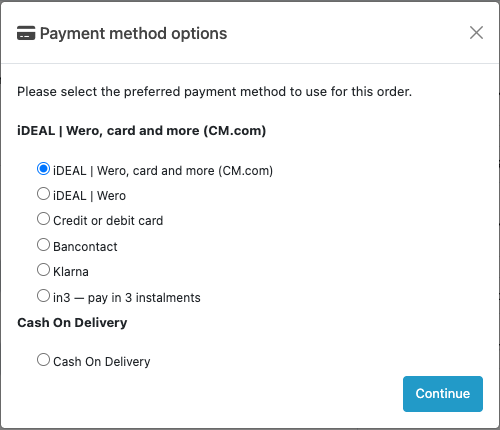
At the payment step the buyer sees the “iDEAL | Wero, card and more (CM.com)” method with a note that the payment method is chosen on the secure CM.com page.

Extensions → Extensions → Payments → Payments with CM.com by CatCode: the tabs “Connection”, “Checkout”, “Order statuses” and “Pro”.

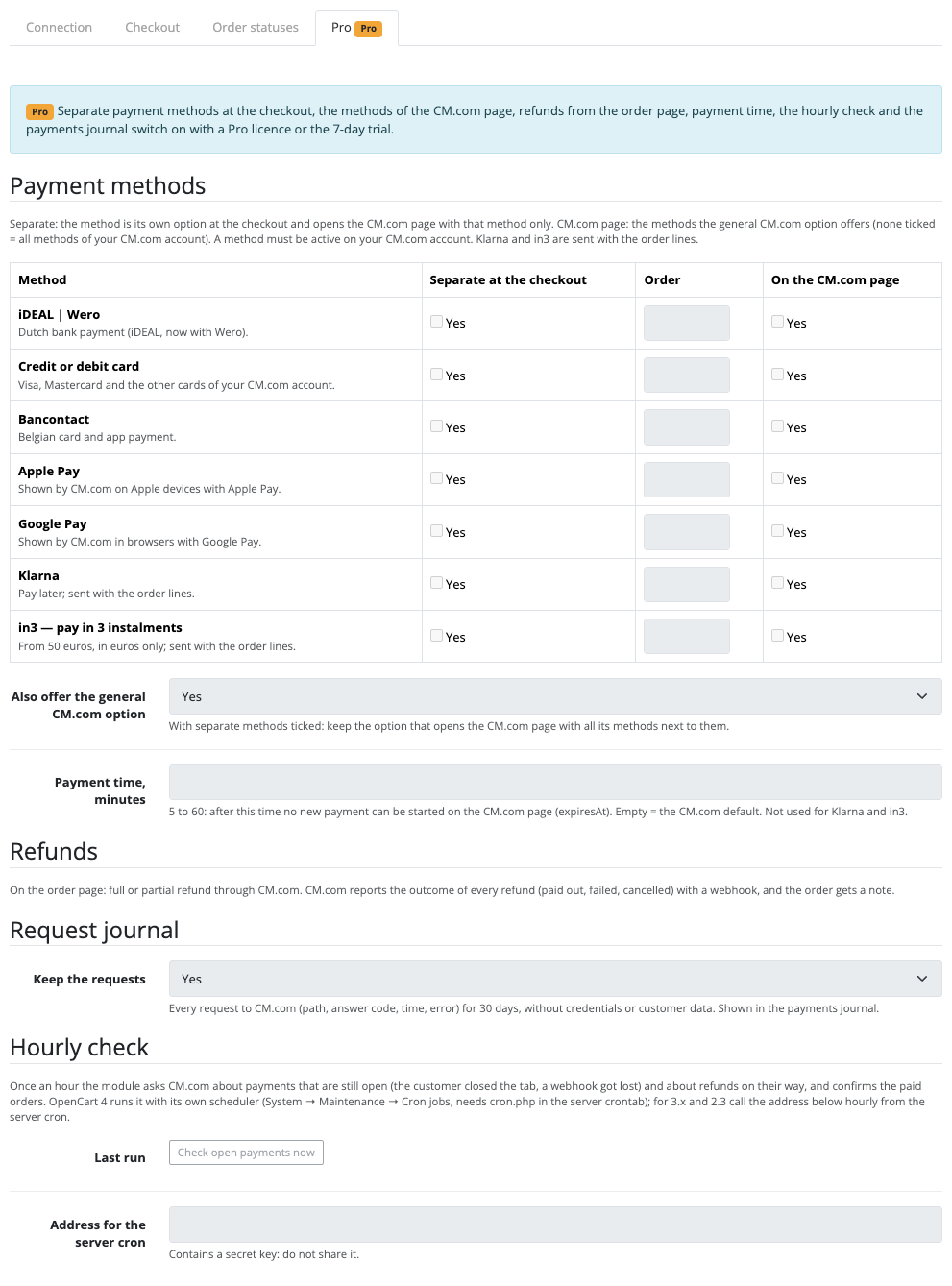
In Pro the checkout method can be split into separate ones: iDEAL | Wero, card, Bancontact, Apple Pay, Google Pay, Klarna, in3.

A fresh install is the free version, nothing switches on by itself. The “Try Pro for 7 days” button → e-mail → the key right in the window and by e-mail.

Moving the site? Unlink the licence on the old domain and activate it on the new one yourself. A staging copy (staging., dev.) works with the same key and does not take a site slot. For studios — keys for 5 or 25 sites, or unlimited.
 OpenCart 4.0.2.x–4.1.x, 3.0.x or 2.3.0.2; the cURL extension; the store currency is euro for payments in euros.A CM.com Online Payments merchant account with a Client ID and Client Secret. A method that is not in your CM.com account is not shown on the CM.com page.Klarna and in3 are sent with the order lines. With a very large discount or zero-price items the lines may fail to add up to the order total: the buyer then sees a message to choose another payment method.An unpaid checkout leaves the order unplaced (status “0”, in “Missing orders”), as OpenCart does: the cart and the order can be reused. Failed attempts are visible in the CM.com tab of such an order.The module does not add surcharges per method. Apple Pay as a separate option is shown on every device; whether it is available to the buyer is decided by the CM.com page.CM.com webhooks are not signed, so the webhook address carries a separate per-order token and the status is always read from CM.com with your credentials.
Payment through the CM.com page (iDEAL | Wero, cards, Bancontact, Apple Pay, Google Pay), confirmation from the transaction status, messages on cancellation and failure, a CM.com tab in the…



Payments with CM.com for OpenCart (OpenCart 4.x, 3.x and 2.3) takes the store’s payments through the Dutch payment service CM.com (Online Payments): the buyer goes to the secure CM.com page, pays with iDEAL | Wero, a card, Bancontact, Apple Pay, Google Pay or another method enabled in your CM.com account, and returns to the store. The order is confirmed from CM.com’s own transaction status, and the admin sees the transactions and actions right in the order.
What you need from CM.com. Your own CM.com Online Payments merchant account and its credentials: Client ID and Client Secret. CM.com support sets up the test environment with its credentials. The payment methods the buyer sees on the CM.com page are enabled in your CM.com account, and CM.com charges its payment fees under your plan.
At the payment step the buyer sees the “iDEAL | Wero, card and more (CM.com)” method with a note that the payment method is chosen on the secure CM.com page. After placing the order the buyer goes to the CM.com page, pays and returns to the store. In Pro every method can be a separate option at checkout (iDEAL | Wero, card, Bancontact, Klarna, in3…) in the order you set: the CM.com page then opens with the chosen method. In OpenCart 4 these are options in the payment-method step; in OpenCart 3 and 2.3 they are a choice in the payment block.
If the payment is cancelled, the time runs out or the payment fails, the buyer sees a page with the reason and a “Back to checkout” button: the order stays unplaced, the cart is kept and the buyer can pay again. The CM.com page opens in the store’s language (Dutch or English), and the order number with your prefix is sent to CM.com as the payment reference. For Klarna and in3 the module sends the order lines so that they add up to the order total exactly (product VAT, a separate shipping line with its own VAT, a discount shared over the products); in3 is available from 50 EUR and in euros only.
Extensions → Extensions → Payments → Payments with CM.com by CatCode: the tabs “Connection”, “Checkout”, “Order statuses” and “Pro”. In “Connection” you choose the test or production environment, paste the Client ID and Client Secret and click “Check connection”: the module tells you whether CM.com accepted the credentials. The secret is stored encrypted and is never printed back into the form.
“Checkout” holds the method’s titles and descriptions per language, the minimum order total, the geo zone and the order-number prefix sent to CM.com. “Order statuses” holds the statuses “Paid”, “Authorized”, “Needs checking”, “Failed after authorization”, “Cancelled after authorization” and “Refunded in full”. The debug log masks customer data.
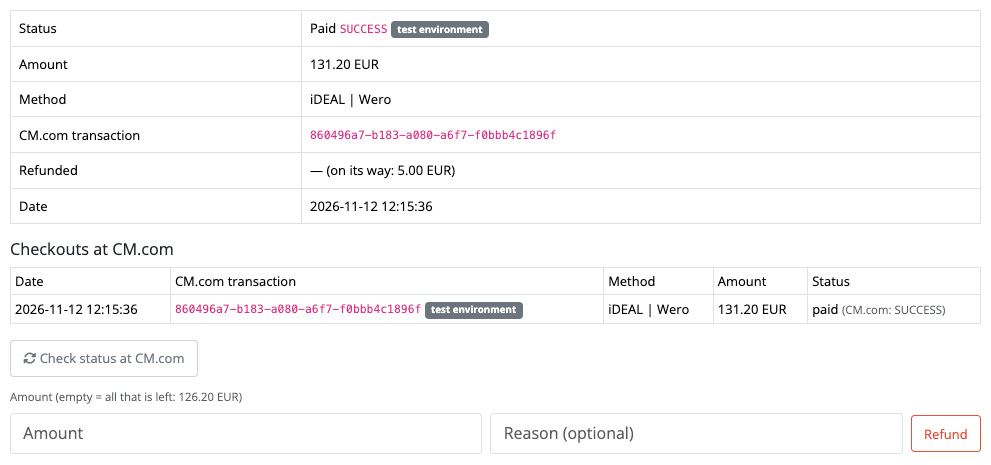
The order gets a tab with the CM.com transactions: date, transaction, method, amount and status. The “Check status at CM.com” button rereads the transaction status. If one order is paid twice or a chargeback arrives, the module leaves a note about it in the order.
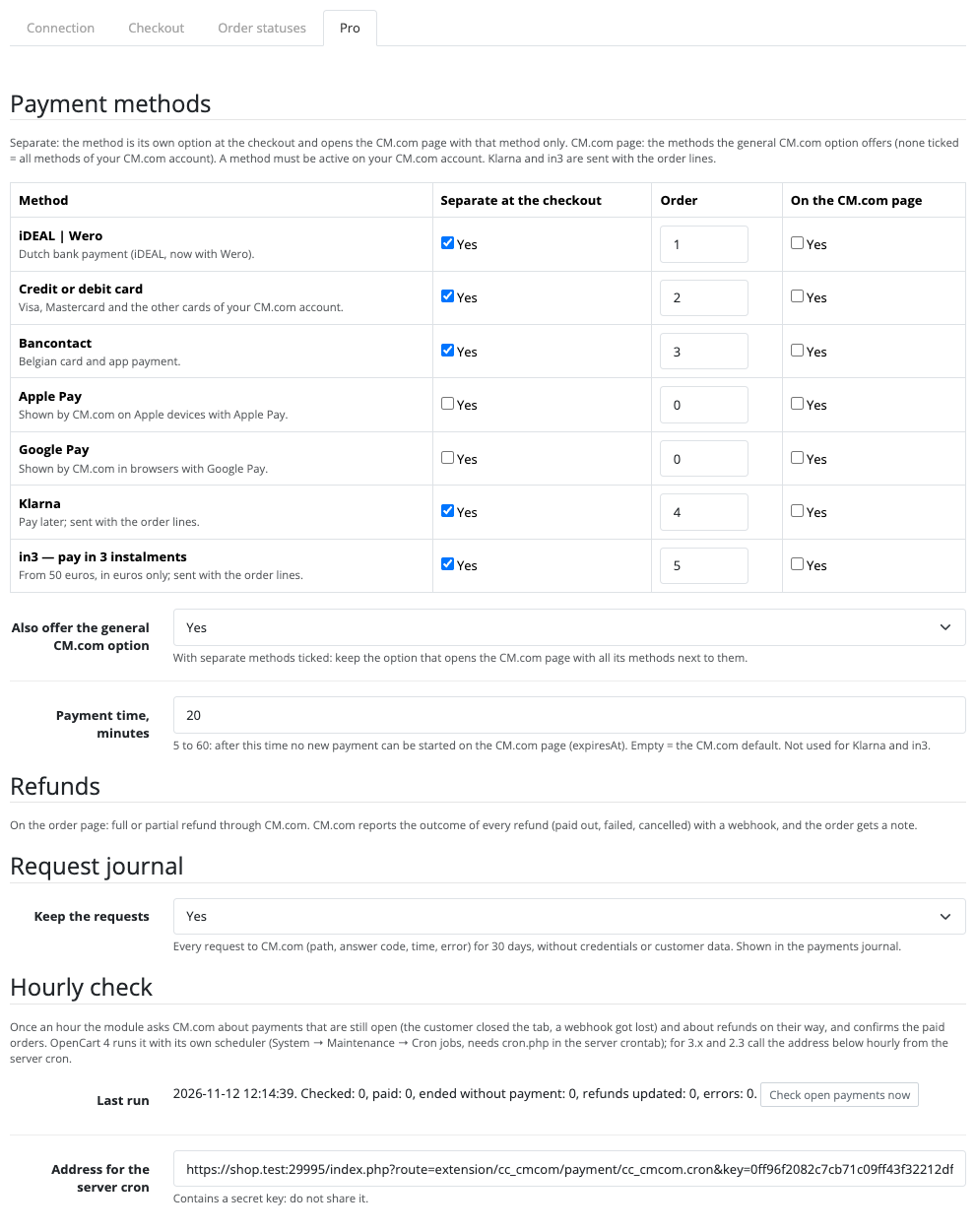
In Pro the checkout method can be split into separate ones: iDEAL | Wero, card, Bancontact, Apple Pay, Google Pay, Klarna, in3. For each you switch on “separate at the checkout”, set the order and decide whether the general CM.com option stays next to them. For the general CM.com page you can choose a subset of methods; the payment time is set between 5 and 60 minutes.
Refunds are made from the order page: full or partial, with a reason. CM.com reports the outcome of every refund with a webhook (paid out, failed, cancelled) and the order gets a note; a full refund moves the order to the “refunded” status. Once an hour the module asks CM.com about open payments and refunds on their way (in OpenCart 4 through its own scheduler, in 3.x and 2.3 through the address for the server cron) and confirms a payment whose webhook got lost. The “Check open payments now” button does it by hand.
The payments journal shows payments with the order, method, refunds and status, warns when the amount at CM.com differs from the order, and keeps a request log to CM.com for 30 days without credentials or customer data.
Didn't find the answer? Message us on Telegram and we'll reply within a business day.
 @catcode_support
Setup, compatibility, activation
No, it is an independent integration with CM.com by CatCode. CM.com is a trademark of its owner, and the module is not a CM.com product.
Yes. The module works with your CM.com Online Payments account and its Client ID and Client Secret. CM.com support sets up the test environment with its credentials.
The ones enabled in your CM.com account: iDEAL | Wero, cards, Bancontact, Apple Pay, Google Pay and others. In the free version the buyer chooses the method on the CM.com page; in Pro also as separate options at checkout. Klarna and in3 are shown at checkout with Pro.
The cart stays, the order stays unplaced, and the buyer sees the reason and a button back to payment. Paying again works on the same order.
In Pro: a full or partial refund from the order page; the result arrives by CM.com webhook and is written as a note.
OpenCart 4.0.2.x–4.1.x, 3.0.x and 2.3.0.2: three separate archives in one product.
Yes, for OpenCart it is one payment and a lifetime licence, for two sites.
Pro switches off and the free part keeps working: payment through the CM.com page, status confirmation and the tab in the order.
No reviews yet. Be the first.
No questions yet. Ask one — we answer within 24 hours.
We build custom modules for WordPress, WooCommerce, OpenCart and Shopify. Tell us about the task and we'll prepare an estimate.
Order a custom module
—
Charged in UAH; your bank converts it to your currency. EUR price is approximate.

CatCode assistant
Just now


CatCode assistant
Online

I’ll help with your website task
Describe your website task — I’ll find a ready-made module or pass it to a developer for an estimate. Modules, custom features, layout, integrations, speed, migration, technical SEO.