OpenCart
Option Combinations for OpenCart — stock, price and SKU of every option combination
Free + Pro
1 290 UAH
v1.0.0
Enter at least 2 characters
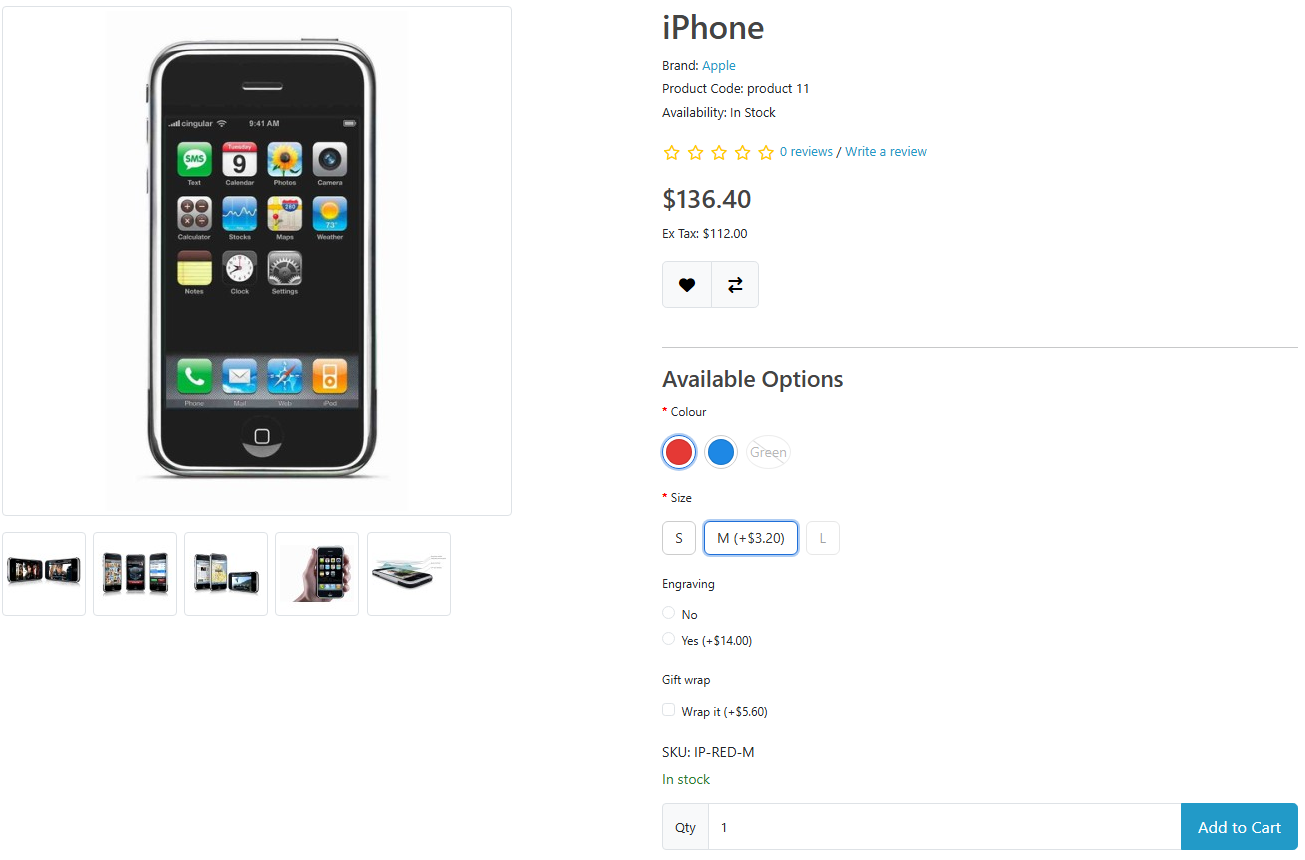
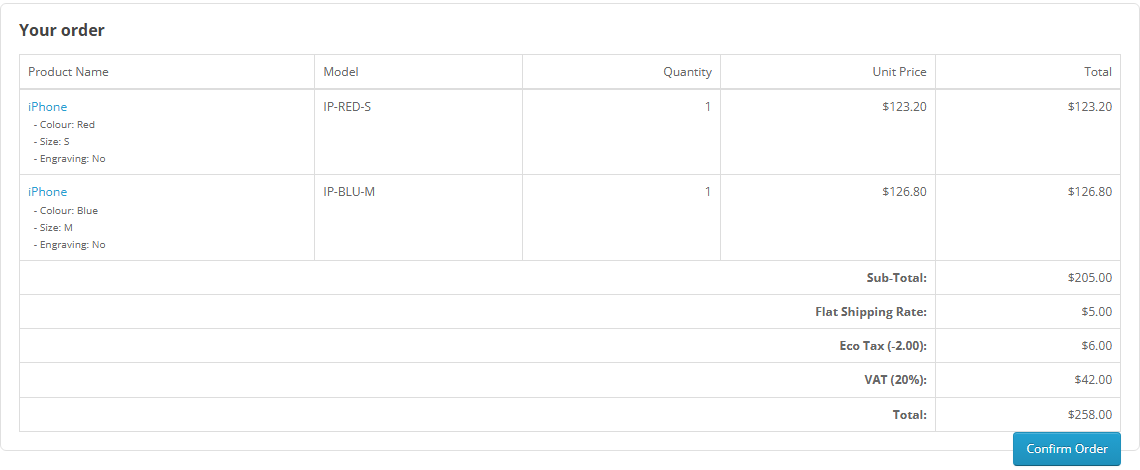
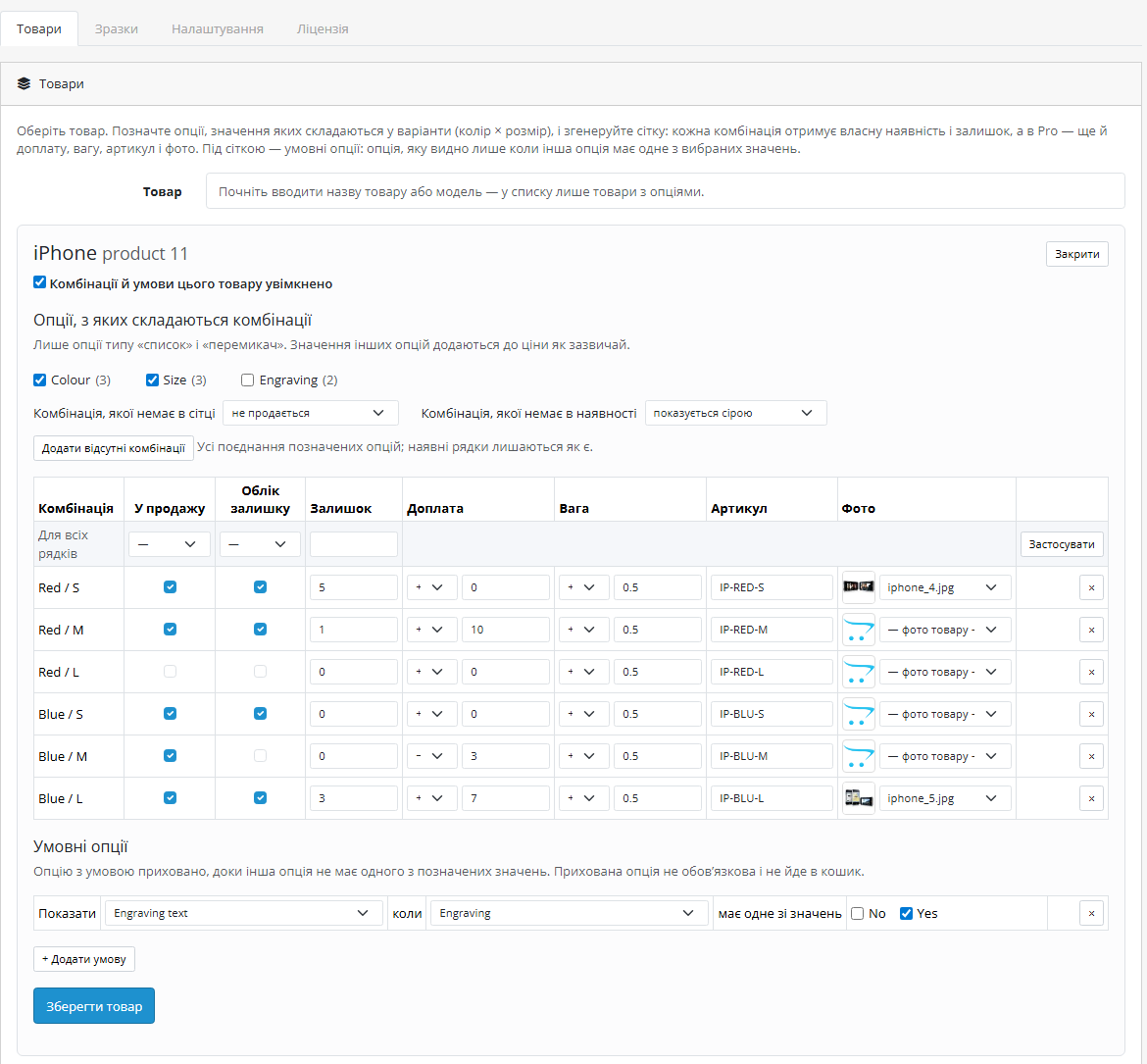
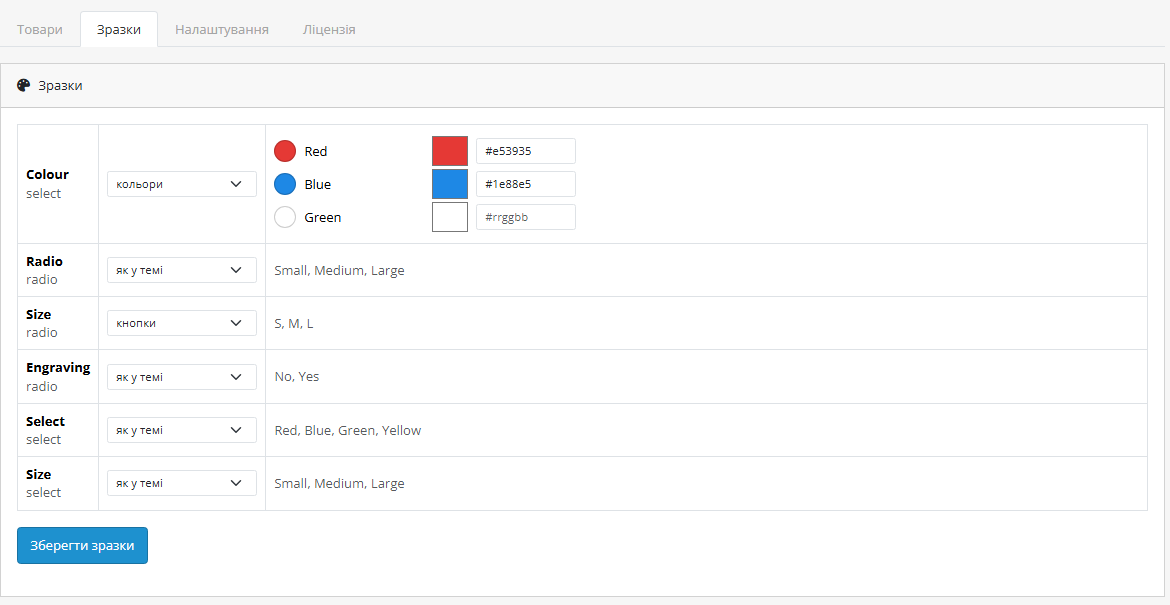
A combination grid for OpenCart 4, 3 and 2.3: "red × M" gets its own stock and availability, and in Pro its own surcharge, weight, SKU and photo. Combinations you do not sell are greyed out on the product page, conditional options appear only when needed, and drop-downs turn into colour dots and buttons. The base version is free; the Pro licence is lifetime.
The free version works with no time limit. Pro adds the rest of the features in the table.



A fresh install is the free version, nothing switches on by itself. The “Try Pro for 7 days” button → e-mail → the key right in the window and by e-mail.

Moving the store? Unbind the licence on the old domain and activate it on the new one yourself. If our server is unreachable, Pro keeps working for 14 more days. For studios — keys for 5 or 25 sites, or unlimited.
 OpenCart 4.0.2 – 4.1.x (tested on 4.1.0.3 and 4.0.2.3), 3.0.x (tested on 3.0.5.0) or 2.3.0.2.PHP — whatever your OpenCart version needs: the 2.3 build is tested on PHP 7.0, 3.x on 8.2, 4.x on 8.1 and 8.3.Database: MySQL/MariaDB with the mysqli or PDO driver (both tested).Grid options are of the “select” and “radio” types. Other options (checkboxes, text, date, file) work as always and can be conditional.Cart. The module builds OpenCart’s own cart and can sit under a wrapper that passes cart calls on (that is how Size Price Calculator works). If another extension replaced the cart class entirely with its own, the module leaves the cart alone: the product page and the add-to-cart check work, but the combination price and SKU do not reach the cart.Theme. Tested on the default themes of 4.x, 3.x and 2.3; for other themes there are settings for the CSS selectors of the price and the main photo. OpenCart 4.1 product variants (master/variant) are not supported.
First public release for OpenCart 4.x, 3.x and 2.3.
4 modules in one order — 40% cheaper than separately



Option Combinations for OpenCart counts not separate option values but their combinations. A “red × M” T-shirt has its own stock, “blue × L” has its own, and “green × S” is not sold at all. Plain OpenCart cannot do that: stock and surcharges exist only per value, so the shop keeps selling “red M” after red M is gone, as long as there are some red ones and some M ones.
The module gives a product a combination grid built from “select” and “radio” options. Every combination has its availability and stock, and in Pro a surcharge, weight, its own SKU and photo. On the product page unavailable combinations are greyed out, conditional options show up only when needed (“engraving text” only after “Engraving: yes”), and drop-downs become colour dots and buttons. No OpenCart core file is changed. One licence, three builds: OpenCart 4.x, 3.x and 2.3.
Extensions → Modules → Option Combinations, four tabs: Products, Swatches, Settings and Licence.
cc_optcomb.ocmod.zip (do not rename the archive) and press Install. OpenCart 3: Extensions → Installer → cc_optcomb-oc3.ocmod.zip, then Extensions → Modifications → Refresh. OpenCart 2.3: the 2.3 installer copies nothing without a configured FTP, so upload the contents of the upload/ folder from cc_optcomb-oc2.ocmod.zip to the shop root through your hosting file manager — no FTP setup in OpenCart needed.Didn't find the answer? Message us on Telegram and we'll reply within a business day.
 @catcode_support
Setup, compatibility, activation
@catcode_support
Setup, compatibility, activation
In plain OpenCart stock and surcharges belong to each value separately: "red" and "M" live their own lives, and the shop cannot know that red M is sold out while blue M is still there. Option Combinations counts the combination itself: "red × M" has its own stock and availability, and in Pro its own price, weight, SKU and photo.
No. OpenCart itself takes stock of every option value with "Subtract Stock" on. For the options in the grid the module switches that off automatically: when the grid is saved, before every order takes stock, and on the product page if an import switched it back on. Only the combination keeps the count; options outside the grid (gift wrap, say) are taken as always.
No. The product page shows it greyed out, and if a request goes around the page, the cart answers with OpenCart's own option error. The stock limit counts what is already in the cart. Per product you can choose otherwise: sell combinations missing from the grid as an ordinary product and take orders for sold-out ones (backorder).
Surcharges, weights, SKUs and photos of combinations stop applying but stay in the admin — buy a licence and everything works again without re-entering anything. Availability and stock of combinations, conditional options and swatches keep working on 3 products.
The grid, the cart and the order do not depend on the theme. On the product page the module finds the price and the main photo by the markup of the default theme; if your theme draws them differently, you can set your own CSS selectors in the settings. Tested on the default themes of 4.x, 3.x and 2.3, not on Journal, Unishop or others — try it in the 7-day trial first.
Honestly: there is no separate feed integration — feeds see the product as before, without splitting it into combinations.
No, the grid works for the product it is set up on. An OpenCart 4.1 variant is a separate product and needs its own grid.
By default the uninstall removes the module tables: grids, conditions, swatches and the stock journal. If you plan to reinstall, turn on "Keep the data when the module is uninstalled" in the settings. Products and their options are never touched.
The base version is free. Pro is 1290 UAH once, a lifetime licence for OpenCart, no yearly payments. One licence for one domain covers all three builds.
No reviews yet. Be the first.
No questions yet. Ask one — we answer within 24 hours.
We build custom modules for WordPress, WooCommerce, OpenCart and Shopify. Tell us about the task and we'll prepare an estimate.
Order a custom module
—

CatCode assistant
Just now


CatCode assistant
Online

I’ll help with your website task
Describe your website task — I’ll find a ready-made module or pass it to a developer for an estimate. Modules, custom features, layout, integrations, speed, migration, technical SEO.