










WooCommerce
990 UAH644 UAH/year≈ €13
Black November: −35% on all modules until 30 November Black November: −35% until 30 November Choose a module
 Website auditA PDF report by email in 3 minutesCheck a website
Everyday tasks
Image compressorSize, quality and WebP in bulkQR generatorLink, Wi-Fi, payment to IBANVAT calculator20, 14, 7% and amount in wordsTransliterationOfficial Ukrainian standardWebsite checks
PHP and pluginsPHP version, WordPress, pluginsGoogle Merchant feedFields, prices, GTIN, imagesDomain emailSPF, DKIM, DMARC, blacklistsAI search readinessllms.txt, bots, markupAll 9 toolsEnter at least 2 characters
OXXO Pay at the WooCommerce checkout through your EBANX account; in Pro — SPEI, cards, Aplazo, Pix and Boleto, refunds and an hourly check.
The free version works with no time limit. Pro adds the rest of the features in the table.


The checkout shows the EBANX methods available for the buyer’s country and the store currency.

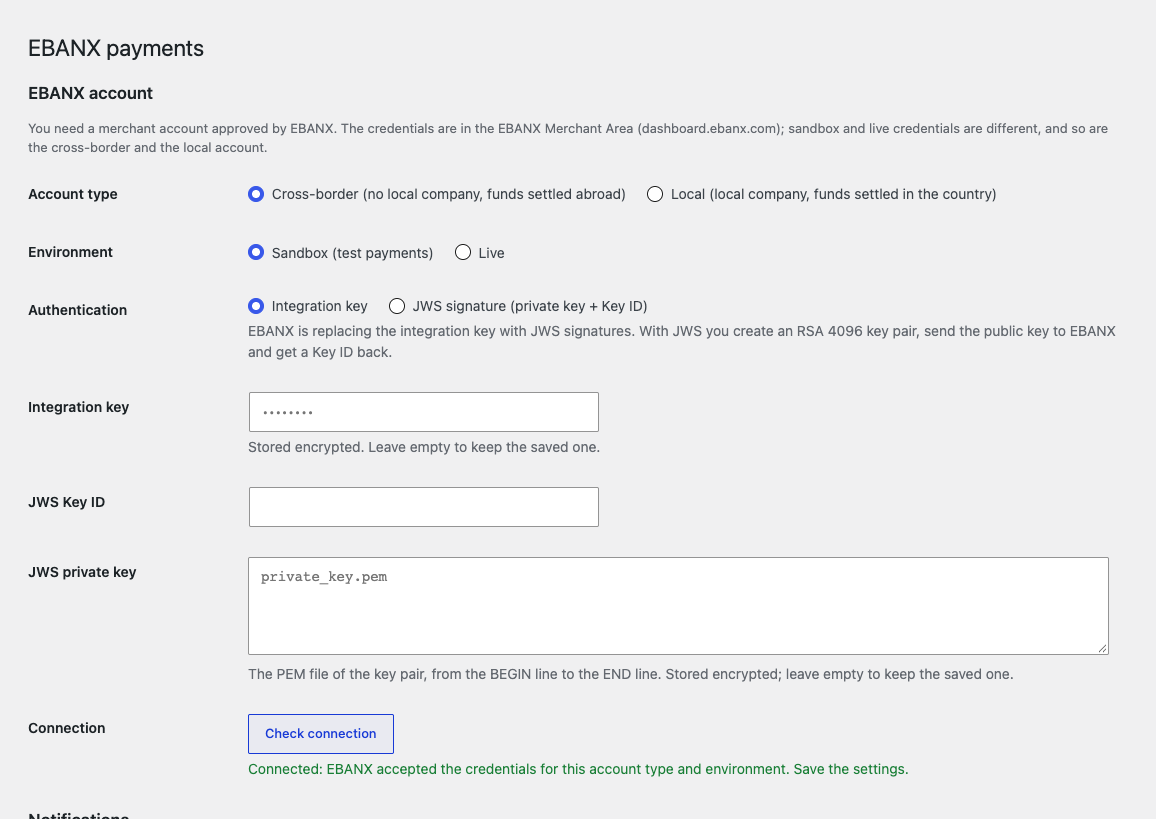
WooCommerce → EBANX: account type (cross-border or local), environment (sandbox or live), sign-in method (integration key or a JWS signature with a private key and Key ID) and the “Check connection” button.

Pro adds four more ways to pay. SPEI: the buyer gets a CLABE account and a payment reference.

A fresh install is the free version, nothing switches on by itself. The “Try Pro for 7 days” button → e-mail → the key right in the window and by e-mail.

Moving the site? Unlink the licence on the old domain and activate it on the new one yourself. A staging copy (staging., dev.) works with the same key and does not take a site slot. For studios — keys for 5 or 25 sites, or unlimited.
 WordPress 6.4+, WooCommerce 8.6+, PHP 7.4+.An EBANX merchant account approved by EBANX, with credentials for sandbox or live.OXXO Pay, SPEI and cards take pesos (MXN) or US dollars (USD), Aplazo only pesos, Pix and Boleto reais (BRL).Cards need the public integration key from the Merchant Area: EBANX.js is loaded from ebanx-js.ebanx.com only at the checkout, and only when the Card method is on.
OXXO Pay on the classic and block checkout, statuses by EBANX notification, a payment box in the order.
Payments with EBANX for WooCommerce connects your store to EBANX, a payment platform for Latin America. A buyer in Mexico pays cash at OXXO, by SPEI bank transfer, by card or in instalments with Aplazo, and a buyer from Brazil pays with Pix or Boleto. The order is paid and changes status by itself as soon as EBANX reports the payment.
What you need from EBANX. Your own merchant account approved by EBANX and its credentials from the Merchant Area (dashboard.ebanx.com). Sandbox and live credentials are different, and so are the cross-border account (no local company, funds settled abroad) and the local one. The integration key or the JWS key is stored encrypted and is never shown back on the page.
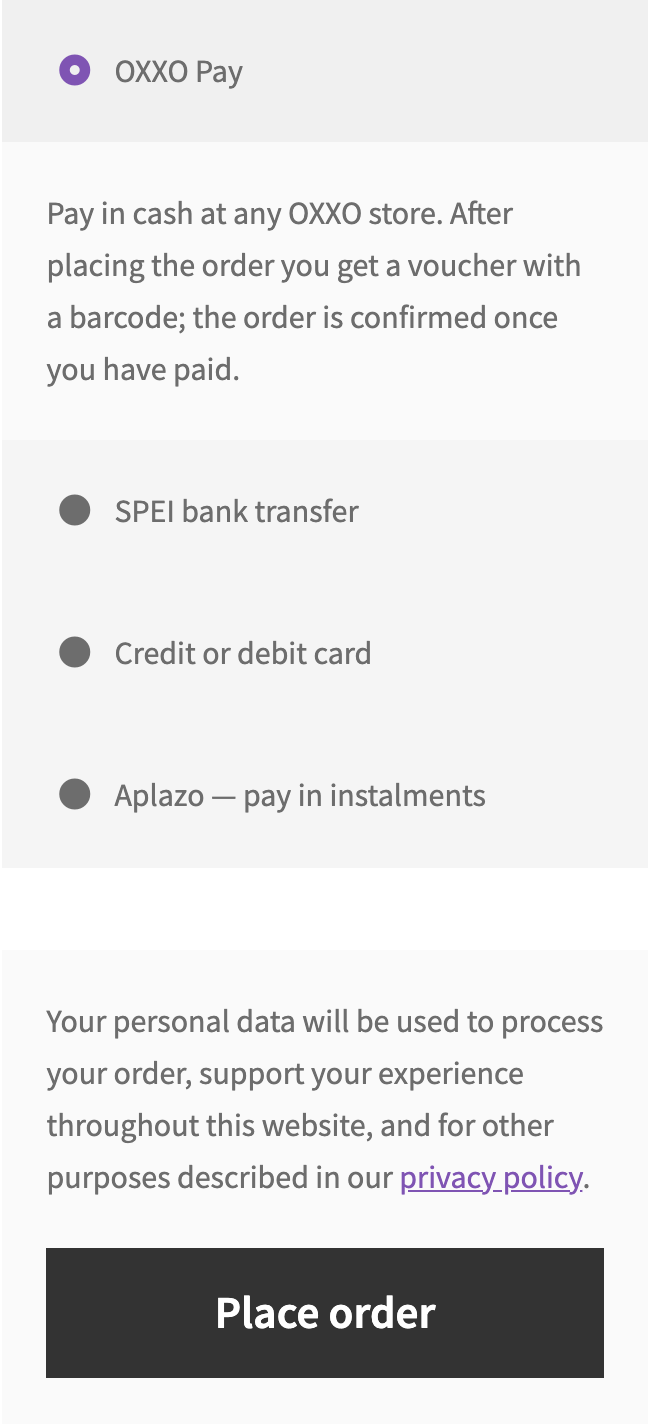
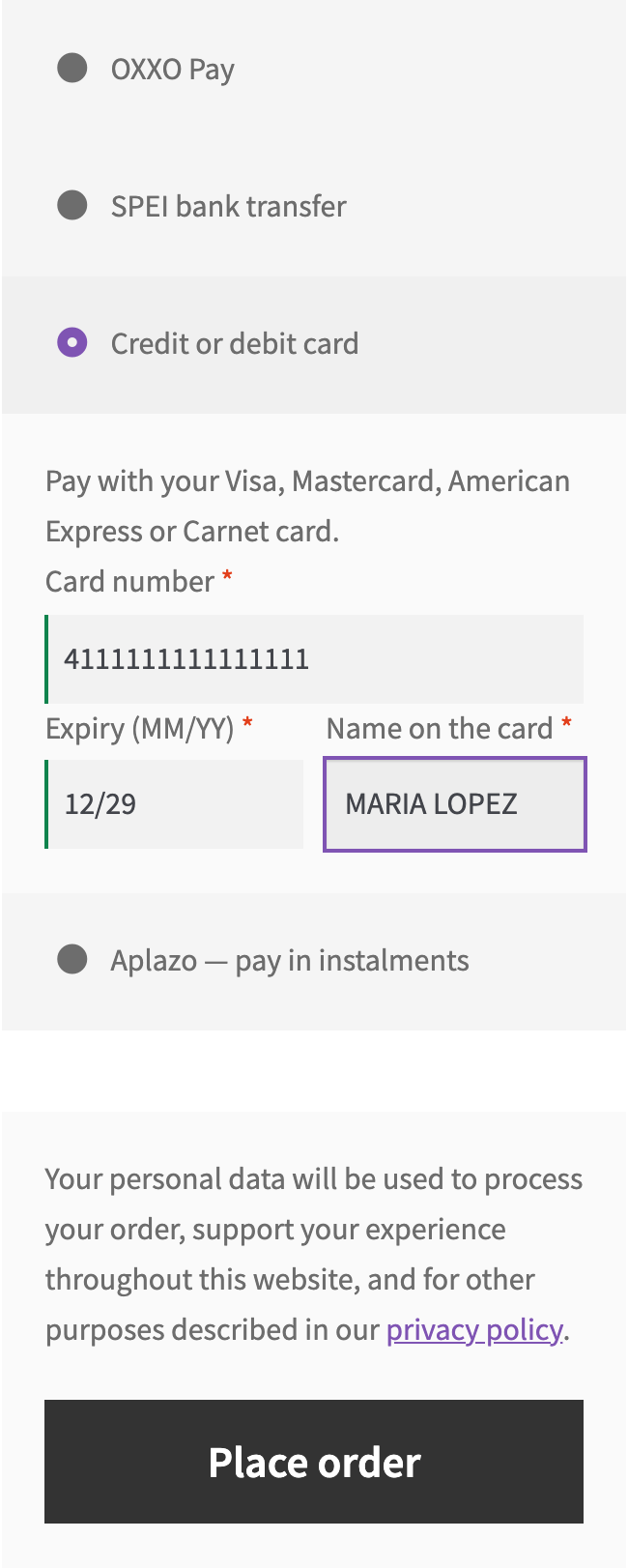
The checkout shows the EBANX methods available for the buyer’s country and the store currency. For a buyer from Mexico that is OXXO Pay and, in Pro, also SPEI, card and Aplazo; for a buyer from Brazil, in Pro, Pix and Boleto. A short note under the chosen method says what happens next, on both the classic and the block checkout.
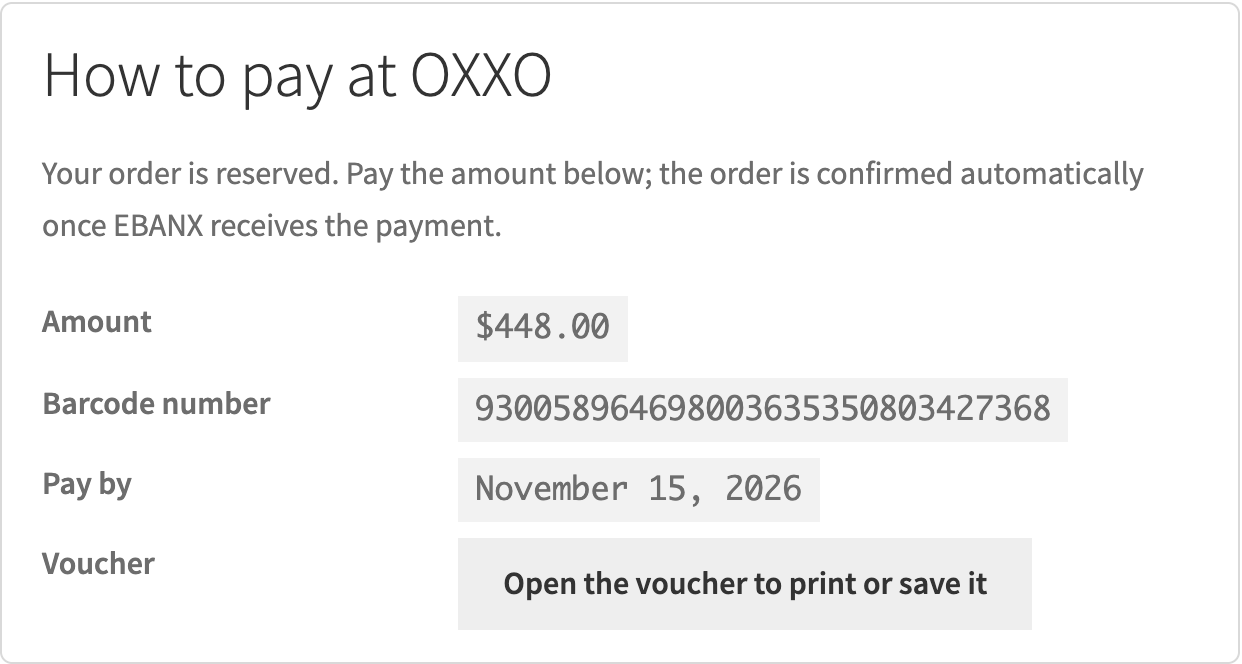
OXXO Pay: after placing the order the buyer gets a voucher with a barcode and pays cash at any OXXO store. The amount, the barcode number, the date to pay by and a link to the printable voucher are on the order-received page, in My Account and in the order email. The voucher is issued in Mexican pesos (MXN) or US dollars (USD), and you set the days to pay, from 1 to 30.
WooCommerce → EBANX: account type (cross-border or local), environment (sandbox or live), sign-in method (integration key or a JWS signature with a private key and Key ID) and the “Check connection” button. It tells you at once whether the credentials fit the chosen account type and environment, for example a key of the other environment. The same page shows the notification address EBANX calls to report a payment and the days to pay a voucher.
Every notification from EBANX is checked: the signature of the call is verified and the payment is read from EBANX again, with its status, amount, currency and order reference. Only then is the order paid. If the amount or the currency does not match, the order goes on hold with a note. An expired voucher cancels the order, and a refund or a chargeback leaves a note.
The order has an EBANX box: the payment hash, the status at EBANX, the amount, the barcode, the due date and the voucher link. The “Check payment status” button asks EBANX about the payment if a notification did not arrive. Everything works with HPOS and with the classic order storage.
Pro adds four more ways to pay. SPEI: the buyer gets a CLABE account and a payment reference. Cards Visa, Mastercard, American Express and Carnet: the number, expiry date and name are typed at the checkout and EBANX.js turns them into a token in the buyer’s browser, so the card number never reaches your server. When EBANX returns a 3-D Secure page, the buyer is redirected to it. Aplazo: buy now, pay later; the buyer enters a CURP, confirms the plan on the Aplazo page and comes back to the store.
Pix and Boleto for Brazil: the buyer enters a CPF or CNPJ. For Pix the order-received page shows a copy-and-paste code, for Boleto a barcode and a voucher. The amount is in Brazilian reais (BRL), and the methods appear only for buyers from Brazil.
Refunds from the WooCommerce order go to EBANX: full or partial, for cards, SPEI, Aplazo and Pix, and if EBANX refuses, the reason is shown in the refund window itself. Cash vouchers of OXXO and Boleto cannot be refunded from the store.
Automation: every hour the plugin asks EBANX about unpaid orders in case a notification was lost, and the bulk action “Check EBANX payment status” in the orders list does the same for the selected ones. Cancelling an unpaid order in the store also cancels its EBANX payment, so the voucher cannot be paid any more.
Didn't find the answer? Message us on Telegram and we'll reply within a business day.
 @catcode_support
Setup, compatibility, activation
No, it is an independent integration with EBANX by CatCode. EBANX and OXXO are trademarks of their owners; the module is not an EBANX product and is not endorsed by EBANX.
Yes. The module works with your merchant account, which EBANX approves. The credentials are in the Merchant Area (dashboard.ebanx.com), and sandbox and live ones are different.
No. The number, expiry date and name are typed at the checkout and EBANX.js creates the token in the buyer's browser. Only the token reaches your server.
Press “Check payment status” in the order box: the plugin asks EBANX about the payment. In Pro the hourly check and the bulk action in the orders list do the same.
OXXO Pay, SPEI and cards: pesos (MXN) or US dollars (USD). Aplazo: pesos only. Pix and Boleto: reais (BRL).
Yes, in Pro for cards, SPEI, Aplazo and Pix: a full or partial refund goes to EBANX. OXXO and Boleto cannot be refunded from the store.
Pro switches off and the free part keeps working: OXXO Pay, statuses by notification and the payment box in the order stay.
One key covers two sites: the store and its test copy.
No reviews yet. Be the first.
No questions yet. Ask one — we answer within 24 hours.
We build custom modules for WordPress, WooCommerce, OpenCart and Shopify. Tell us about the task and we'll prepare an estimate.
Order a custom module
—
Charged in UAH; your bank converts it to your currency. EUR price is approximate.

CatCode assistant
Just now


CatCode assistant
Online

I’ll help with your website task
Describe your website task — I’ll find a ready-made module or pass it to a developer for an estimate. Modules, custom features, layout, integrations, speed, migration, technical SEO.