















OpenCart
1 290 UAH839 UAH≈ €17
Black November: −35% on all modules until 30 November Black November: −35% until 30 November Choose a module
 Website auditA PDF report by email in 3 minutesCheck a website
Everyday tasks
Image compressorSize, quality and WebP in bulkQR generatorLink, Wi-Fi, payment to IBANVAT calculator20, 14, 7% and amount in wordsTransliterationOfficial Ukrainian standardWebsite checks
PHP and pluginsPHP version, WordPress, pluginsGoogle Merchant feedFields, prices, GTIN, imagesDomain emailSPF, DKIM, DMARC, blacklistsAI search readinessllms.txt, bots, markupAll 9 toolsEnter at least 2 characters

Printify for OpenCart 4.x, 3.x, 2.3 (USA): product import and sending orders free; Pro adds publishing from Printify, automatic sending, rates at checkout and webhooks. A licence for life.
The free version works with no time limit. Pro adds the rest of the features in the table.


A Printify product becomes a shop product with one button: the title, the description (HTML), tags, the price of the cheapest variant converted to the shop currency, the weight in the shop units, up to 6 images (the number can be changed; only enabled variants selected for publishing are used), and the Printify options that differ between variants (Colors, Sizes and others) with the price difference per value.

The “Connection” tab: the Personal Access Token from your Printify profile, the choice of the shop (a single shop is chosen automatically) and the currency of Printify prices.

The base version is free. Pro costs 1290 UAH, a one-time payment, a licence for life.

A fresh install is the free version, nothing switches on by itself. The “Try Pro for 7 days” button → e-mail → the key right in the window and by e-mail.

Moving the site? Unlink the licence on the old domain and activate it on the new one yourself. A staging copy (staging., dev.) works with the same key and does not take a site slot. For studios — keys for 5 or 25 sites, or unlimited.
 OpenCart 4.0.2.x–4.1.x, 3.0.x or 2.3.0.2; the cURL extension; PHP 7.0 or newer.A Printify account, a Printify shop and a Personal Access Token with the scopes shops, catalog, products, orders, webhooks.By default Printify approves new orders automatically after 24 hours and sends them to production with a charge. To keep an order waiting for your button, switch Order approval in Printify to Manual: the module cannot control this setting, it is not in the public Printify API. This is stated on the “Orders” tab and in the panel hint.Automatic sending to production and the “Send to production” button in Pro charge money at Printify. Automatic sending to production is off by default, and the button asks you to confirm the amount.The Printify API does not return the currency of prices, so it is set in the settings (USD by default); prices and costs are converted to the shop currency.Combination prices: OpenCart adds the differences of option values. If Printify sets the price on a combination, the OpenCart price is approximate; the import reports how many combinations differ. A variant disabled in Printify is not hidden from the buyer by OpenCart: such a line does not go to Printify, the panel explains why, and Printify rates are not shown for such a cart.Import options are shop-wide options by name (Colors, Sizes, for example “Gildan Colors”). The import downloads up to 6 images within 30 seconds in the same admin request; on slow hosting some images may not make it, then a warning appears and “Update” brings in the rest.Publishing from Printify works for a shop connected to the API channel; a shop with the status disconnected in Printify does not get Publish.Without PHP-FPM the background work (the queue, publishing, polling) runs by cron: OpenCart 4 — the scheduler every hour, OpenCart 3.x and 2.3 — a server cron at the address from the “Automation” tab (every 5 minutes). This is stated in the admin.The interface language is English (en-gb and en-us).
For OpenCart 4.x, 3.x and 2.3: connection with a token, importing and updating a product, linking variants, sending orders, status and tracking, an e-mail to the buyer, duplicate protection.


Printify Print-on-Demand for OpenCart 4.x, 3.x and 2.3 connects the shop to Printify: a Printify product becomes an OpenCart product with its title, description, price, weight, images and options (size, colour) in one click, and the buyer’s order goes to Printify straight from the order page, which shows the status, the Printify costs and the tracking of shipments. The integration works with a Printify Personal Access Token through the REST API v1.
What you need from Printify. A Printify account (free), a Printify shop and a Personal Access Token with the scopes shops, catalog, products, orders, webhooks. Printify production is paid from your Printify balance or card at its own rates.
A Printify product becomes a shop product with one button: the title, the description (HTML), tags, the price of the cheapest variant converted to the shop currency, the weight in the shop units, up to 6 images (the number can be changed; only enabled variants selected for publishing are used), and the Printify options that differ between variants (Colors, Sizes and others) with the price difference per value. Every enabled variant is linked to its own combination of options, so the order reaches Printify with the right variant. An SEO URL is created for each store and language. The “Update” button refreshes the title, description, images, options and prices, and leaves the status, categories and SEO URL as you set them.
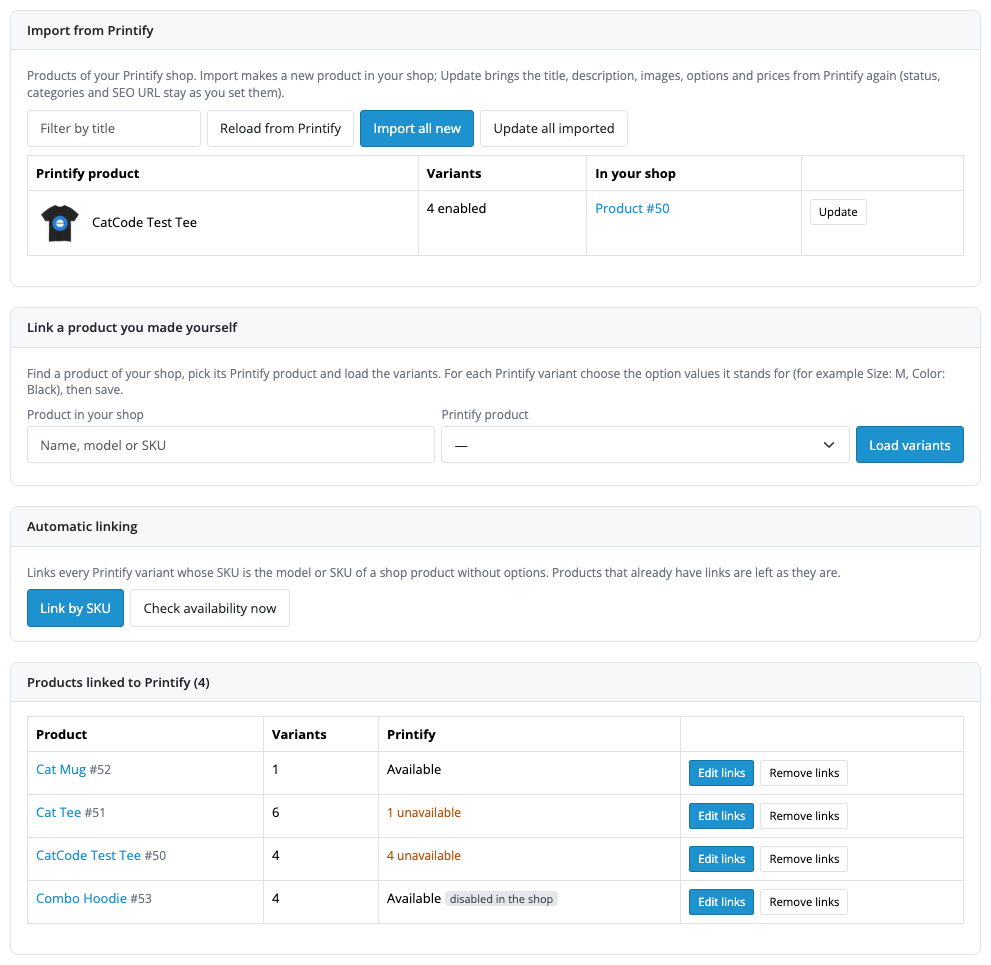
Products you created yourself are linked by hand: find a shop product, pick its Printify product, load the variants and choose the option values each variant stands for (for example Size: M, Color: Black). Imported products get their links automatically, and Pro also links by SKU.
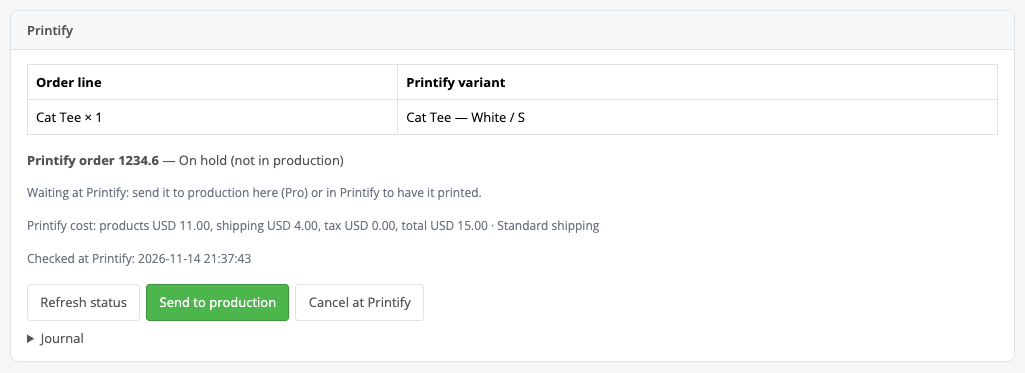
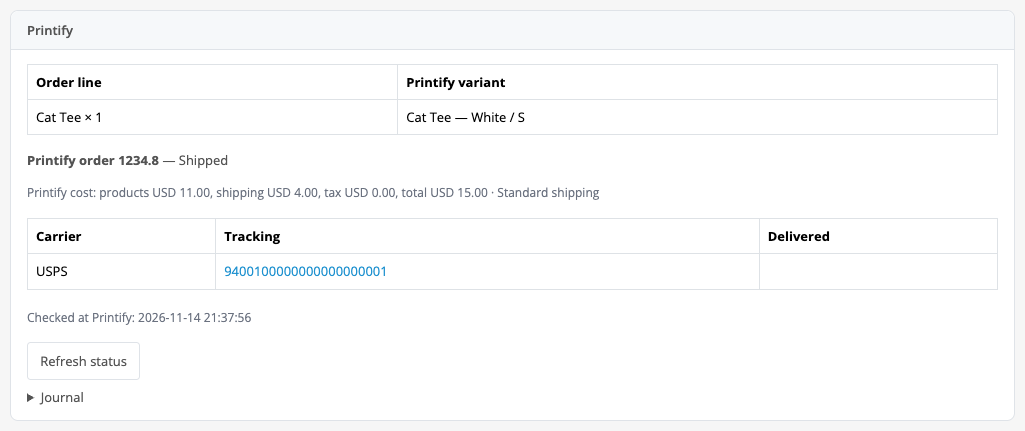
An order goes to Printify with the “Send to Printify” button: it waits at Printify with the on-hold status, and nothing is printed or charged until you send it to production (in Printify, or in Pro with the “Send to production” button that confirms the amount). The panel shows which lines are linked to Printify and which are not, and only linked lines are sent; the order external_id carries a shop prefix. When Printify ships a package, the carrier and the tracking number appear in the order, a note appears in the order history, and the buyer receives an e-mail with the tracking (the e-mail can be switched off in the settings).
The “Connection” tab: the Personal Access Token from your Printify profile, the choice of the shop (a single shop is chosen automatically) and the currency of Printify prices. The “Save and check connection” button checks the connection. A Printify token is valid for one year: after that Printify answers 401, the module shows a clear message, and the token has to be replaced by hand.
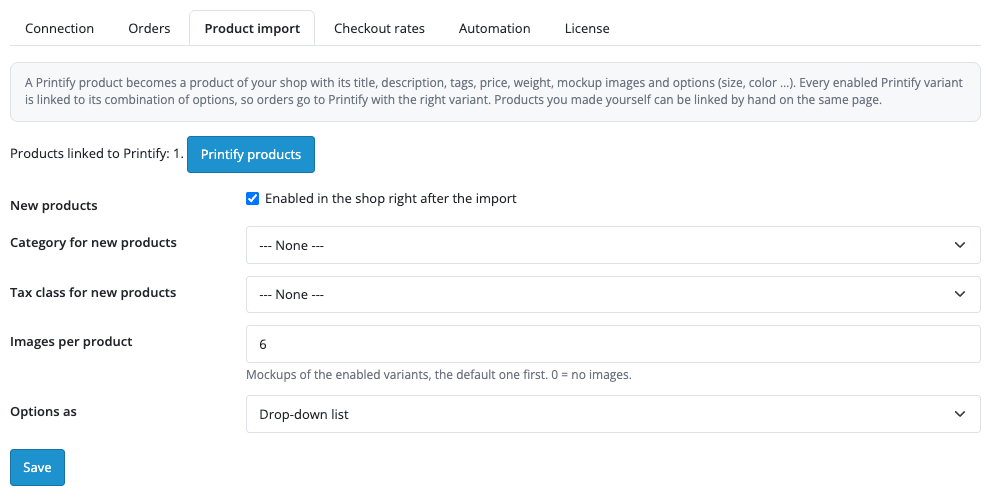
The “Product import” tab: whether new products are enabled right away, the category and the tax class for new products, the number of images per product, options shown as a drop-down list or as radio buttons. The “Orders” tab: the default Printify shipping level (used when the buyer did not pick a Printify rate at checkout; Express and Economy work only for products that have them), the e-mail to the buyer with the tracking, Printify’s own shipping notification and a warning about order approval at Printify.
The “License” tab: a Pro key or a 7-day trial. Without a key the Pro tabs show an explanation, and the free part works as before.
The “Checkout rates” tab (Pro): Printify rates for the buyer’s address and the Printify products in the cart appear at checkout as shipping methods: Standard, Priority, Express and Economy (Economy is off by default). A markup in percent, a fixed fee and free shipping above a subtotal are added to the rate. A rate of 0 is not shown, answers are cached for 10 minutes, and after a Printify failure the method is hidden for 60 seconds so that checkout does not wait. For a cart with mixed products (some you ship yourself) you choose a policy: show no Printify rates, or show them only for the Printify items. If a combination in the cart has no Printify variant, the method is not shown.
The “Automation” tab (Pro): the order statuses at which the order goes to Printify by itself, sending straight to production (off by default), the OpenCart status after shipping (only between “processing” and “complete”, so stock is never moved twice), publishing from Printify, and disabling a product when Printify has none of its variants (off by default). Publishing: when you press Publish in Printify, the product is created or updated in the shop and Printify receives the link to it, or the reason when it could not; a delete in Printify disables the product, it does not delete it. Webhooks are registered, checked and removed from the admin, and every request is signed with a secret.
The Pro products page: “Import all new” and “Update all imported” (3 products per request), linking by SKU, the availability check. The “Printify orders” list in the Sales menu: the filters “In queue”, “On hold”, “In production”, “Need attention”, “Finished” and “Printify products”, sending and refreshing several orders by ID, and in Pro bulk actions and a journal of calls.
Didn't find the answer? Message us on Telegram and we'll reply within a business day.
 @catcode_support
Setup, compatibility, activation
No, it is an independent integration with Printify by CatCode. Printify is a trademark of its owner.
A Printify account, a Printify shop and a Personal Access Token with the scopes shops, catalog, products, orders, webhooks.
Yes. The free version imports a product with a button (title, description, tags, price, weight, images, options and variants) and updates an imported one. Bulk import and update of all products, publishing from Printify and linking by SKU are Pro.
An order sent by the module waits at Printify with the on-hold status. But by default Printify approves new orders by itself after 24 hours, so for control switch Order approval in Printify to Manual. The "Send to production" button in Pro asks you to confirm the amount, and automatic sending to production is off by default.
The module does not create a duplicate: a repeat is sent with the same external_id, and the answer "order already exists" is linked to the existing order. In Pro the queue repeats the sending up to 8 times.
No. The design of the product created in Printify is printed.
That is Pro: Printify rates for the buyer's address (Standard, Priority, Express, Economy) with a markup, a fixed fee and free shipping above a subtotal. For a cart with other products there are no Printify rates by default.
Yes, in Pro: the Publish button in Printify creates or updates the product in the shop. For this the shop in Printify must be connected to the API channel.
OpenCart 4.0.2.x–4.1.x, 3.0.x and 2.3.0.2: three separate archives in one product.
Yes, for OpenCart it is one payment and a licence for life, for two sites.
Pro switches off, orders in the queue stop with a reason, and the free part keeps working.
No reviews yet. Be the first.
No questions yet. Ask one — we answer within 24 hours.
We build custom modules for WordPress, WooCommerce, OpenCart and Shopify. Tell us about the task and we'll prepare an estimate.
Order a custom module
—
Charged in UAH; your bank converts it to your currency. EUR price is approximate.

CatCode assistant
Just now


CatCode assistant
Online

I’ll help with your website task
Describe your website task — I’ll find a ready-made module or pass it to a developer for an estimate. Modules, custom features, layout, integrations, speed, migration, technical SEO.