

















The product is set to Published, the card in the admin is filled in, but it is not in the category. The customer does not see it, and the admin does not say why.
We collected 7 causes that really happen and put them in the order that is convenient to check. We reproduced the WooCommerce cases on a clean test stand: WooCommerce 11.2.1, Polylang 3.9.1, Storefront theme. Only the page cache case comes from one of our projects rather than the stand. For OpenCart we read the catalogue code of versions 3.0.5.0 and 4.1.0.3, and compared the 2.3.0.2 branch where it matters. A theme or filter module can behave differently, more on that in point 5.
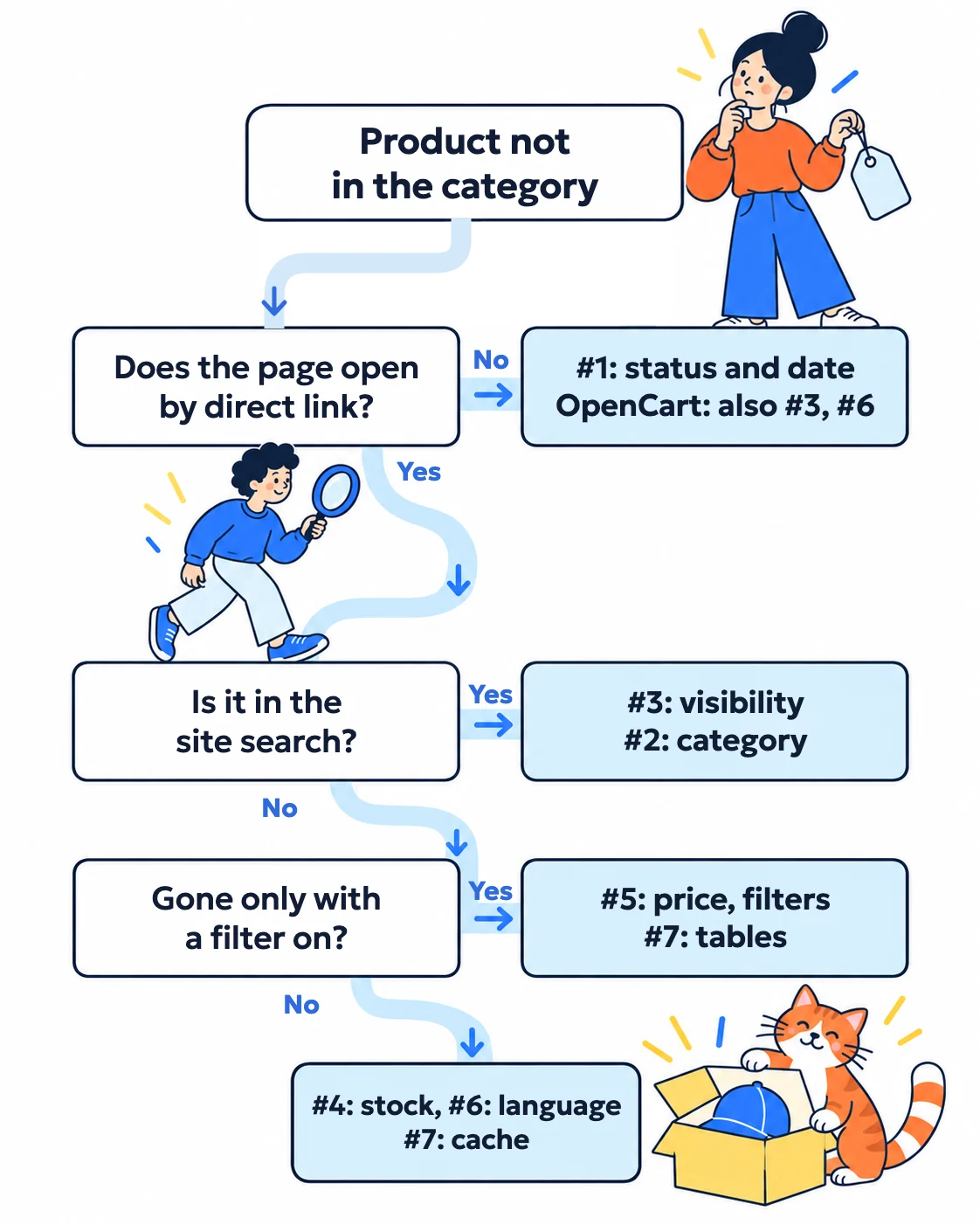
Where to start
- Open the category in an incognito window, without logging in. An administrator sees more than a customer does.
- Remove filters from the address (
min_price,max_price,filterand so on) and go through all pages of the category. - Open the product page by its direct link. If it does not open in OpenCart, see points 1, 3 and 6. In WooCommerce, start with point 1.
- Then go through the causes below in turn. After each change clear the cache and look again in incognito.
Where to look
| Cause | WooCommerce | OpenCart |
|---|---|---|
| 1. Status and date | Draft, scheduled, Private | Status: Disabled, Date Available in the future |
| 2. Category | Wrong category, Subcategories display mode | Product only in a child category |
| 3. Visibility | Search results only, Hidden | Store not ticked in Stores |
| 4. Stock | Hiding out of stock items | Core does not hide, look for a module |
| 5. Price and filters | Price filter, theme query | Core does not hide, look for a module or filter |
| 6. Language | Product and category language in Polylang | No description in the current language |
| 7. Tables and cache | Lookup tables, page cache | OpenCart 4 cache, page cache |
1. Status or date
WooCommerce. Published products go into a category. A customer will not see a draft, a pending product or one scheduled for later. The trickiest option here is Private visibility. On our stand such a product showed in the category for an administrator but not for a guest. So the owner sees that everything is fine in their browser, while the customer gets nothing.

OpenCart. The catalogue shows only products with Status = Enabled and a Date Available that has already arrived. This is written directly in the database query. If the date is tomorrow, the product appears tomorrow, and until then it will be neither in the category nor at its direct link.
2. Product in the wrong category
Here WooCommerce and OpenCart behave in opposite ways, which constantly confuses people who work with both.
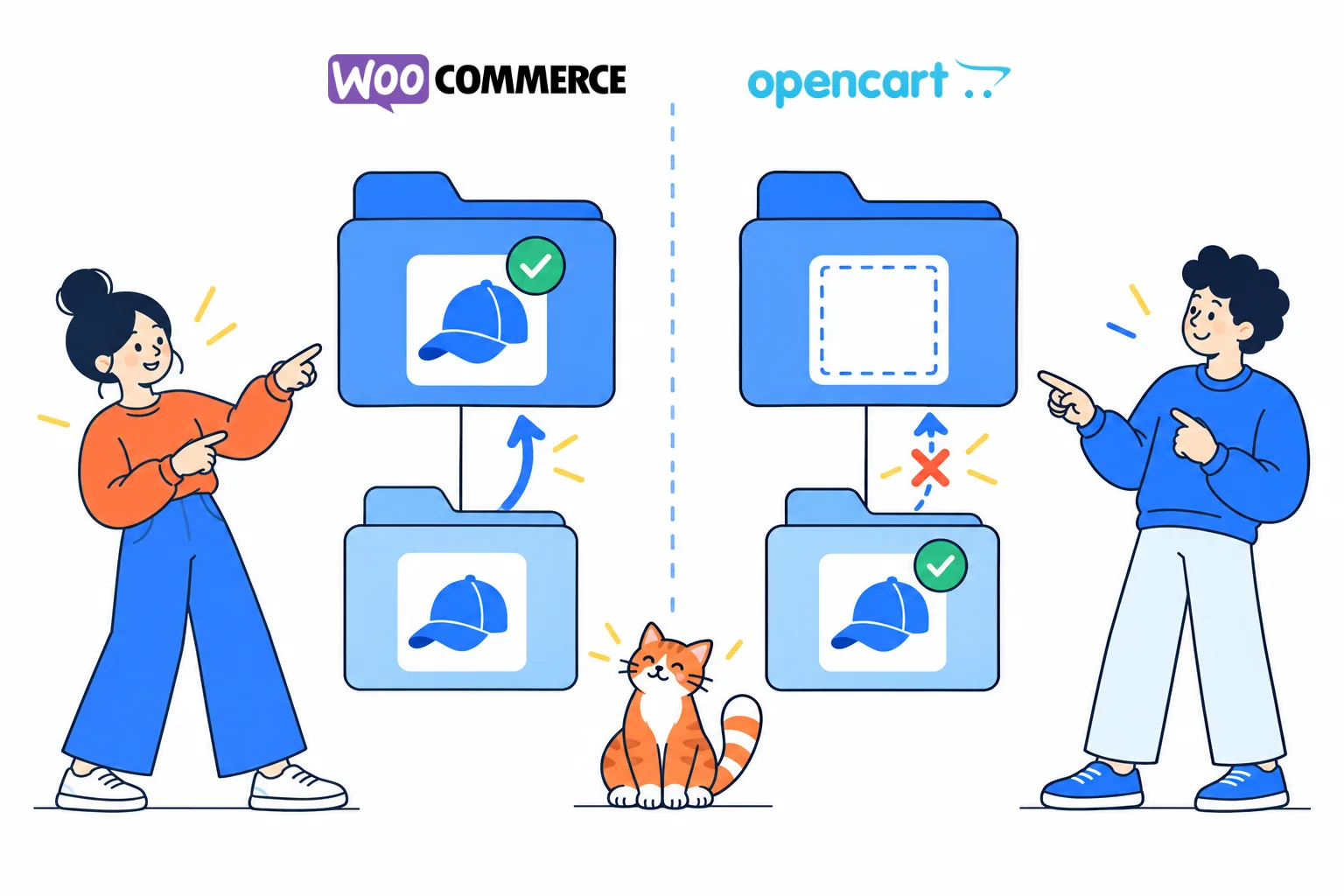
WooCommerce. A product from a child category also shows in the parent. A product attached only to the parent does not show in the child. One more trap: category settings have a Display type. If it is set to Subcategories, the page shows their tiles without a single product, although products are attached correctly. On our stand everything disappeared exactly like this. The shared setting for all categories is in Appearance → Customize → WooCommerce → Product Catalog → Category display.
OpenCart. The opposite: a category page shows only products attached to that exact category. A product from a child category will not appear in the parent until you tick both on the Links tab. The category page code does not include subcategories when it selects products. If the category itself is disabled or not linked to the store, you will get a category not found page.
And a simple one: check that there are not two categories with similar names. This happens after imports, and the product sits in the duplicate.
3. Visibility
WooCommerce. The product page has Catalog visibility in the publish box. The options Search results only and Hidden remove the product from the category. On our stand both products disappeared from the category, while site search found them. So if a product is in search but not in the category, look here first.
OpenCart. The Stores field on the Links tab plays a similar role. The catalogue shows a product only when it is linked to the current store. This is easy to miss when products came through an import or there are several stores.
4. Stock
WooCommerce. WooCommerce → Settings → Products → Inventory has the option Hide out of stock items from the catalog. When it is on, such products disappear from the catalogue. WooCommerce also treats a variable product without a single variation as out of stock, so it disappears with them.
There is a less obvious case. WooCommerce stores the out of stock flag not only in a product field but also as a separate service marker, and the catalogue looks at that marker. If an import or script changed stock directly in the database, the marker stays. On our stand with the option on, the product data said in stock, but the product was not in the category. Saving without changes did not help. What helped was setting out of stock, saving, returning to in stock and saving again.
OpenCart. The core does not check stock quantity when it builds the list. A product with zero stock stays in the category. If it disappeared, a module or theme did that.
5. Price and catalogue filters
WooCommerce. A product without a price does not disappear from a category by itself. On our stand it stayed in the list, just without a buy button. Such a product is stored in a service table with a price of 0, so a filter with a minimum price of 1 or more removes it. Check that no such filter is left in the address.
But a theme can hide such a product. In one of our projects the theme built the catalogue with its own query and required the price to be between the store’s minimum and maximum prices. A product without a price dropped out, and so did a product priced 0. At first this looked like a translation problem, because the products had no second language version. Checking showed it was not about language: another product, also without a translation but with a price, was visible in the category.
How to tell: on a copy of the site, not the live one, switch to a default theme. If the product appears, the cause is the theme or its filters.
OpenCart. The core query has no condition on price, and a product priced 0 is shown. The built-in filter works differently: when the address has filter=, only products with that value on the Links tab are shown. Third-party filter modules can have their own rules.
6. Language
WooCommerce with Polylang. If product translation is on in Polylang, a category page shows only products in the same language. On our stand this is what happened:
- a product without a language disappeared from the category as soon as we turned on product translation. Polylang warns about this in its settings and offers to assign the default language to all such items;
- a product in Russian attached to an untranslated category showed neither in Ukrainian nor in Russian;
- a product with a correctly translated category showed in its own language.
One more thing: Polylang by itself does not carry the price, stock and other WooCommerce service fields into a translation, because they are protected. You can see this in its code. So a translation can turn out to be a product without a price, and then see point 5. For synchronisation there is a separate paid add-on, Polylang for WooCommerce.
OpenCart. The name and description are stored separately for each language. If there is no record in the current language, the catalogue will not show the product, and its page will not open either. This is typical of an import that filled in only one language. Switch the language on the site and check the General tab of the product.
7. Service tables and cache
WooCommerce. Prices and stock for filters and sorting are kept in a separate table, wc_product_meta_lookup. It is updated when a product is saved through WooCommerce. If an import writes straight to the database, the row may be missing. On our stand such a product was in the category but disappeared when filtering by price. The cure was WooCommerce → Status → Tools → Product lookup tables → Regenerate. The same page has Term counts and a separate attributes table.
OpenCart. In version 4 the result of the product list query is cached in files, by default for an hour. Saving a product in the admin clears this cache, while a direct import to the database does not. So a new product can appear with a delay. You can clear the cache on the admin dashboard: gear button, developer settings, Cache row. In OpenCart 3 the category list does not go into this cache.
Page cache. On any platform a cache plugin, the host or Cloudflare can serve an old category page. In one store we saw the old category after changes for this reason, until we cleared the plugin’s cache. Clear all levels in turn: plugin, host, CDN.

FAQ
A product is in search but not in the category. Why?
In WooCommerce first look at Catalog visibility: the Search results only option gives exactly this result. Then check that the product is attached to this category.
The counter shows more products than the page has. What is that?
In WooCommerce run Term counts in Status → Tools. If that does not help, go through points 3 and 4: the counter and the list could have diverged after direct database changes.
Does this order work for variable products?
Mostly yes, but check that there is at least one variation. A variable product without variations has no price and counts as out of stock.
Been through all 7 points and the product is still missing? Write to us and send links to the product and the category. We will see what exactly hides it: the theme, a module or data in the database.