OpenCart
Product Tabs Manager for OpenCart 2.3, 3.x and 4.x — custom product tabs
Free + Pro
990 UAH
v1.0.2
Enter at least 2 characters

Custom tabs on the product page without editing the theme, a shared tab library and renamed built-in tabs — for OpenCart 2.3, 3.x and 4.x.
Clear even without sound: Ukrainian subtitles
The free version works with no time limit. Pro adds the rest of the features in the table.


On the product page your tabs sit in the same row as Description and Reviews and look the same — the module uses your theme’s markup (Bootstrap 5 classes in OpenCart 4, Bootstrap 3 in OpenCart 3 and 2.3).

A “Tabs” tab in the product form. In the usual product editor, next to General and Data, there is one more tab.

A fresh install is the free version, nothing switches on by itself. The “Try Pro for 7 days” button → e-mail → the key right in the window and by e-mail.

Moving the store? Unbind the licence on the old domain and activate it on the new one yourself. If our server is unreachable, Pro keeps working for 14 more days. For studios — keys for 5 or 25 sites, or unlimited.
 OpenCart 4.0.2+ and 4.1, 3.x, 2.3 and ocStore on those versions — one archive per branch. PHP 7.0+ (the library code is the same in all three builds and uses no newer PHP features). Admin languages: English, Ukrainian, Russian; the tab texts on the storefront are written by you for each store language. No external services or API keys are needed.
A CSV import that updates existing tabs works again on the PDO database driver.
Pro search finds a product by the text of a tab only when the visitor would see that tab.
Unlimited custom product tabs with title and content per language, a tab library on all products, renaming, hiding and reordering the built-in tabs, builds for OpenCart 4.x, 3.x and 2.3,…
4 modules in one order — 40% cheaper than separately



Product Tabs Manager is an OpenCart module that adds your own tabs to the product page without editing the theme: a size chart, shipping and payment, warranty, ingredients, instructions. Every product can have as many tabs as it needs, with a title and content in each store language, and shared tabs are written once in the module’s library and shown on all products.
The module also manages the built-in OpenCart tabs — Description, Specification and Reviews: you can rename, hide or reorder them for the whole shop. There is a separate build for each branch: OpenCart 4.x (4.0.2+ and 4.1), 3.x and 2.3, plus ocStore on those versions.
A shopper who has read the description to the end is usually looking for three more things: what shipping costs, how to return the item and whether the size will fit. When all of that is packed into one long description, nobody reads it. When it sits in separate tabs with short titles, the shopper opens exactly the one they need and finds the answer without calling you.
The second problem is identical text on hundreds of products. Shipping or warranty terms pasted into every product description have to be edited by hand whenever something changes, and an old version always survives somewhere. A library tab is edited in one place and changes at once on every product.
The third is that in OpenCart a tab can only be added by editing the theme template, and the names of the built-in tabs live in language files. A theme update wipes such edits. The module changes nothing in the theme: tabs and renames are stored in the database and survive updates.
On the product page your tabs sit in the same row as Description and Reviews and look the same — the module uses your theme’s markup (Bootstrap 5 classes in OpenCart 4, Bootstrap 3 in OpenCart 3 and 2.3). The order is set by a number: the built-in tabs are 1, 2 and 3 by default, and custom tabs fall between them according to their sort order. The first visible tab opens as active — even if you have hidden Description.
A tab holds regular HTML from the editor: formatted text, lists, tables, images. Each tab has its own text for each storefront language; if a language has no text, the filled-in version is shown instead of an empty tab. A renamed Reviews tab keeps its counter: “Customer opinions (3)”.
With Pro the tabs can be shown as an accordion — expandable sections. Two options: an accordion on every screen, or tabs on desktop and an accordion on phones (screens narrower than 768 px), where a row of five tabs no longer fits.
About themes. The module finds the tab row on the product page by the link to the description tab — that is how the default OpenCart theme and most themes with Bootstrap tabs are built. If a theme renders the product page in a completely different way (some premium themes such as Journal), custom tabs are shown as separate sections at the bottom of the page, before the footer. Nothing is lost, but they will not look like tabs — worth checking with the free version before buying Pro.
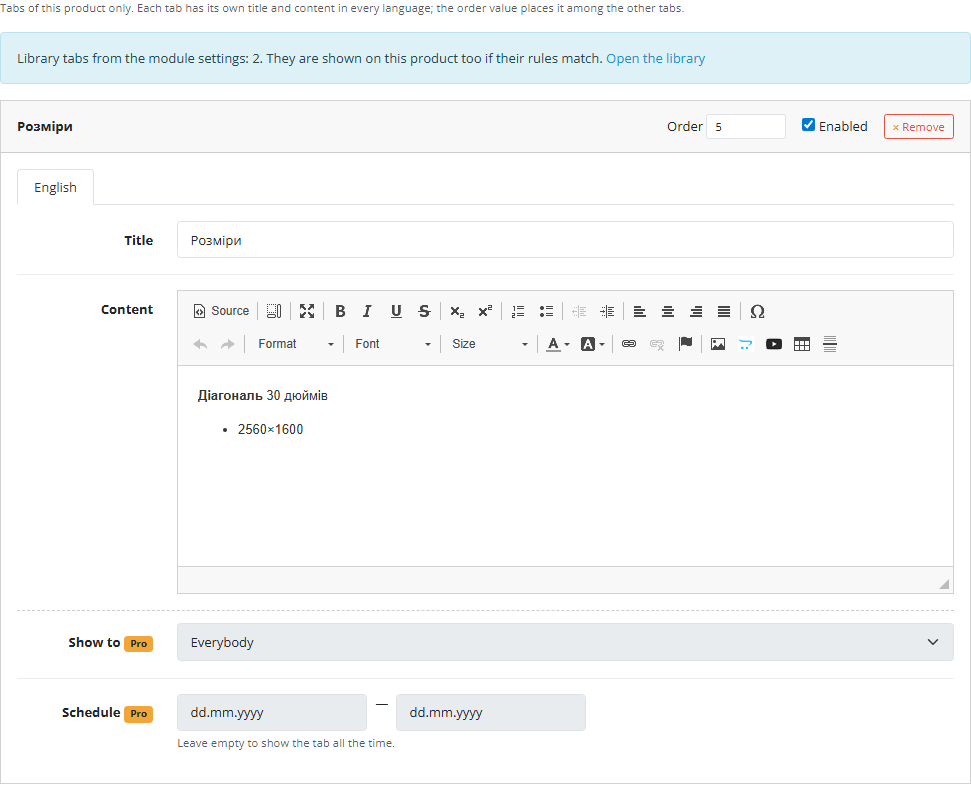
A “Tabs” tab in the product form. In the usual product editor, next to General and Data, there is one more tab. It has an “Add tab” button: title and content per language (in CKEditor in OpenCart 4 and Summernote in OpenCart 3 and 2.3), sort order and an “Enabled” switch. An empty row is not saved. It also shows how many tabs the module library has — they appear on this product too if they match the rules.
Tabs are saved together with the product by the standard Save button. One important detail: the module writes tabs only when the product is saved from a form that contains its panel. Imports, quick-edit modules and bulk product changes that also save products neither edit the tabs nor wipe them.
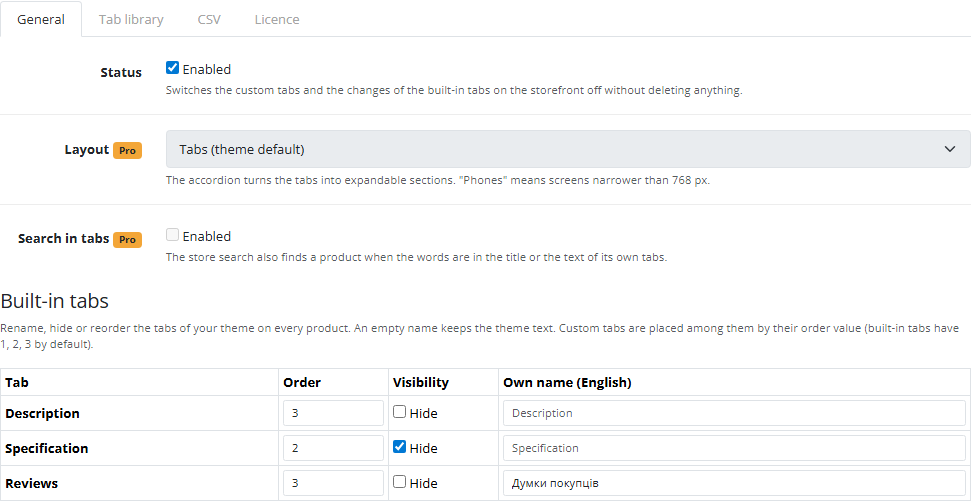
Module settings. Extensions → Modules → Product Tabs Manager has four tabs: General, Tab library, CSV and Licence. General holds the status (switches the tabs off on the storefront without deleting anything), the layout, search inside tabs and the “Built-in tabs” table: custom title, hiding and order for Description, Specification and Reviews. An empty title keeps the theme’s text.
Tab library. This is where tabs for all products are written — shipping, payment, warranty, size chart. In the free version a library tab is shown on every product. With Pro you can pick categories, manufacturers or specific products (IDs separated by commas) and exclusions: the tab appears on products that match at least one condition, except the excluded ones.
A tab with an audience, a schedule or product rules is not shown on the storefront at all without an active Pro licence — in the admin it is marked “Hidden without Pro”. This is deliberate: a “logged-in customers only” tab is better hidden from everyone than shown to everyone.
1. Library. First move everything that is the same for many products into the library: shipping, payment, returns, warranty. The tab appears on every product page right away.
2. Product tabs. In a specific product’s form add what concerns only that product: a size chart, instructions, ingredients, certificates — for each store language.
3. Order. Give every tab a sort order. The built-in tabs are 1, 2 and 3, so a custom tab can go first or between Description and Reviews.
4. Built-in tabs. On the General tab rename or hide whatever does not suit your shop, for example Specification for products without attributes. With Pro the same can be done on a single product.
5. Check. Open a few products on the storefront in different languages. A disabled tab is not shown, but it is not deleted either.
Moving from another tabs module. There is no ready-made import from a competing module: OpenCart has no single widespread tabs module with a known database structure, and we did not want to guess one. Tabs can be moved with CSV in Pro — export them from the previous module, map them to our columns and import.
The module does not patch templates and uses no OCMOD modifications (OpenCart 4 has none anyway). The storefront works through an event after the product page is rendered: the module takes the finished HTML, finds the tab row and adds its own tabs, renames or hides the built-in ones. The panel in the product form is inserted the same way, by an event, and saving hangs on the product add and edit events.
Data lives in three tables: cc_ptabs_tab (tabs), cc_ptabs_tab_description (titles and texts per language) and cc_ptabs_builtin (built-in tab settings per product). Tab HTML is output as is — just like the product description in OpenCart: only an administrator can write it. The Pro accordion is CSS plus about twenty lines of JavaScript with no libraries.
Pro search hooks into the shop’s standard search and looks through the text of a product’s own tabs; library tabs are deliberately ignored, otherwise every product would be found by the word “shipping”. Products found only through their tabs come after the main results, and pagination and the counter stay correct. Pro CSV exports all product and library tabs to a file that opens in Excel; a new tab in several languages is several rows with the same tab_id, such as new1.
Honest limits. Copying a product in OpenCart 4.1 copies its tabs too; in OpenCart 4.0, 3.x and 2.3 the core does not return the copy’s ID, so tabs are not carried over to the copy. On uninstall the module removes its events but deliberately keeps the tables with tabs: that is your shop’s content, and reinstalling loses nothing.
OpenCart 4.x. Extensions → Installer → upload cc_ptabs.ocmod.zip → Install. Then Extensions → Modules → Product Tabs Manager → Install and Edit.
OpenCart 3.x. Extensions → Extension Installer → upload cc_ptabs-oc3.ocmod.zip. No need to refresh modifications — the archive contains no OCMOD operations. Then Extensions → Modules → Product Tabs Manager → Install.
OpenCart 2.3. The stock 2.3 installer copies files only over FTP, so unpack cc_ptabs-oc2.ocmod.zip and upload the contents of the upload folder to the shop root. Then Modules → Product Tabs Manager → Install.
After installation open any product — the form now has a “Tabs” tab.
Didn't find the answer? Message us on Telegram and we'll reply within a business day.
 @catcode_support
Setup, compatibility, activation
@catcode_support
Setup, compatibility, activation
The module finds the tab row by the link to the description tab — that is how the default theme and most themes with Bootstrap tabs are built. If a theme builds the product page differently, custom tabs are shown as sections at the bottom of the page before the footer. Check it with the free version.
There is no ready-made import from a competing module: OpenCart has no single widespread tabs module with a known database structure. Tabs can be moved via CSV, which is Pro.
One archive per branch: cc_ptabs.ocmod.zip for OpenCart 4.x, cc_ptabs-oc3.ocmod.zip for 3.x and cc_ptabs-oc2.ocmod.zip for 2.3. In OpenCart 2.3 the installer only works over FTP, so the contents of the upload folder are copied into the shop root.
In OpenCart 4.1, yes. In OpenCart 4.0, 3.x and 2.3 the core does not return the copy's ID, so tabs are not carried over — add them by hand.
No. The module writes tabs only when the product is saved from a form that contains its panel; other modules neither edit nor wipe them.
The module removes its events but deliberately keeps the tables with tabs — that is your shop's content, and reinstalling loses nothing.
No. For OpenCart the licence is perpetual: one payment of 990 UAH, no yearly fees.
No reviews yet. Be the first.
No questions yet. Ask one — we answer within 24 hours.
We build custom modules for WordPress, WooCommerce, OpenCart and Shopify. Tell us about the task and we'll prepare an estimate.
Order a custom module
—

CatCode assistant
Just now


CatCode assistant
Online

I’ll help with your website task
Describe your website task — I’ll find a ready-made module or pass it to a developer for an estimate. Modules, custom features, layout, integrations, speed, migration, technical SEO.