
WordPress
Migration from Horoshop and Prom to WooCommerce
Free + Pro
890 UAH/year
v1.0.0
Enter at least 2 characters

Catalogue, photos, customers and order history from Horoshop or Prom.ua — through their API, with no file exports.
The free version works with no time limit. Pro adds the rest of the features in the table.


A single menu item, “WooCommerce → Migration from Horoshop / Prom”, with four tabs: Migration, Settings, History and Licence.

Categories. Horoshop sections and Prom groups become WooCommerce product categories with the same nesting and descriptions.

In Pro every run can be undone: the plugin deletes what that particular run created — products, categories, customers, orders and their notes, and also the photos, brands and attributes it downloaded or created, unless something else still uses them.

A fresh install is the free version, nothing switches on by itself. The “Try Pro for 7 days” button → e-mail → the key right in the window and by e-mail.

Moving the store? Unbind the licence on the old domain and activate it on the new one yourself. If our server is unreachable, Pro keeps working for 14 more days. For studios — keys for 5 or 25 sites, or unlimited.
 WooCommerce 6.0+, WordPress 6.2+, PHP 7.4+. Compatible with HPOS order storage. The cURL extension, outgoing HTTPS to the Horoshop or Prom API and write access to the media library are required for downloading photos.On the old shop’s side API access is required: in Horoshop an administrator for the API (“Settings → Admins”), in Prom the seller’s API token. In neither case does the plugin use a cabinet password login or parse pages.
Migration from Horoshop and Prom.ua into WooCommerce.
4 modules in one order — 40% cheaper than separately

Migration from Horoshop and Prom is a plugin for WooCommerce that moves the catalogue, photos, customers and order history of an old shop on Horoshop or Prom.ua into your store. The plugin talks to the official API of the old shop, reads the data and writes it into WooCommerce. The old shop is only read — nothing in it is changed or deleted.
It is not only names and prices. Categories arrive with their nesting, products come with descriptions, sale prices, stock, SKU, barcode, brand, SEO fields and photos that are downloaded into your media library instead of staying as links to someone else’s server. Pro adds characteristics, variations, customers and order history.
Moving away from a website builder or a marketplace usually looks like this: export a price list, reshape it by hand into the WooCommerce import format, import it, and then spend a week fixing photos, categories and stock. Customers and orders are not moved at all — they are simply left on the old platform for as long as it runs.
The plugin does that work itself, and repeatably. You start a run, look at the result in your own store, change the settings if needed and run it again — products are updated, not duplicated. That way the new store can be prepared calmly while the old one is still selling.
Orders deserve a separate note: they are written as history. No e-mails to customers, no stock deduction, no effect on sales statistics. The original order number, payment method, delivery and waybill are kept in the order note, so old orders can still be found by their previous number.
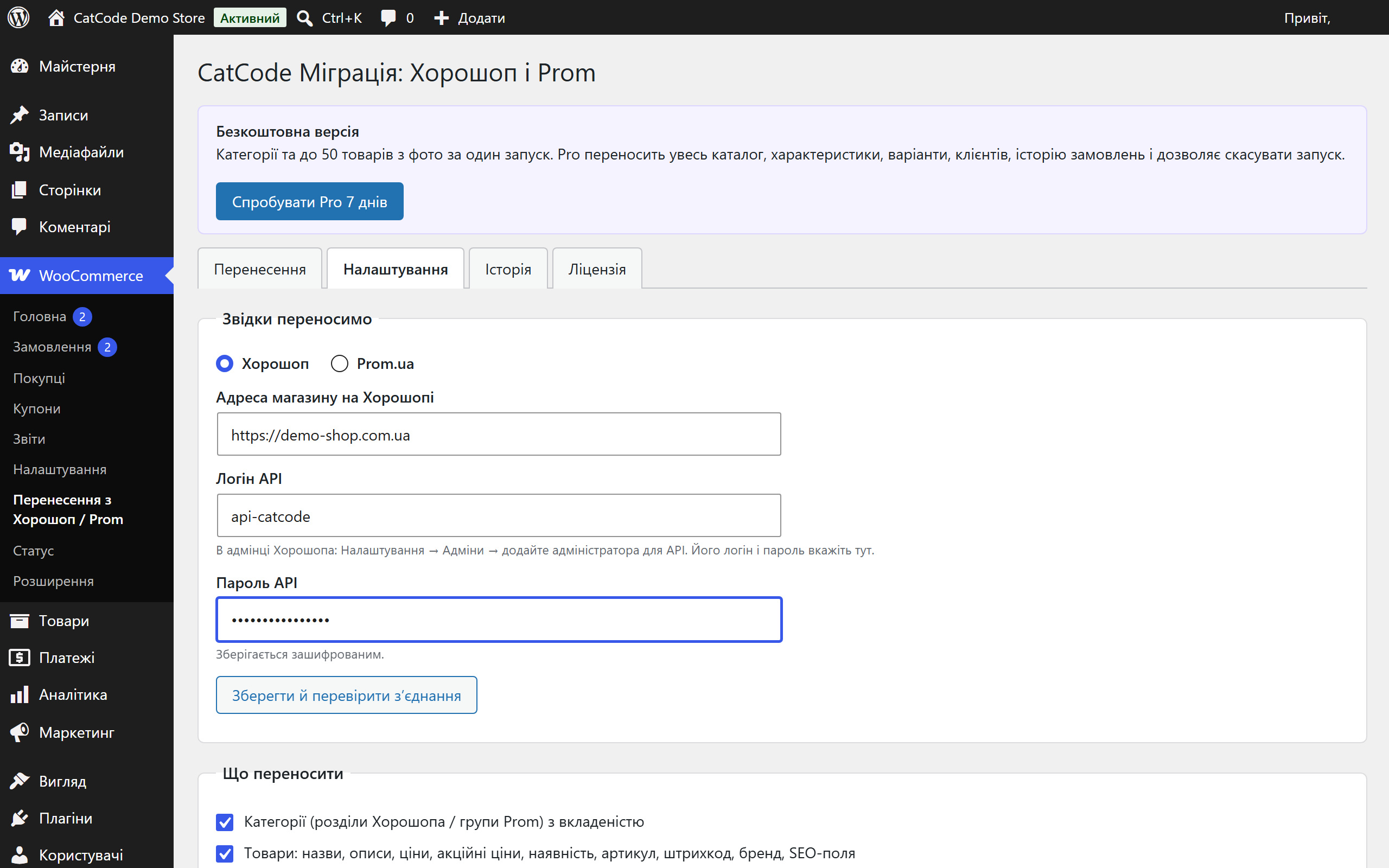
A single menu item, “WooCommerce → Migration from Horoshop / Prom”, with four tabs: Migration, Settings, History and Licence. On the settings tab you say where to move from, what exactly to move and under which rules.
Where the shop moves from. Horoshop — the shop address, the API login and password (in the Horoshop admin that is “Settings → Admins”, where a separate administrator for the API is added). Prom.ua — the API token from the seller cabinet and, optionally, a link to the YML export the plugin takes characteristics from. The password and the token are stored in the database encrypted.
What to move. Every block of data is switched on separately: categories, products, photos, characteristics, modifications, customers, order history. Whatever is Pro-only is labelled right in the interface, so it is clear what you get now and what comes with a licence.
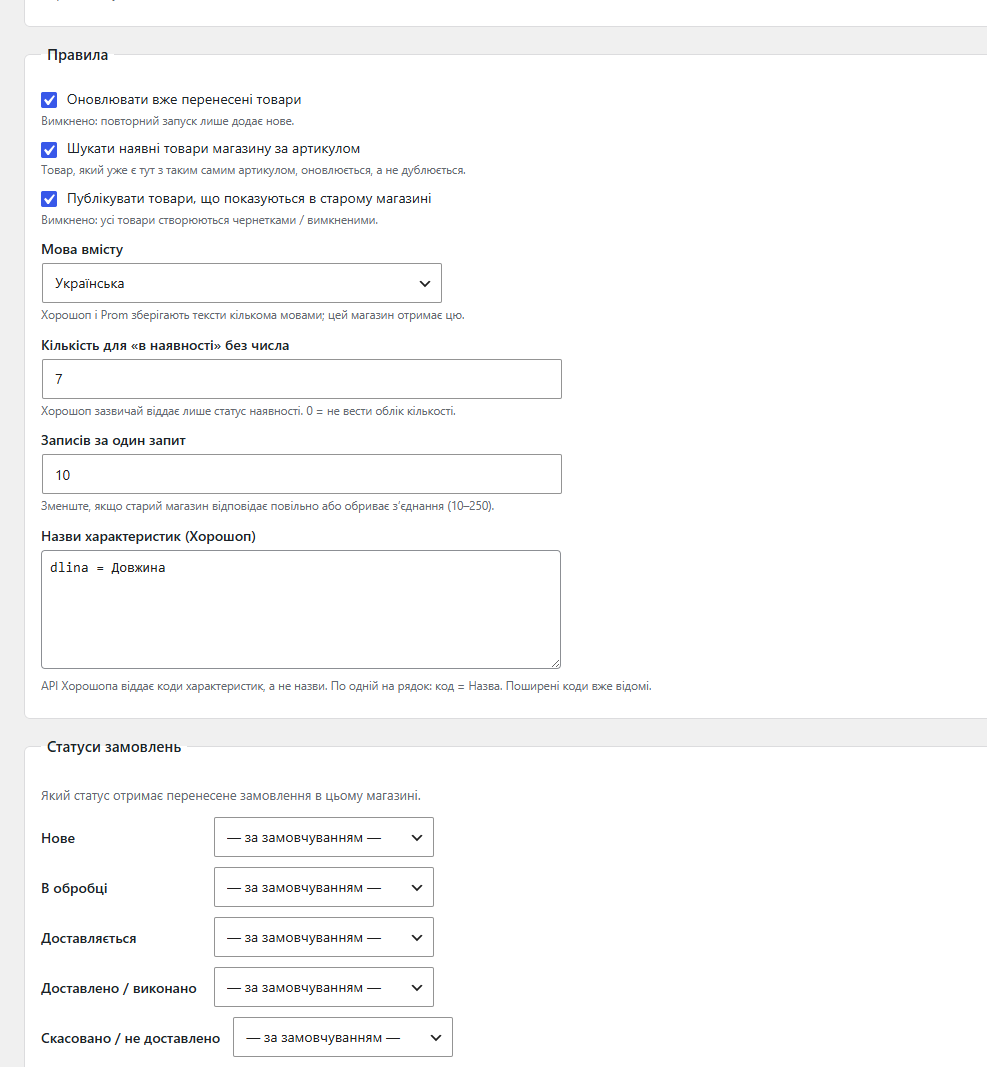
Rules. Whether to update products that were already moved, whether to match existing store products by SKU, whether to publish products that are hidden in the old shop, which content language to take, how many records to take per request, and what quantity to set for products the old shop reports only as “in stock” without a number.
Order statuses. Five source states — new, processing, being delivered, delivered, cancelled — are mapped onto your own WooCommerce statuses, so imported orders do not all end up in one bucket.
1. Read. The plugin calls the reading methods of the old shop’s API one by one and puts everything it received into its own staging table. Nothing is written into the store at this step, so interrupting the reading is safe.
2. Check. After reading you see counters (how many categories, products, customers and orders were found) and sample rows: how exactly the plugin understood a name, a price, an SKU. Errors on individual records are shown here instead of hiding in a log.
3. Write. Writing goes in batches of a few seconds rather than in one long request, so a large catalogue does not run into the hosting execution time limit. Every created record is remembered in the plugin’s own “source → store” map.
4. Repeat if needed. A second run finds the products it already moved through that map and updates them. If a product with the same SKU already existed in your store before the migration, the plugin updates it instead of creating a duplicate. Orders are never imported twice.
Categories. Horoshop sections and Prom groups become WooCommerce product categories with the same nesting and descriptions. Categories that already existed in your store are not renamed — the plugin only updates the ones it created itself.
Products. Name, long and short description, price, sale price, stock status and quantity, SKU, barcode (GTIN), brand, SEO fields. A product hidden in the old shop can be created as a draft.
Photos. Downloaded into your media library; the first one becomes the product image, the rest become the gallery. Broken links do not break the whole run: such a row is marked with an error and the migration continues.
Characteristics (Pro). Become product attributes. The Horoshop API returns characteristics as codes rather than titles — common codes are already known to the plugin, the rest you add as “code = Title” lines right in the settings. For Prom, characteristics are taken from the shop’s YML export.
Modifications (Pro). Products sharing a parent article in Horoshop, or belonging to one variation group in Prom, become a single variable product: every variation gets its own SKU, price, sale price and stock.
Customers (Pro). Registered Horoshop users and Prom clients are created without a password and without a single e-mail — the customer sets a password through “Lost password”. If an account with the same e-mail already exists in your store, it is linked rather than overwritten.
Order history (Pro). Orders are moved with the date from the source, the products they contain, totals, discount and delivery. Stock is not deducted, total_sales is not changed, no e-mails are sent. You can also take only the orders from a chosen date onwards instead of the whole history.
A typical order import saves orders through a status change — and the site reacts as if the order had just been placed: fiscalisation queues old receipts, the CRM picks them up as new, the customer gets an e-mail. This plugin sets the status of an imported order without a transition, immediately marks it as one whose stock is already deducted and whose sale is already counted, and mutes outgoing mail while the run writes. That is how history lands in the database quietly.
In Pro every run can be undone: the plugin deletes what that particular run created — products, categories, customers, orders and their notes, and also the photos, brands and attributes it downloaded or created, unless something else still uses them. Records the run only updated are left as they are, and whatever existed in your store before the migration is not touched at all.
The undo is tied to one run. If you made several runs, each of them has to be undone — through “History”, which shows the date, the source and the results of each.
Customers and orders are personal data. The plugin only moves them between two of your own systems and sends them nowhere else — neither to CatCode nor to any third party. The seller remains the party responsible for that data, so move only as much of it as your work requires, and only if you have grounds to process it. The “Customers” and “Order history” blocks are switched off separately, so the catalogue alone can be moved without touching buyers.
The data that was read goes into the staging table cc_hpm_item, and the “record in the old shop → record in yours” link goes into cc_hpm_map. That map is what makes a repeated run, an undo and the binding of orders to already moved products and variations work.
Writing goes in batches of a few seconds through ordinary admin AJAX, so neither a long catalogue nor a slow old shop runs into max_execution_time. The number of records per request is configurable — lower it if the old shop answers slowly.
Connection keys are stored in the database encrypted. The plugin adds nothing to the storefront: it is an admin tool, customers never see it, and once the move is over it can simply be deactivated.
1. “Plugins → Add New → Upload Plugin”, pick the archive and activate it.
2. Open “WooCommerce → Migration from Horoshop / Prom”.
3. Enter the old shop’s credentials and press “Save and check connection”.
4. Choose what to move and walk through the three steps: “Read” → check the counters → “Write into this store”.
Didn't find the answer? Message us on Telegram and we'll reply within a business day.
 @catcode_support
Setup, compatibility, activation
@catcode_support
Setup, compatibility, activation
No. The plugin only calls reading methods of the Horoshop and Prom APIs — it creates, edits and deletes nothing on the old platform.
No. Site mail is muted while a run writes, and imported orders are saved without a status transition, so neither WooCommerce e-mails nor integrations such as CRM or fiscalisation are triggered.
Every source record is remembered. A second run updates the categories and products it already moved (or only adds new ones, if you switch updating off). Orders are never imported twice.
No. An imported order is marked as already having its stock deducted, and the sales counter is not increased.
Yes, that is how their API works. Common codes are translated automatically; the rest you add as "code = Title" lines in the settings. For Prom, characteristics are taken from the YML export.
Yes, in Pro. "Undo this run" deletes what that run created, together with the photos, brands and attributes it downloaded or created, unless something else still uses them. Records it only updated are left as they are.
You need access to your own old shop: in Horoshop an API administrator login and password, in Prom the seller's API token.
No reviews yet. Be the first.
No questions yet. Ask one — we answer within 24 hours.
We build custom modules for WordPress, WooCommerce, OpenCart and Shopify. Tell us about the task and we'll prepare an estimate.
Order a custom module
—

CatCode assistant
Just now


CatCode assistant
Online

I’ll help with your website task
Describe your website task — I’ll find a ready-made module or pass it to a developer for an estimate. Modules, custom features, layout, integrations, speed, migration, technical SEO.