
OpenCart
iPay.ua для OpenCart — оплата карткою, Apple Pay і Google Pay
Free + Pro
990 грн
v1.0.3
 All Access4 990 ₴ на рік
 Аудит сайтуPDF-звіт на пошту за 3 хвилиниПеревірити сайт
Для щоденних задач
Стиснення фотоРозмір, якість і WebP пачкоюГенератор QRПосилання, Wi-Fi, оплата на IBANКалькулятор ПДВ20, 14, 7 % і сума прописомТранслітераціяЗа постановою КМУ № 55Перевірки сайту
PHP і плагіниВерсія PHP, WordPress, плагіниФід Google MerchantПоля, ціни, GTIN, фотоПошта доменуSPF, DKIM, DMARC, чорні спискиГотовність до AI-пошукуllms.txt, боти, розміткаУсі 9 інструментівВведіть щонайменше 2 символи

Модуль iPay.ua для OpenCart 2.3, 3.x і 4.x: оплата карткою, Apple Pay і Google Pay, статус замовлення зі звіркою через API iPay, захист від недоплати. Pro — журнал платежів, повернення, предавторизація, посилання на оплату.
Безкоштовна версія працює без обмеження в часі. Pro додає решту функцій з таблиці.



Свіжий інстал — безкоштовна версія, нічого не вмикається само. Кнопка «Спробувати Pro 7 днів» → e-mail → ключ одразу у вікні і листом.

Переносите магазин — відв’яжіть ліцензію на старому домені й активуйте на новому самі. Для студій — ключі на 5, 25 сайтів або без обмежень.
 OpenCart 2.3.0.x, 3.0.x або 4.0.2 – 4.1.x; PHP 7.0+ для 2.3, для 3.x і 4.x — версія, яку вимагає ваш OpenCart.Розширення PHP cURL і SimpleXML, вихідні HTTPS-запити з сервера.Договір з iPay.ua: ID мерчанта (mch_id) і ключ підпису (sign_key). Тестові доступи до пісочниці iPay видає разом із договором.Валюта кошика — гривня (UAH).Адресу нотифікацій iPay прописує на своєму боці: модуль показує готовий URL, його треба один раз надіслати підтримці iPay. Адреса має бути відкрита ззовні, без basic-auth.
Куплена ліцензія для OpenCart працює безстроково.
23 вересня 2026.
Ключі доступу в базі тепер шифруються AES-256-CBC з HMAC замість старого XOR-шифрування, яке антивіруси деяких хостингів позначали й видаляли.
Для OpenCart 2.3, 3.x і 4.x.
4 модулі одним замовленням — на 40% дешевше, ніж окремо


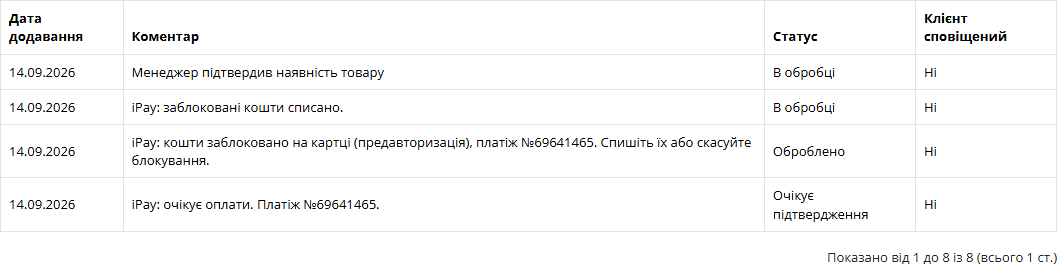
CatCode iPay — модуль оплати через iPay.ua для OpenCart 2.3, 3.x і 4.x. Покупець платить карткою, Apple Pay або Google Pay на захищеній сторінці iPay, а замовлення в магазині саме переходить в «Оплачено». Статус модуль бере не зі слів сповіщення, а з відповіді API iPay на ваші ключі, тому підробити оплату запитом на сайт не вийде.
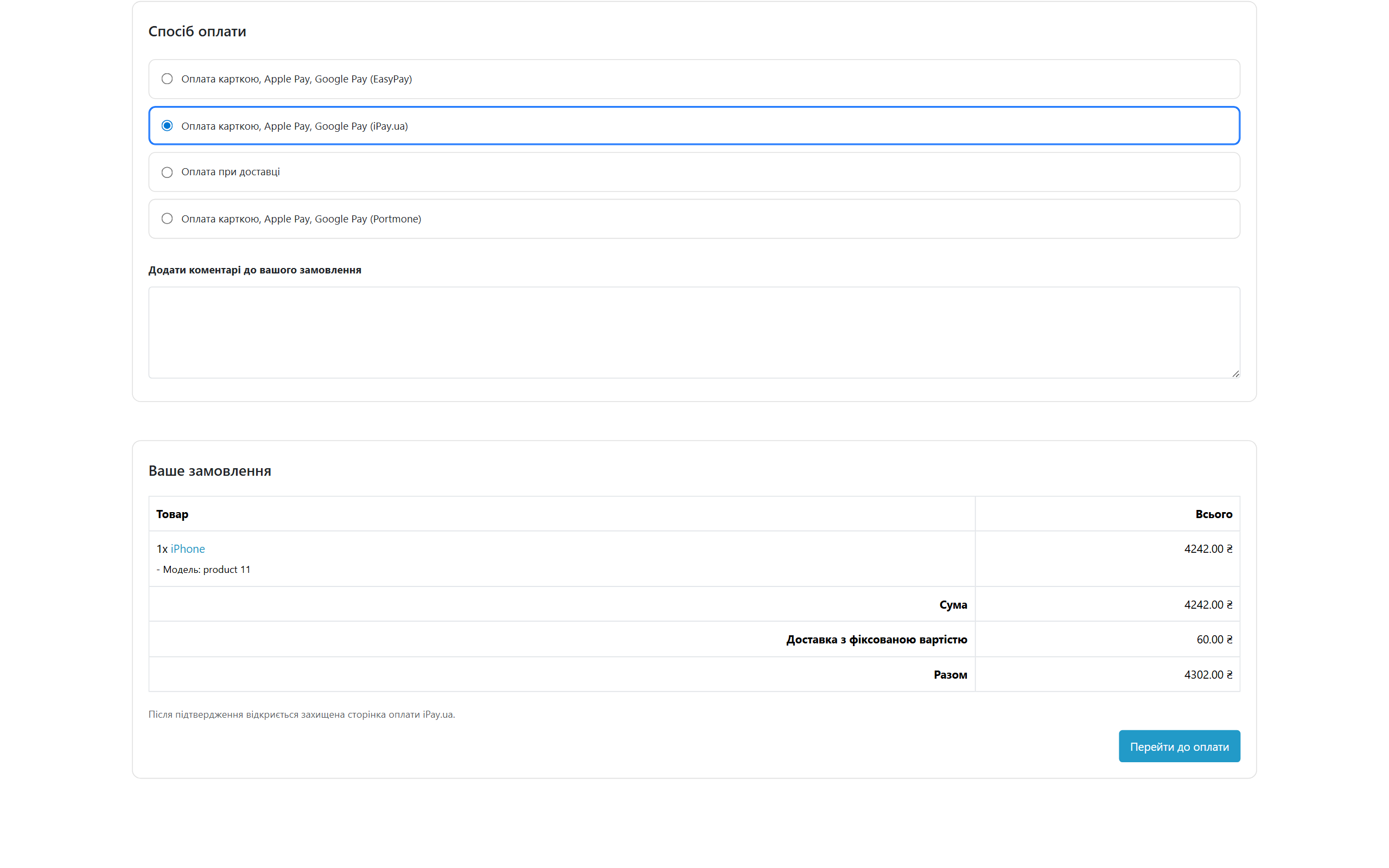
У чекауті це звичайний спосіб оплати «Оплата карткою, Apple Pay, Google Pay (iPay.ua)». Покупець підтверджує замовлення, модуль створює платіж в iPay і веде його на сторінку оплати з сумою в гривнях і назвою вашого магазину. Сторінка відкривається мовою магазину: українською, російською або англійською.
Після оплати iPay повертає покупця в магазин. Якщо оплата пройшла, він потрапляє на сторінку «Замовлення оформлено». Якщо ні, товари лишаються в кошику, а зверху — підказка спробувати ще раз або обрати інший спосіб. Кошик не зникає і не дублюється.
Модуль показується лише для кошика в гривнях. Якщо покупець перемкнув валюту магазину на долари чи євро, спосіб оплати ховається: iPay списав би ту саму цифру в гривнях.
iPay підписує запити й нотифікації так: сіль плюс HMAC-SHA512 від солі ключем мерчанта. Сам вміст повідомлення цей підпис не покриває. Тому модуль нікому не вірить на слово: підпис нотифікації перевіряється, але замовлення змінює лише відповідь запиту Status, який модуль сам робить до iPay з вашими ключами. Підроблена чи перехоплена нотифікація може хіба що змусити модуль ще раз перевірити статус.
Далі стоять запобіжники, які ми зазвичай ловимо на чужих платіжних модулях. Пізня нотифікація не відкотить оплачене замовлення назад. Натиснута «Назад» після оплати не створить другий платіж. Замовлення, що вже пішло далі статусу 0, не піде в банк зі старою сумою. Недоплата не стане оплатою. Повне повернення в день оплати йде операцією reversal, пізніше — refund. Часткові повернення рахуються накопичувально, і вийти за залишок не можна.
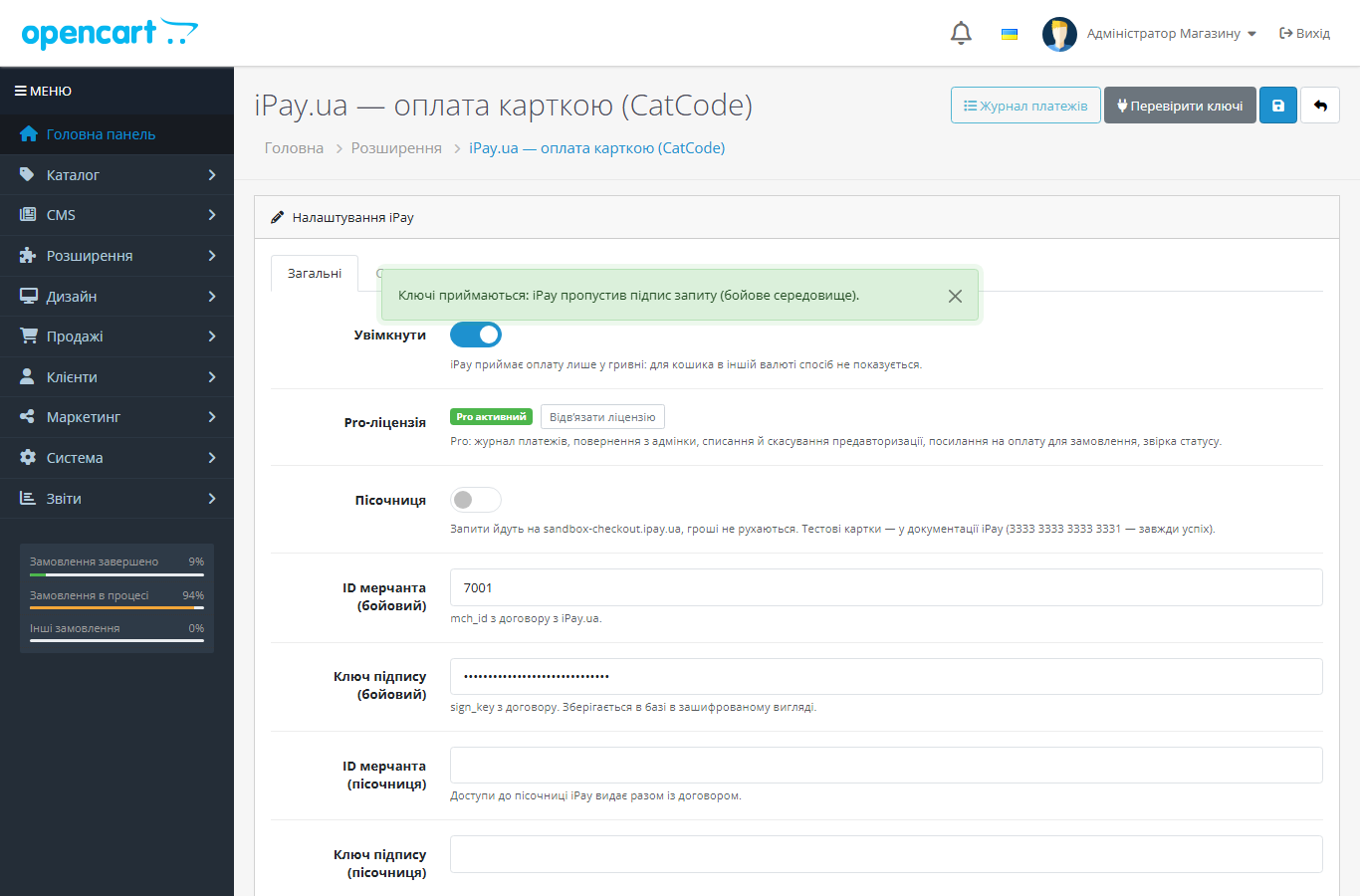
Ключ підпису зберігається в базі в зашифрованому вигляді. Ядро OpenCart не патчиться: у 4.x і 3.x усе працює через штатні події, у 2.3 — теж без ocmod-правок. Таблиця платежів і налаштування при видаленні модуля лишаються, історію не втратите.
cc_ipay.ocmod.zip і натисніть «Встановити». Далі Розширення → Оплата → «iPay.ua — оплата карткою (CatCode)» → «Встановити» → «Редагувати».cc-ipay-oc3-1.0.1.ocmod.zip, потім Розширення → Оплата → iPay → «Встановити».upload/ з архіву cc-ipay-oc2-1.0.1.ocmod.zip у корінь магазину. Потім Розширення → Оплата → iPay → «Встановити».3333 3333 3333 3331.Не знайшли відповідь? Напишіть у Telegram — відповімо протягом робочого дня.
 @catcode_support
Налаштування, сумісність, активація
@catcode_support
Налаштування, сумісність, активація
Ні. Оплата, нотифікації, звірка суми й пісочниця працюють у безкоштовній версії без обмежень.
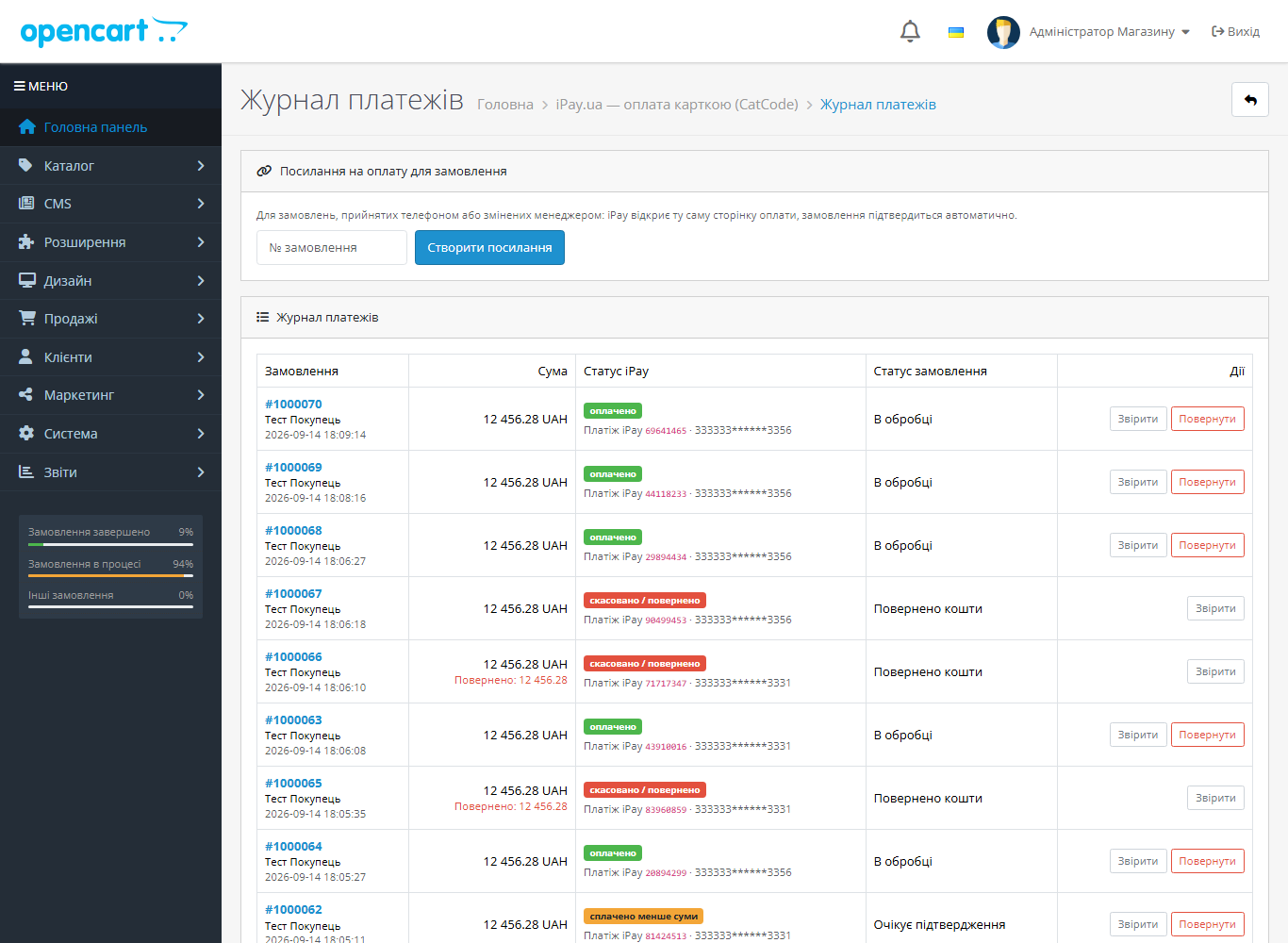
Найчастіше не долітає нотифікація: адресу не прописано в iPay, або її закриває фаєрвол, Cloudflare чи basic-auth. Покупець, що повернувся в магазин, закриє замовлення сам, а в Pro достатньо натиснути «Звірити» в журналі.
Так, на сторінці оплати iPay, якщо їх увімкнено у вашому договорі. У пісочниці iPay їх немає — там лише картки.
У Pro — так, з журналу платежів. Часткові повернення iPay вмикає мерчанту за заявкою; якщо їх не підключено, модуль покаже відповідь iPay і не змінить замовлення.
Кошти спершу лише блокуються на картці, а списуються після підтвердження замовлення. Режим вмикає iPay на своєму боці; модуль ставить окремий статус, а в Pro списує кошти автоматично або кнопкою.
Ні. Для OpenCart ліцензія назавжди: одна оплата.
Поки що жодного відгуку. Будьте першим.
Поки питань немає. Запитай — ми відповімо протягом 24 годин.
Робимо кастомні модулі під WordPress, WooCommerce, OpenCart і Shopify. Розкажіть про задачу — підготуємо оцінку.
Замовити кастомний модуль
—

Помічник CatCode
Щойно


Помічник CatCode
Онлайн

Допоможу із задачею по сайту
Опишіть задачу по сайту — підберу готовий модуль або передам розробнику з оцінкою. Модулі, доробки, верстка, інтеграції, швидкість, перенесення, технічне SEO.